

1. Create your Next.js App
Let’s start by getting a basic Next.js app running:http://localhost:4000 and you should see the application running!
2. GrowthBook Account
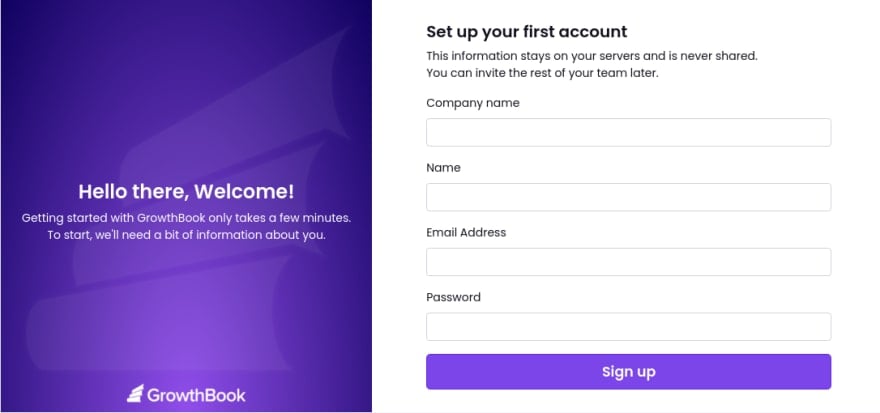
You will need a GrowthBook account. You can either run GrowthBook locally or using the cloud hosted GrowthBook at https://app.growthbook.io. If you are using the GrowthBook cloud, you can skip to step 3. If you are installing it locally, here is the quick start instructions - or you can follow the self hosting instructions.http://localhost:3000 and create your first user account.
3. Set Environment Variables in your Next.js App
In GrowthBook, create a new SDK Connection. After doing this, you should see an API Host and Client Key (and a Decryption Key if you enabled encryption). Create the file.env.local in your Next.js app if it doesn’t exist yet and add this info there:
4. Create a Feature Flag
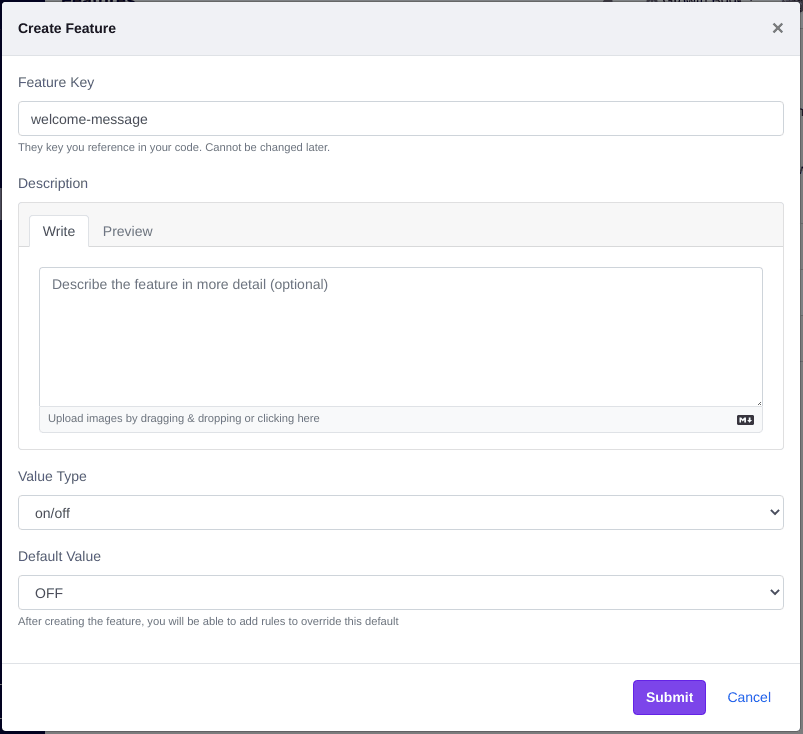
Back in the GrowthBook application, let’s create our first feature flag. Make a simple ON/OFF feature flag with the keywelcome-message. Leave the default value set to OFF. We will turn it on in a future step.
5. Integrate the GrowthBook SDK into our Next.js app
Next.js App Router uses Server Components by default, so we need to use the GrowthBook JavaScript SDK, not the React SDK (which only works client-side).app/growthbookServer.ts with the following contents:
app/page.tsx file.
Change the top of the file to match the following:
OFF for now.
6. Turn on for your Team
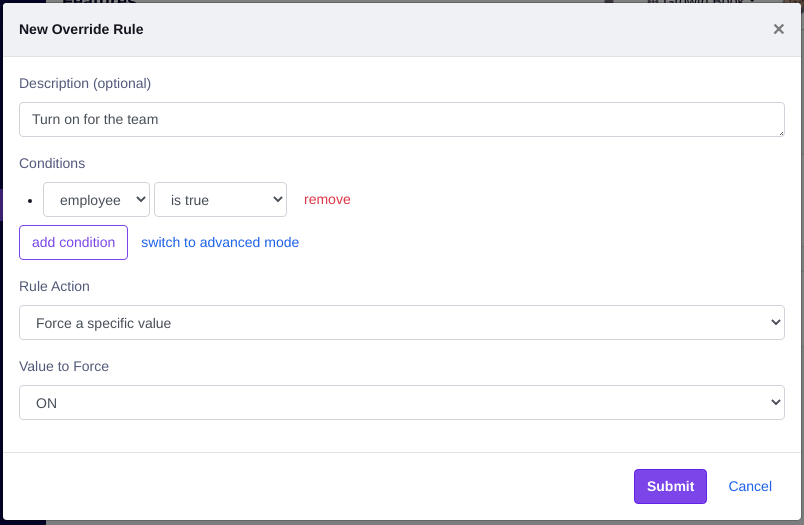
In our page, we hard-codedemployee: true when setting our targeting attributes. Let’s use that to turn on the feature for just employees.
Create a Force Rule for your feature:
employee: false in the page, you should see the welcome message switch back to OFF immediately.
The best part about targeting attributes in GrowthBook is that they are evaluated entirely locally. Sensitive user data is never sent over the network and there is no performance penalty. Some other libraries require an HTTP request to evaluate a feature for a user and this is often a deal breaker for performance.
7. Gradually roll out to your users
After you test the new feature within your team, you probably want to start rolling it out to real users. We can do that with another rule in GrowthBook: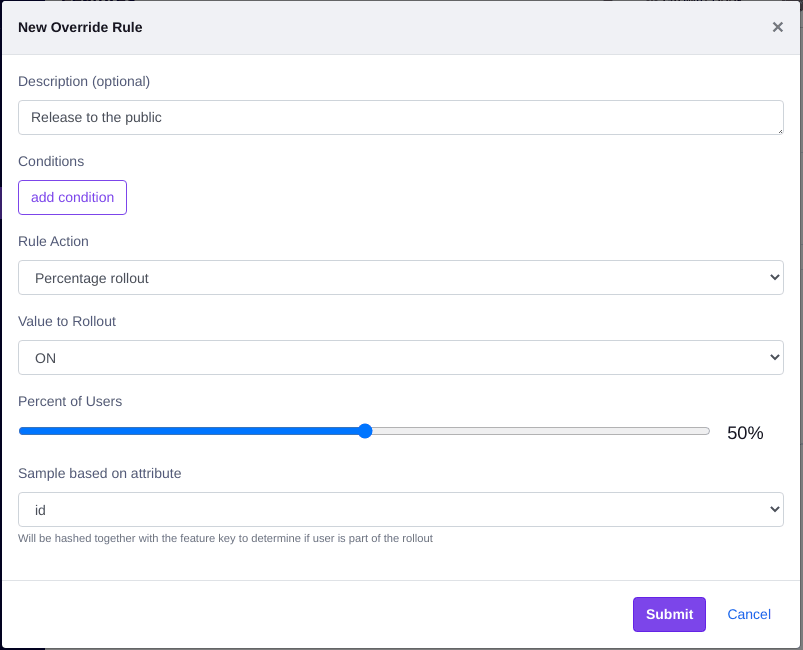
employee: false. That will ensure you skip the first rule we made and fall into the second rollout rule.
The GrowthBook SDK uses deterministic hashing to figure out whether or not
someone is included in a rollout (or A/B test). The SDKs hash together the
selected targeting attribute (id) and the feature key (welcome-message) and
coverts it to a float between 0 and 1. If that float is less than or equal to
the rollout percent, the user is included. This ensures a consistent UX and
prevents one user from constantly switching between ON and OFF as they
navigate your app.