

Import Your Statsig Data
Use GrowthBook’s import tool to migrate your Statsig configuration and experiments.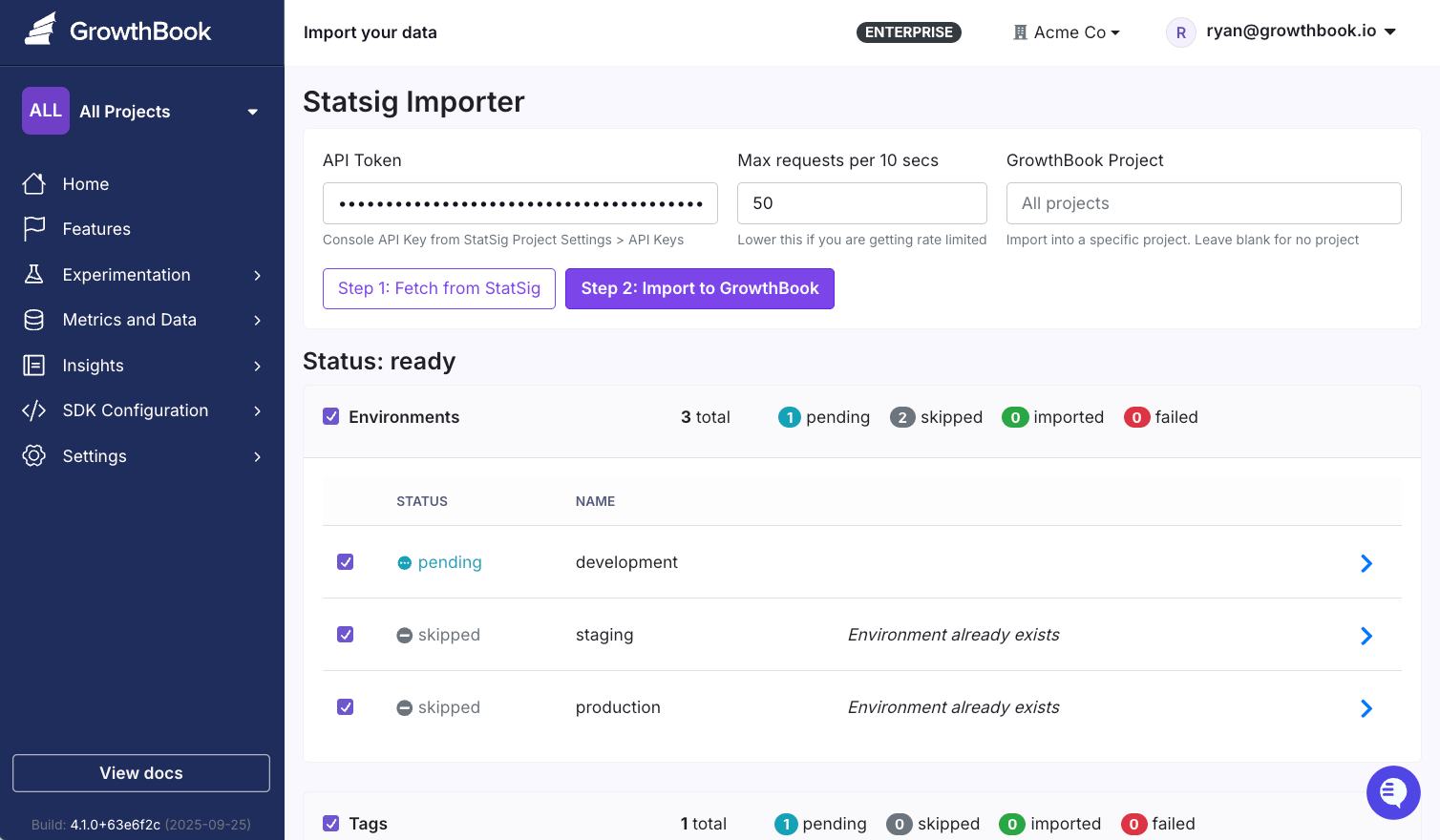
Step 1: Generate Statsig API Key
- In Statsig, go to Settings → ** Key & Environments**
- Create a new “Console” key with read-only permissions
- Copy the key (it starts with
secret-)
Step 2: Run the Import
- In GrowthBook, go to Settings → Import your data
- Select Statsig
- Enter your Statsig API key
- Click Fetch from Statsig
- Environments (production, staging, etc.)
- Tags
- Segments
- Feature Gates
- Dynamic Configs
- Experiments
Step 3: Review and Confirm
Items will show as:- Pending: Will be imported
- Skipped: Already exists in GrowthBook
- Uncheck items to remove them from the import
- Click the arrow (>) to view item details
- Click Import to GrowthBook when ready
Migrate Your SDKs
Automated SDK Migration Use our AI-powered migration assistant to automatically refactor your code from Statsig to GrowthBook SDKs. Supported SDKs- JavaScript
- Typescript
- React (client-side)
Looking for another language? Reach out to support@growthbook.io. We’re happy to help!
Installation
Download the subagent to your Claude Code agents directory:Using the Subagent
In Claude Code, simply ask:“I need to migrate this code from the Statsig SDK to the GrowthBook SDK: (@filename or directory)”The subagent will:
- Convert import statements to GrowthBook SDK
- Transform feature gates to boolean flags
- Migrate dynamic configs to feature values
- Flatten
StatsigUserobjects to GrowthBook attributes - Generate a migration report with any manual steps needed
Terminology Mapping
Next Steps
- Test your imported features in a development environment
- Set up your data source connections for metrics
- Configure webhooks and integrations
- Review team permissions and access controls