The only requirement for this tutorial is to install Deno. The installation process is straightforward, and you’ll be ready to follow along easily.
Introduction
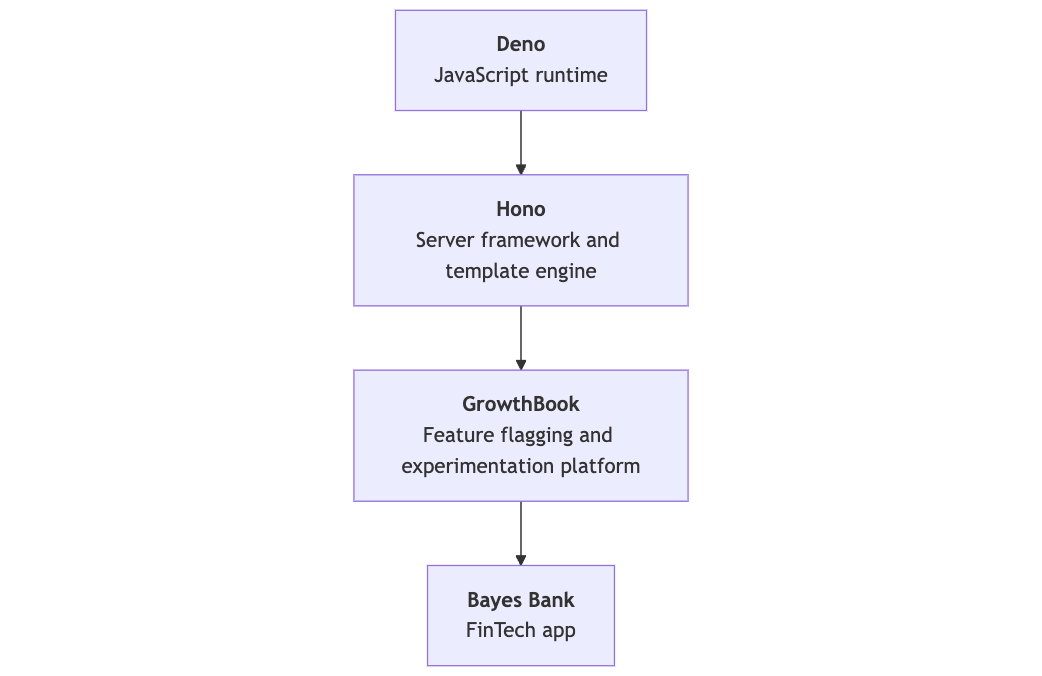
In this guide, we’ll use Deno, Hono, and GrowthBook to build a landing page for a fictional FinTech app called Bayes Bank. With this setup, we can use feature flags and A/B testing on a server-rendered landing page to test and deliver different experiences to users. All tutorial code is available in our Examples repo.
What are Deno, Hono, and GrowthBook?
- Deno is a JavaScript and TypeScript runtime developed by Ryan Dahl (creator of Node.js) that simplifies the development process and resolves many limitations from Node.
- Hono is a fast, lightweight web framework that works like an updated, modernized Express, optimized for Deno and other runtimes.
- GrowthBook (that’s us!) is an open-source platform for feature flags and A/B testing. We offer a user-friendly interface for creating and managing flags, running tests, and analyzing results.
Project setup
Initialize Hono
Run the following command to create a new Hono project, selecting Deno as your runtime. (Optionally, substitutemy-app for your project’s name.)
README.md: Contains basic instructions for starting the server.deno.json: Defines project dependencies and configuration.main.ts: The core file where your application logic will reside.
main.ts to main.tsx.
Install dependencies
Next, install GrowthBook and Tailwind CSS:deno add command registers dependencies via your import map in deno.json. The prefix before package names indicates which registry the package comes from.
Configure Tailwind
Generate a Tailwind config:postcss.config.js and tailwind.config.js. Update the Tailwind config to target the right files:
src/css folder and add a new file called input.css. Add Tailwind directives to generate base styles:
Configure development scripts
Add the following tasks todeno.json to streamline development:
deno task dev will watch for file changes, automatically restart the server, and recompile CSS.
Building the app layout
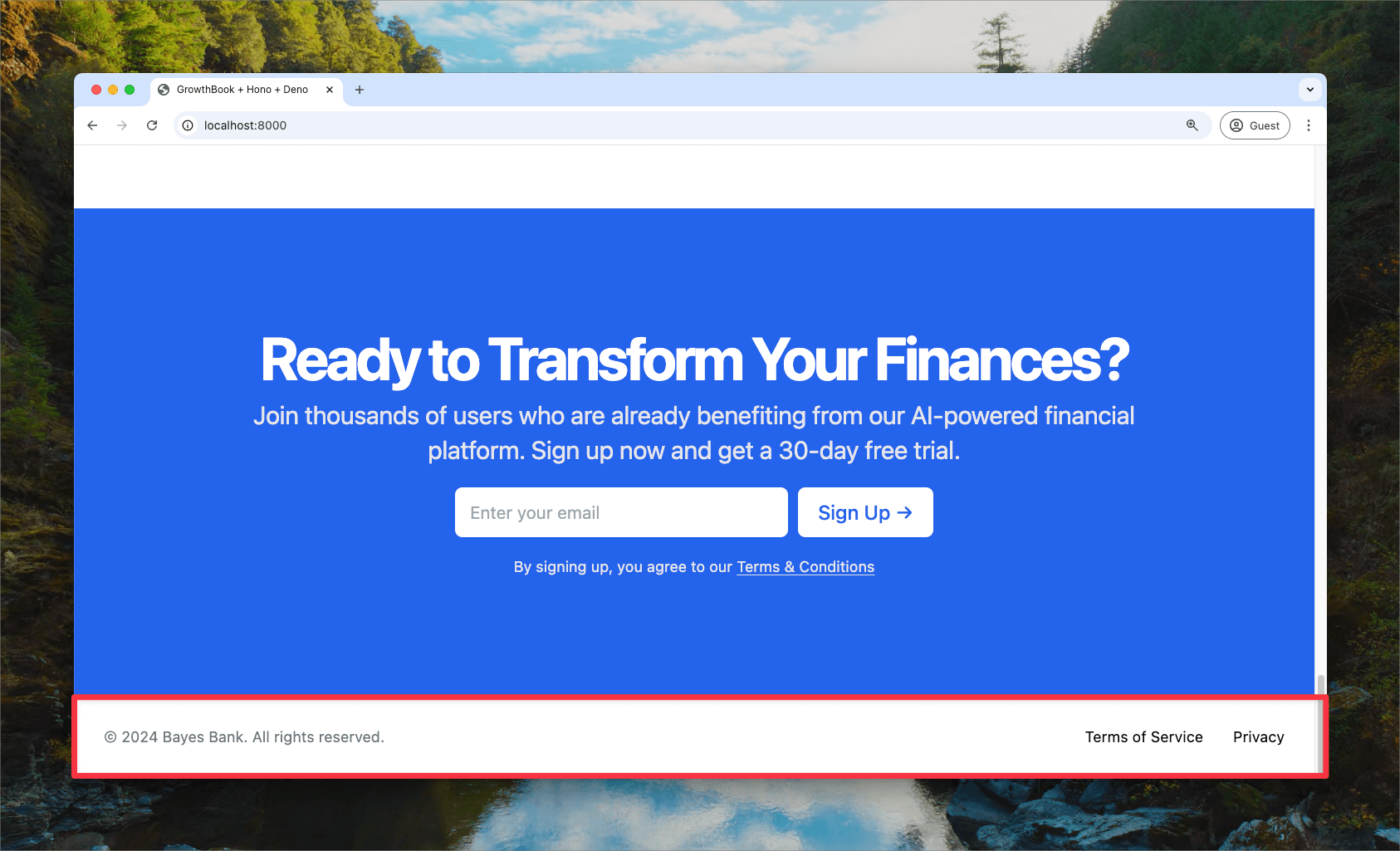
To build the landing page, create a folder insrc called components. Add the following components for the page layout: Header.tsx, Hero.tsx, Copy.tsx, and Footer.tsx.
All of these components are available in the demo repo. Here’s the Footer component as an example:
/src/components/Footer.tsx
Main server code
The code generated when initializing Hono instantiates a new app, defines a route handler for the homepage, and starts the server.main.tsx
Navbar and Footer components and build a layout component for reuse:
main.tsx
Hero.tsx and Copy.tsx components to define the page content, then create the Page component to bring it all together.
main.tsx
main.tsx
main.tsx file in the demo repo.
Integrating GrowthBook
Create a file calledgrowthbookMiddleware.ts to use feature flags and A/B tests in the app:
growthbookMiddleware.ts
main.tsx:
main.tsx
Using feature flags in the app
Passgb to components to conditionally render elements based on feature flags. For Bayes Bank, we want to test different headlines on the landing page to see if they boost conversions.
Update the text in Hero.tsx to be handled by a feature flag:
/src/components/Hero.tsx
getFeatureValue method takes the flag’s ID (headline) and a fallback value, in case the app can’t reach GrowthBook’s API. Now, different headlines will appear based on how the feature flag is configured in GrowthBook.
Configuring GrowthBook
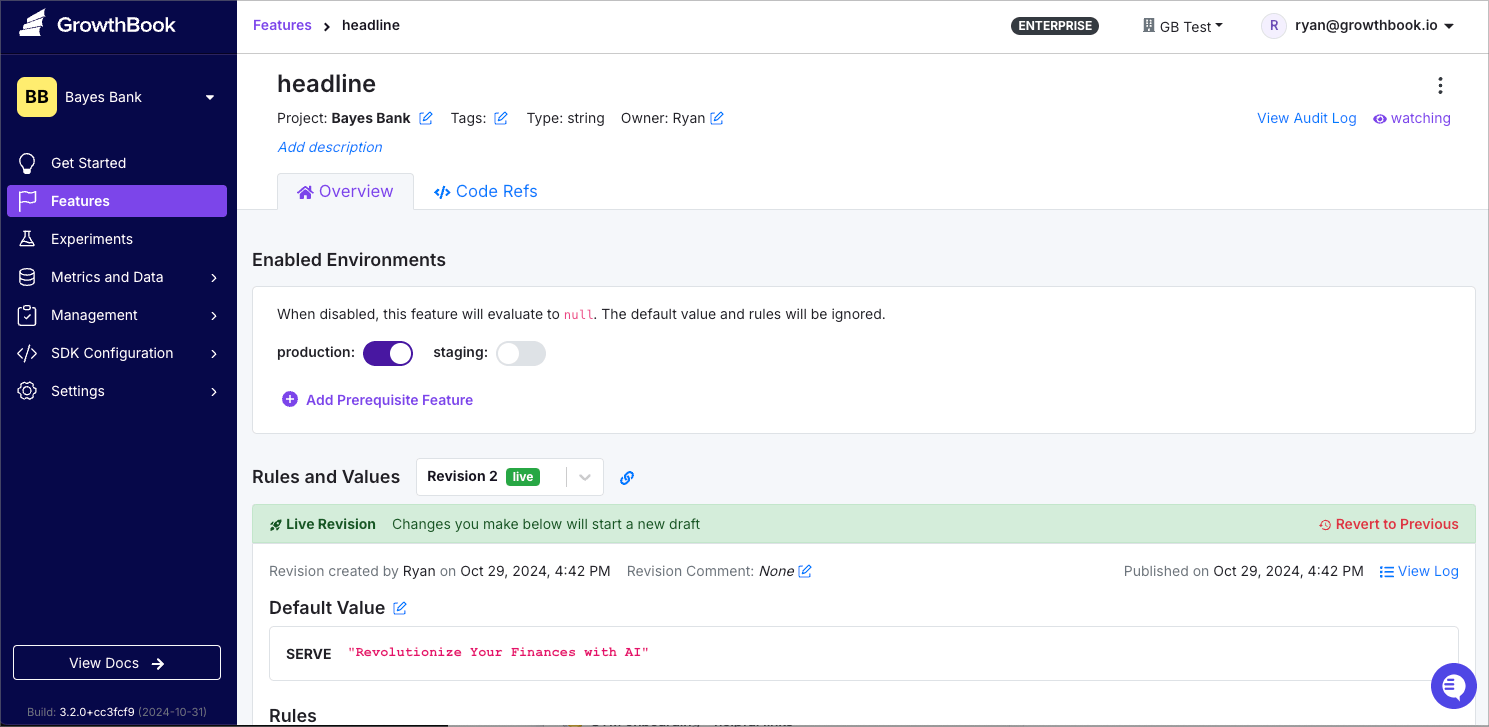
In GrowthBook, create a feature flag calledheadline and set its type to “String” with a default value of “Revolutionize Your Finances with AI.”
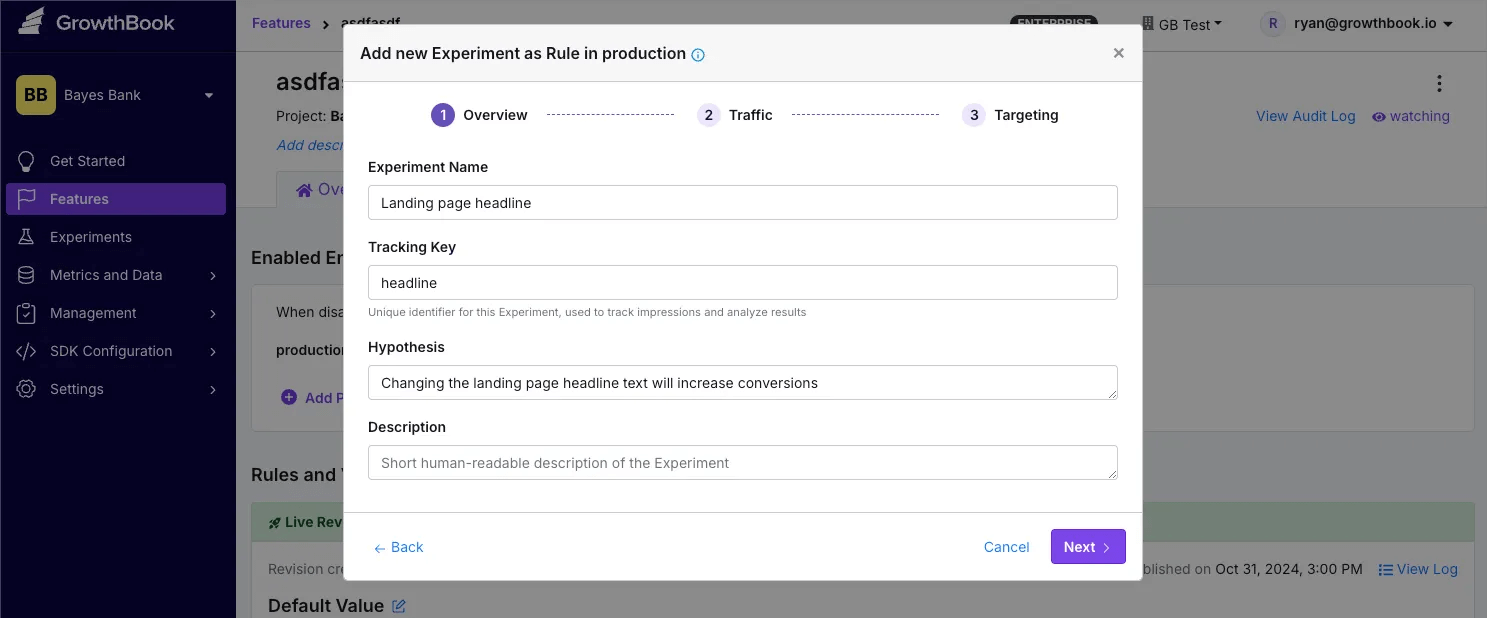
0 to the default value, “Revolutionize Your Finances with AI,” and variation 1 to “Save Money and Grow Your Wealth with AI.” Click Save to start the experiment 🧪
Below, check out the control and variation, all rendered server side!