

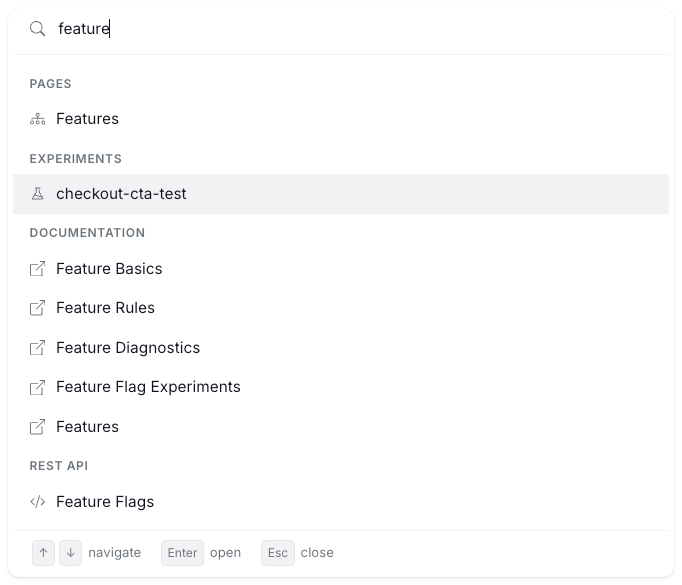
Open the command palette
You can open it two ways:- Press
Cmd+Kon Mac orCtrl+Kon Windows and Linux. The shortcut works on every page and toggles the palette open or closed. - Click Search in the left sidebar.
Esc or click outside the palette to close it.
What you can search
Start typing in the palette. Results group into the sections below, in this order:
Each section shows up to five results. If a section has more matches, a Show N more… row reveals the rest.
Archived features, experiments, and metrics aren’t indexed. Deleted dashboards are also excluded.
How matching works
Pages, docs, and REST API rows use strict matching, so short queries route precisely. For example, typingexp surfaces the Experiments page first.
Features, experiments, metrics, saved groups, and dashboards use fuzzy matching with smart tokenization. Identifiers are split on camelCase, kebab-case, and snake_case boundaries before matching, so myFeatureFlag, my-feature-flag, and my_feature_flag all match the query feat flag. Queries with minor typos still match.
Results are scoped to your permissions and the current project. You only see pages and resources you can access.
Keyboard shortcuts inside the palette
↑and↓: move between results.Enter: open the selected result. Internal results open in the same tab. Documentation and REST API results open in a new tab.Esc: close the palette.- Hovering with the mouse also moves the selection.