

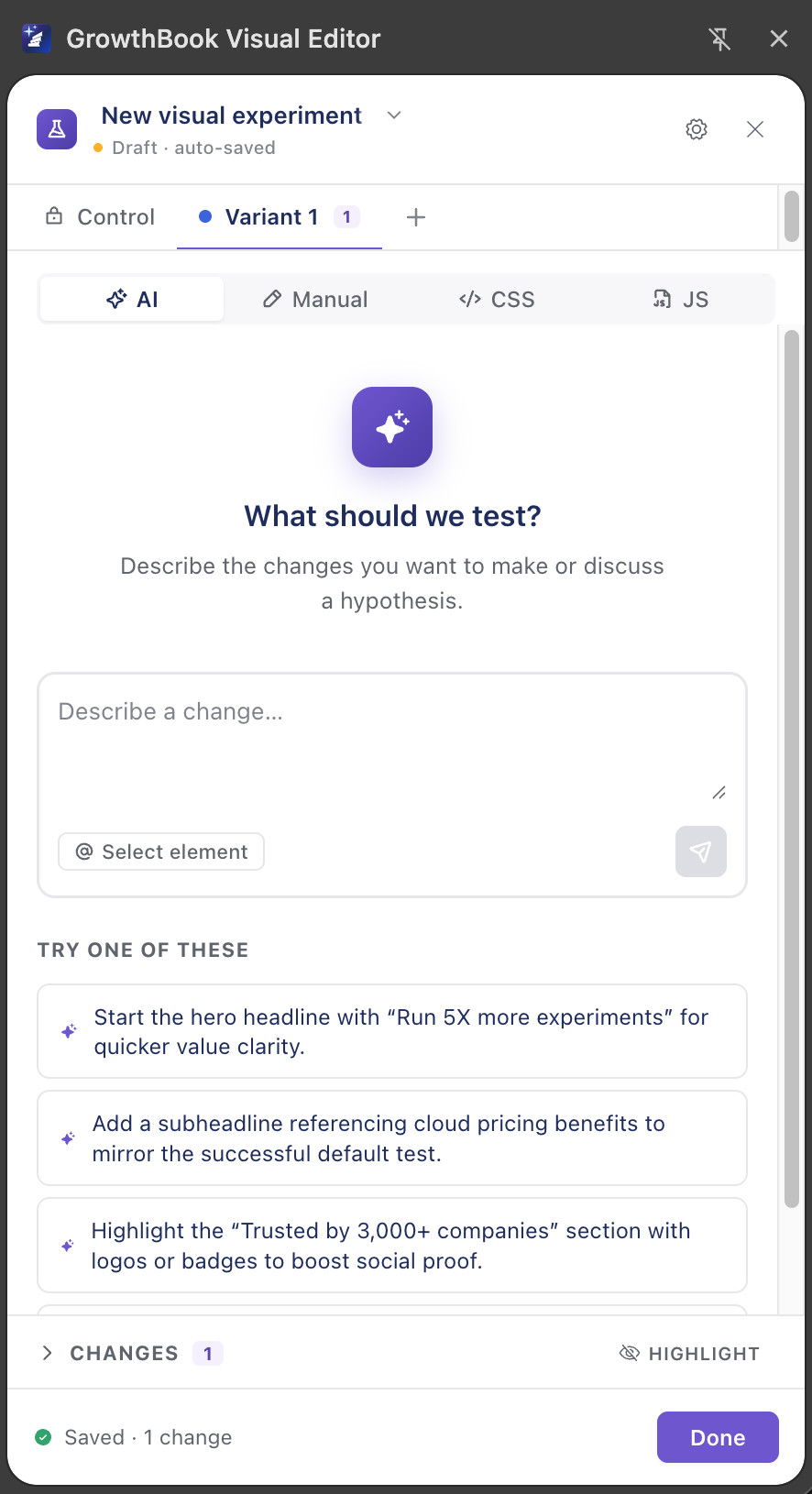
- AI mode — describe the change in plain language (“make the hero headline shorter and the CTA green”) and the editor proposes the edits for you to preview and accept.
- Manual mode — point and click to select any element and edit its content, typography, layout, background, classes, and more with structured controls.
- Figma & image import — turn a Figma frame or a mockup image into a high-fidelity, testable component the editor builds and places on the page for you.
Looking for the old in-page editor?The Visual Editor is now a Chrome side panel. If you’re using an older version of the GrowthBook DevTools extension with the in-page overlay editor, see the Legacy (in-page) editor docs.
Benefits
- Prompt-driven editing: Describe changes to text, images, buttons, spacing, and more in AI mode. Pin an element when you want the AI to focus on a specific spot on the page.
- Run experiments without dedicated eng time: Draft and QA variations in the browser; your site still needs the GrowthBook SDK for production delivery. See Running on your site.
- Manual precision: Fine-tune typography, spacing, links, and visibility with structured controls when you know exactly what you want. See Manual mode.
- Transparent by design: Preview links, a debug panel, and warnings when you edit a live experiment. See Preview and QA.
Join the Visual Editor community on SlackConnect with the GrowthBook team and other users. Join the Visual Editor channel on Slack.
Quick start
- Install and connect the Chrome extension (~30 seconds).
- Open the side panel on the page you want to test and start editing in AI mode or Manual mode.
- Set up the SDK on your site so variations render for real users.