

Organization
As you scale up your usage of GrowthBook and start running many experiments, keeping everything organized and easy to find is essential. GrowthBook includes a number of organizational structures to help you scale.Organizations
The organization is the highest level structure within GrowthBook. An organization contains everything within your GrowthBook instance: users, data sources, metrics, features, etc. For both cloud and self-hosted users, it is possible for users to join multiple organizations. Users can belong to multiple organizations, but each organization is otherwise entirely independent of the others. For some, complete isolation of the teams or subdivisions within the company may be desired. For example, if your company has two or more largely independent products (e.g., Google has Search and Google Docs), you can set up multiple organizations per product. For self-hosted enterprise users, we support multi-organization mode, which also comes with a super-admin account type that can manage users across organizations.Environments
In GrowthBook, you can create as many environments as you need for feature flags and their rules. Environments are meant to separate how your feature flags and rules are deployed. Each environment can have one or more SDK API endpoints specified when you create the SDK, allowing you to differentiate the rules by environment. For example, you might have environments for “Staging”, “QA”, and “Production”. While testing the feature, you can set specific rules to on the “development” or “QA” environment, and when you’re ready, you can move applicable rules to the “production” environment. You can add an arbitrary number of environments from the SDK Connections → Environments page.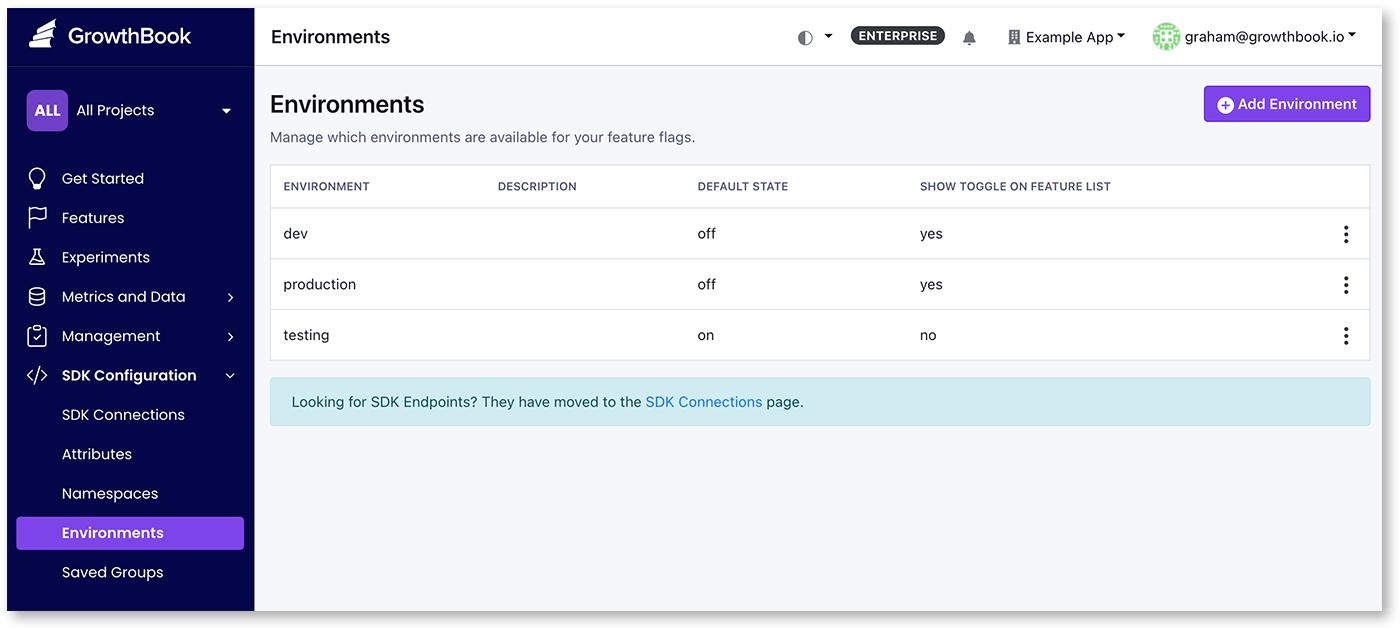
Projects
Within an organization, you can create projects. Projects can help isolate the view of GrowthBook to just the sections that apply for that GrowthBook user. Projects are a great way to organizationally separate features, metrics, experiments, and even data sources by team or product feature. For example, you could have a project “front-end” and one for “back-end”, or by team like “Growth” and “API”. Unlike separate organizations, projects can share data. Projects are managed from the Settings → Projects page.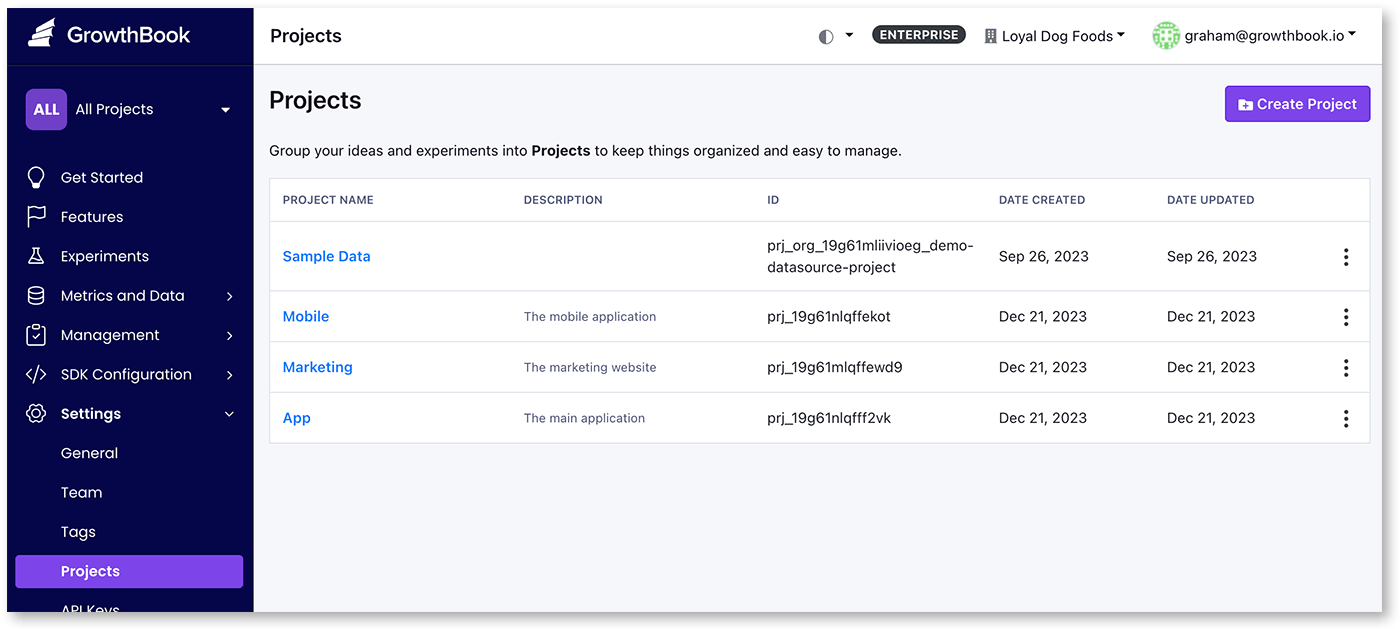
Tags
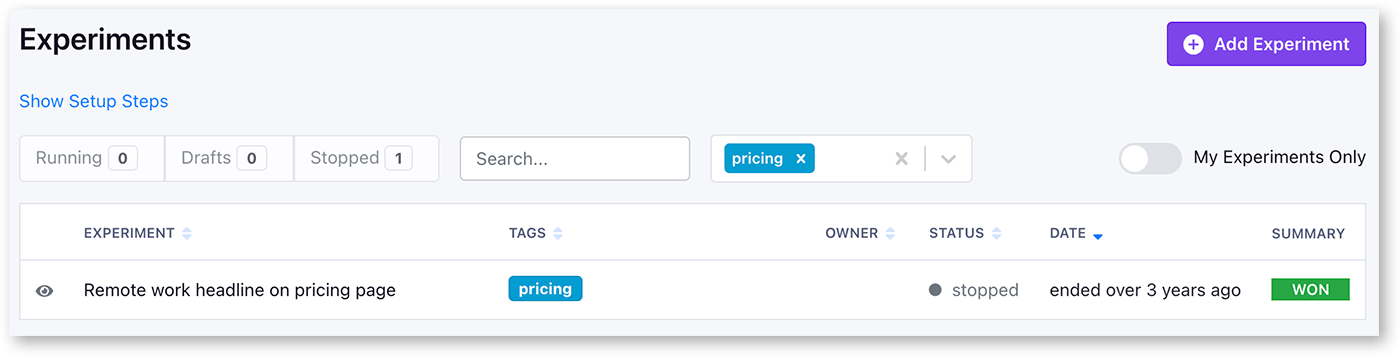
Another way to organize GrowthBook is with tags. With tags, you can quickly filter lists, and select metrics. For example, if you tagged all experiments to do with your checkout flow with the tag “checkout”, you can quickly see this in the list by clicking on ‘filter by tags’ on the experiment list. Tags can be color-coded and managed from our Settings → Tags page. You can add multiple tags per item you are tagging.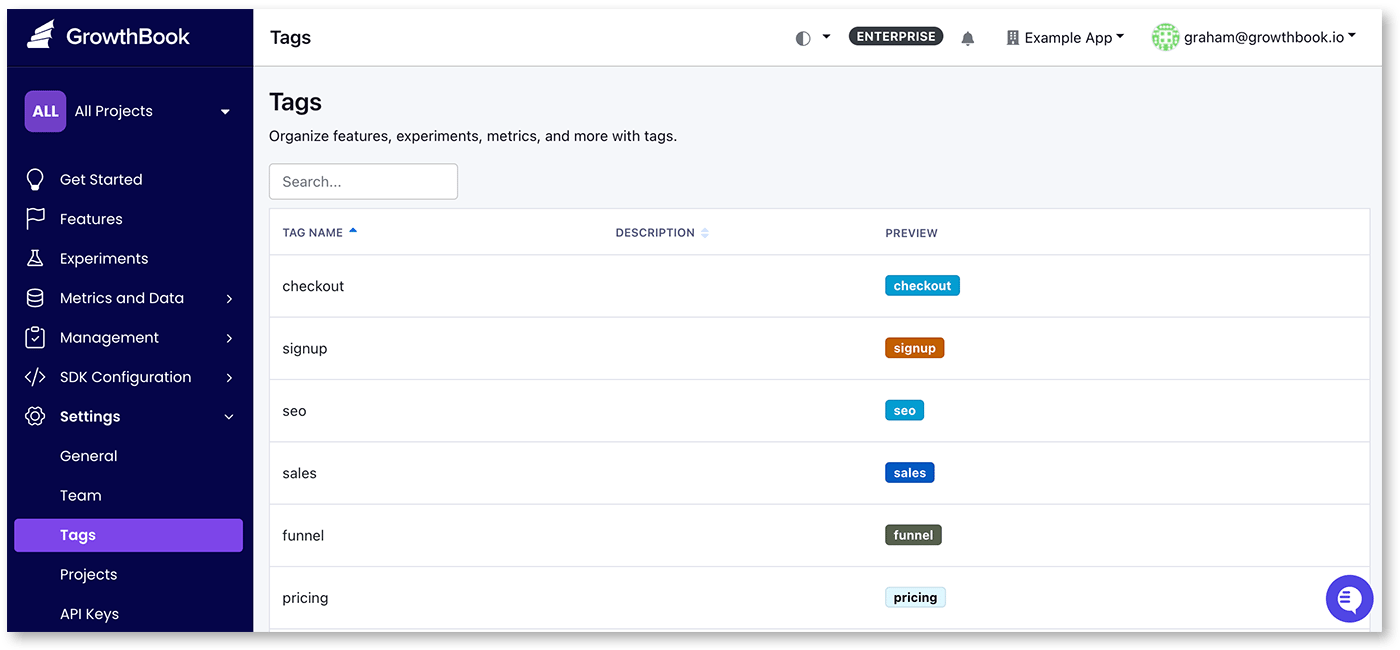
Naming
Another organizing principle you can use is the naming of your experiments and features. Because GrowthBook makes it easy to quickly search the list of features and flags, using naming conventions can be an effective way to organize your project. We’ve seen several strategies be successful here, but as a general rule, you’ll want to be as specific as possible with naming features and experiments. For example, you can use <project scope>_<project name> or the year, quarter, or section plus the name of the experiment, e.g.: “23-Q4 New user registration modal“ or “23-Team3 Simplified checkout flow”. This lets you quickly see when the experiment was run or which team worked on it.Hygiene & Archiving
As the number of features and experiments grows, you will want to remove past items that are no longer relevant. Within GrowthBook you can archive and delete. Deleting something will permanently remove items from GrowthBook. Archived items in GrowthBook won’t be deleted, but they are removed from the main part of the UI and not available for adding to new experiments (for archived metrics). Archived items can also be restored at any time. These methods help you keep your UI clean and relevant.Source of Truth
If you run an experimentation program for a long enough time, you’ll find yourself with an experiment idea that seems really familiar, and people will wonder, “Didn’t we already test this?” If you don’t have a central repository for all your experiment results, it can be difficult to find if you did test this previously, and even if you did, if what you tested was similar enough to the new idea not to have to test it again. GrowthBook is designed to help with this by creating a central source for the features you’ve launched and the experiments you’ve run. To help facilitate this, GrowthBook has created a number of features to help you capture meta information.Meta Information
Features and experiments can all have metadata attached to them. The purpose of this is to help capture all the meta-information around a feature or experiment that might help contextualize it for posterity and help capture the institutional knowledge that your program generates. This is also very helpful when new members join your team, so they don’t just suggest ideas you’ve run many times already. By default, GrowthBook has fields for a description, hypothesis, and tags. The description is a free-form text field, and meant to capture the broader context of the feature or experiment. The hypothesis is a structured field that is meant to capture the specific hypothesis you are testing with the experiment. The tags are a way to categorize the feature or experiment. You can add multiple tags to each item. For experiments, you should capture the original idea, any screenshots of similar products, and, most importantly, capture images/screenshots of the control and variants for the experiment. Quite often, someone will suggest an idea you’ve run previously. In these cases, it is vital to be able to find out what exactly you tested previously - it’s possible that the new idea is slightly different, or you may decide that it is the same and try testing another idea, or you could decide that your product is substantially different, and the same idea may be worth testing again. To make this decision, it is essential to capture not just the experiment results but the broader context of what your product looked like at the time and the test variants. Getting your team to document is always a challenge. GrowthBook takes two approaches to help with this. The first is to make it super easy to add documentation directly in the platform you’re already using for the experiment. Secondly, we added launch checklists, which require completing certain tasks before your team is able to start an experiment.Custom Fields
Enterprise users can add custom fields to features and experiments. For example, these custom fields can be used to require links to Jira tickets, or to capture additional information that is important to your process or organization. Custom fields can be added from the Settings → Custom Fields page. Custom fields can be set to required or optional, and scoped to specific projects. Currently, custom fields has support for URL, text, textarea (larger text), markdown, number, enum, multiselect, date, and boolean types.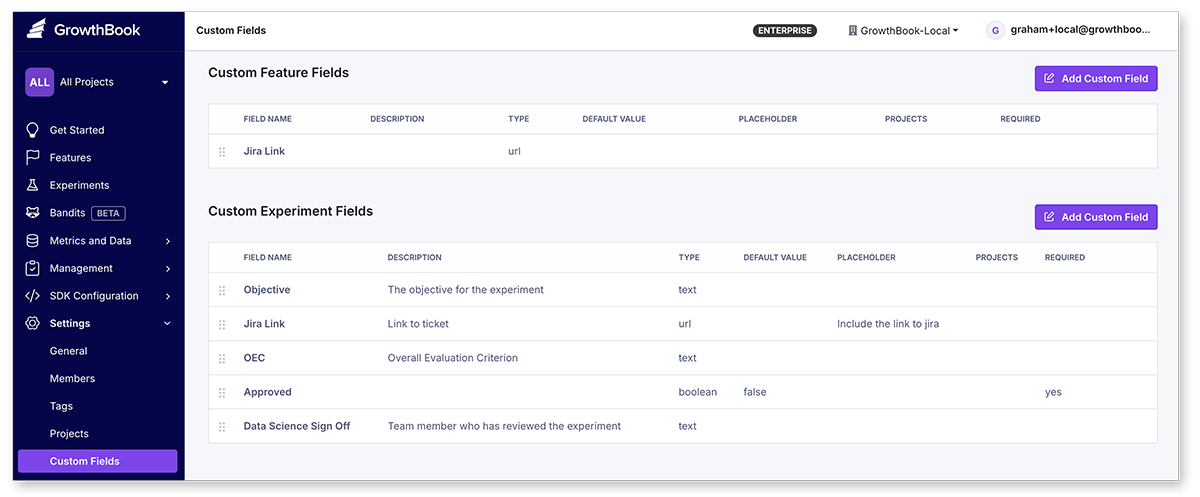
Custom Markdown
Enterprise users can inject custom markdown content into key pages of the GrowthBook app. This feature allows you to provide organization-specific guidance on processes for setting up experiments and features. Additionally, we’ve made certain Handlebars variables available on each page. This enables you to use Handlebars templates to dynamically customize your messaging based on context. For example, writingGuidance for experiments with tags... when the experiment has at least one tag.
To view and edit custom markdown, go to Settings → General → Custom Markdown → View Custom Markdown Settings.
Searching
GrowthBook has a powerful search feature that allows you to quickly find the feature, experiment, or metrics. By default, text searches with this search input will search based on the name, description, and other meta information. You can also search using syntax search to search for specific fields.Syntax Search
Syntax search allows you to search for specific fields in GrowthBook. The syntax search allows for exact matching, starts with, greater, less, and contains. You can also negate any of the operators using !. Syntax searches are constructed in the format of[field]:[operator][value]. You can also combine multiple
fields using the same syntax. For example, name:~pricing status:running will search for all running experiments
with the name containing the string “pricing”.
You can also add quotes to search for fields that contain spaces. For example,
name:"New Feature" will search for
the name field that contains the text “New Feature”.
Experiments Syntax Fields
Examples
Features Syntax Fields
Examples
on in the production environment