

1. Create a service account for GrowthBook
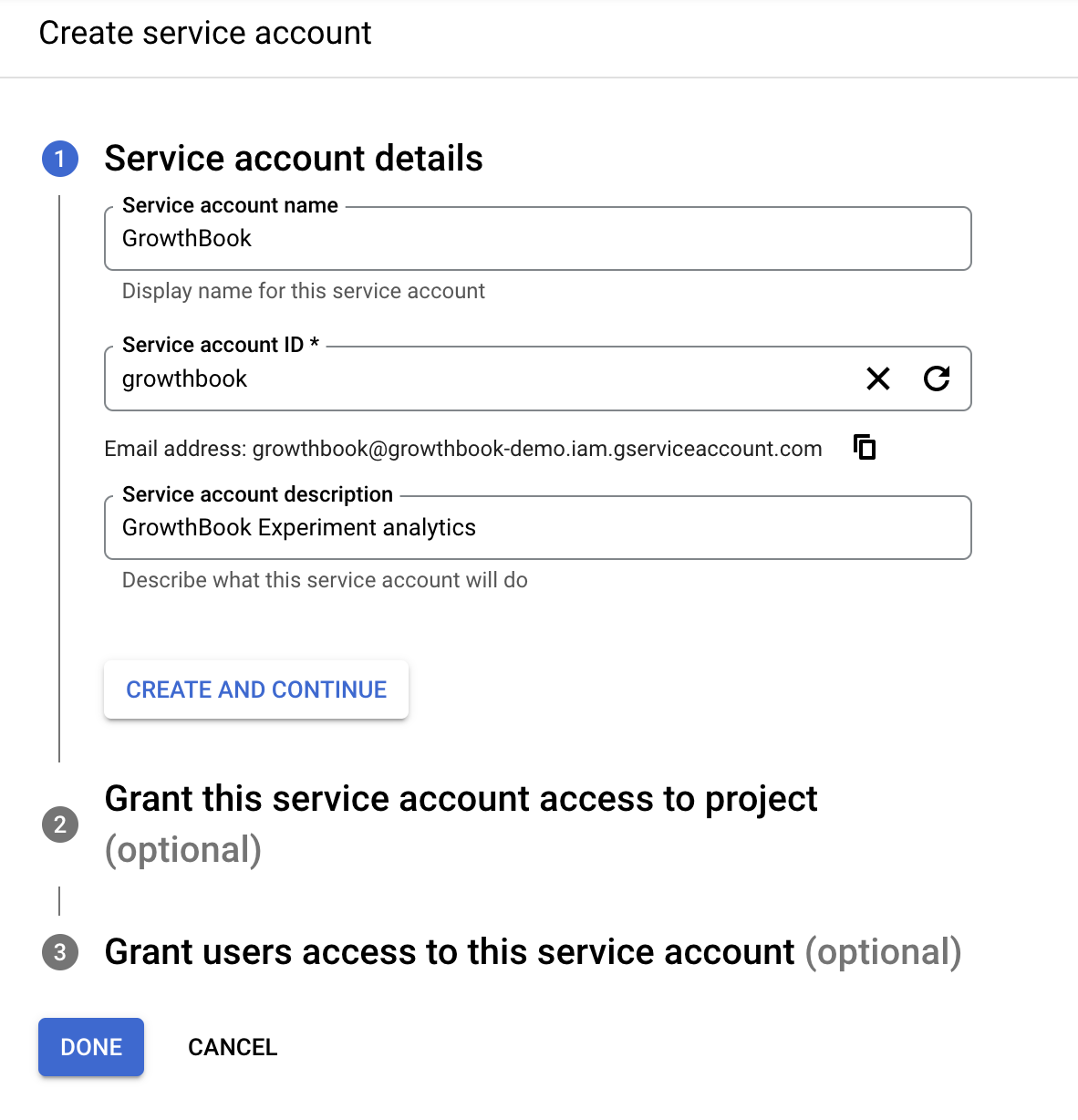
Within your Google Cloud console account, create a service account for GrowthBook to use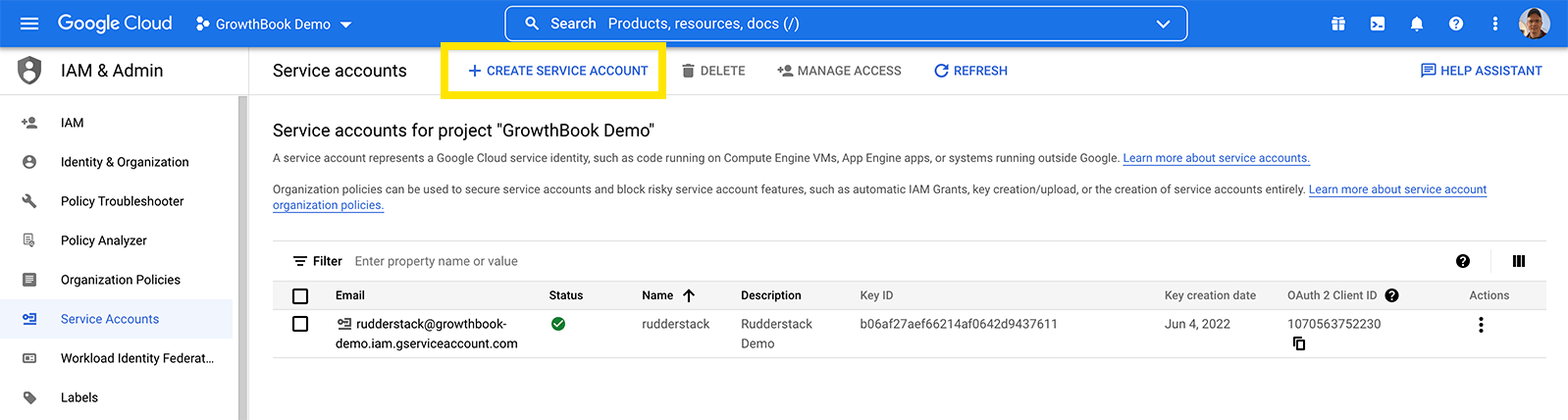
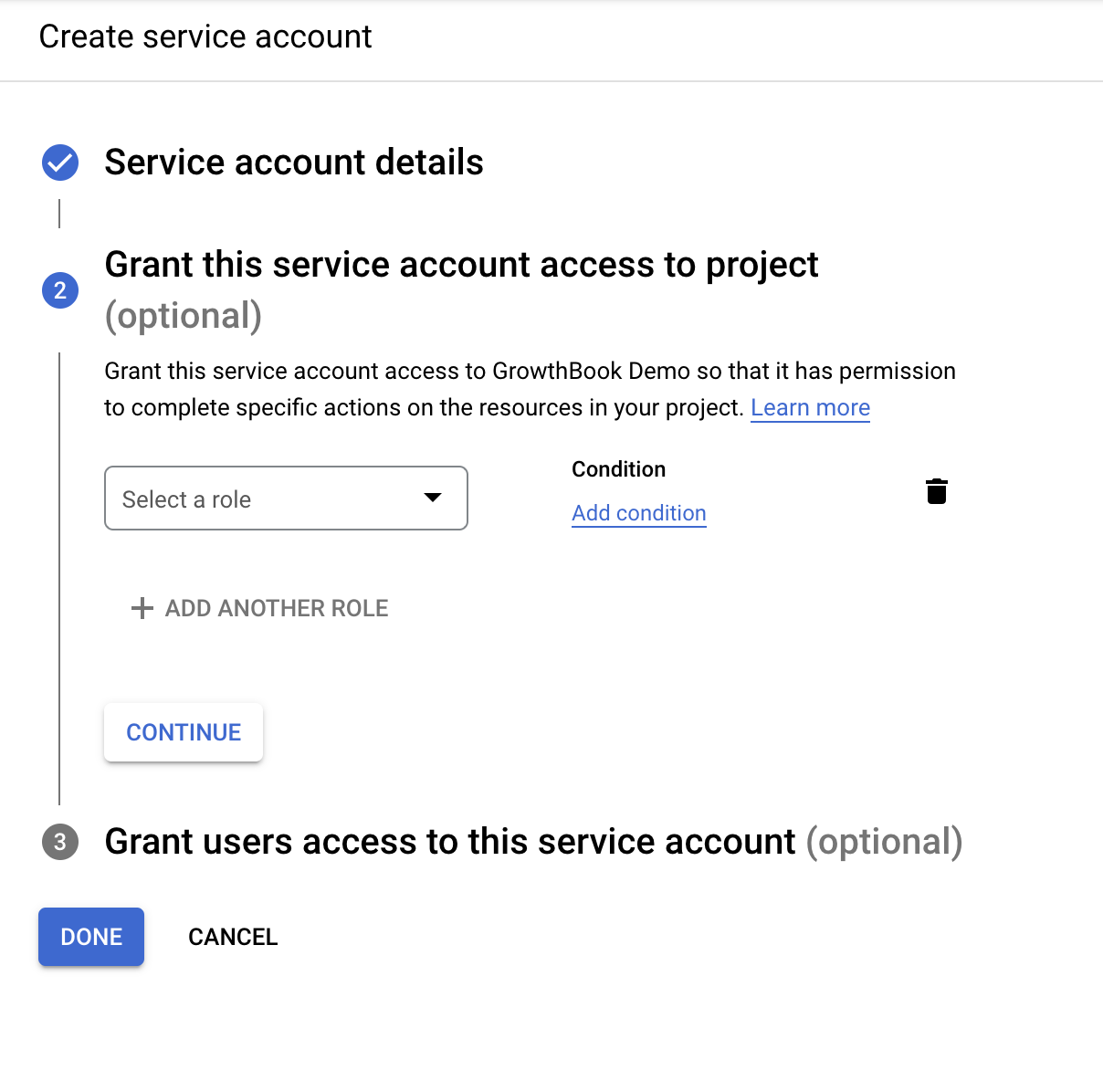
- BigQuery Data Viewer
- BigQuery Metadata Viewer
- BigQuery Job User
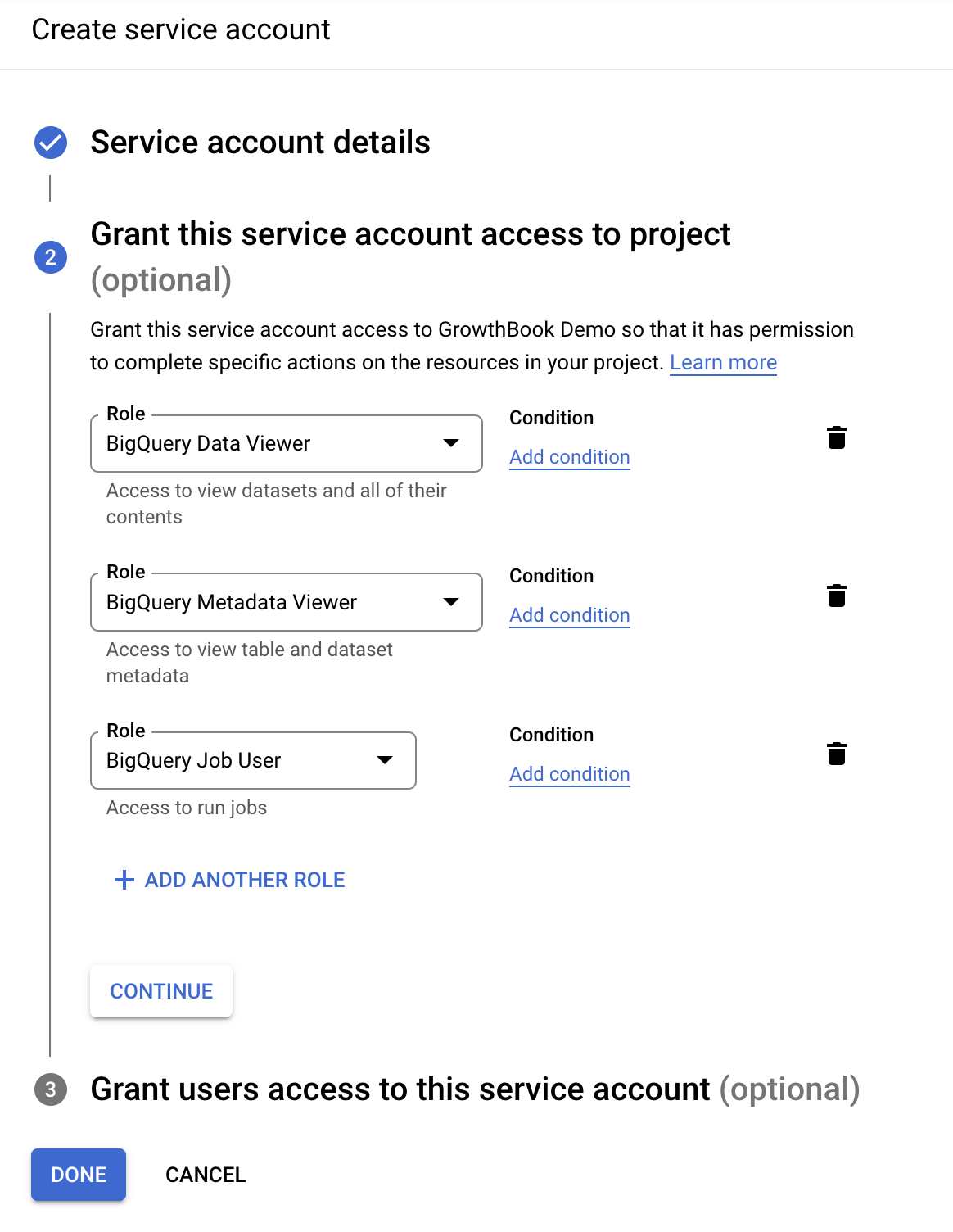
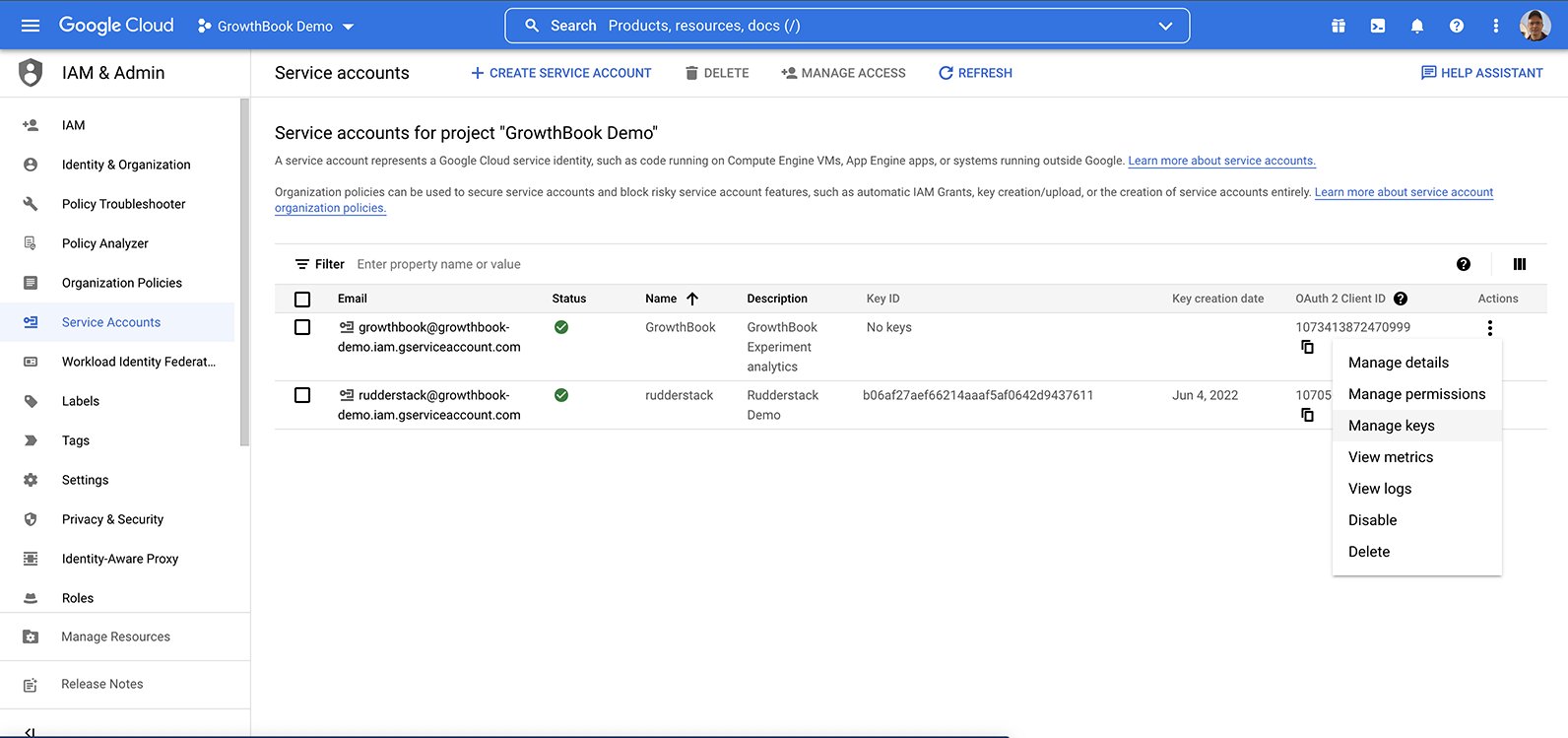
Key ID. We need to add an access key to this account so the
credentials can be added to GrowthBook. Click on actions, and select Manage Keys.
- Auto-discovery from environment variables or GCP metadata (only available when self-hosting)
- Upload a JSON key file for the service account
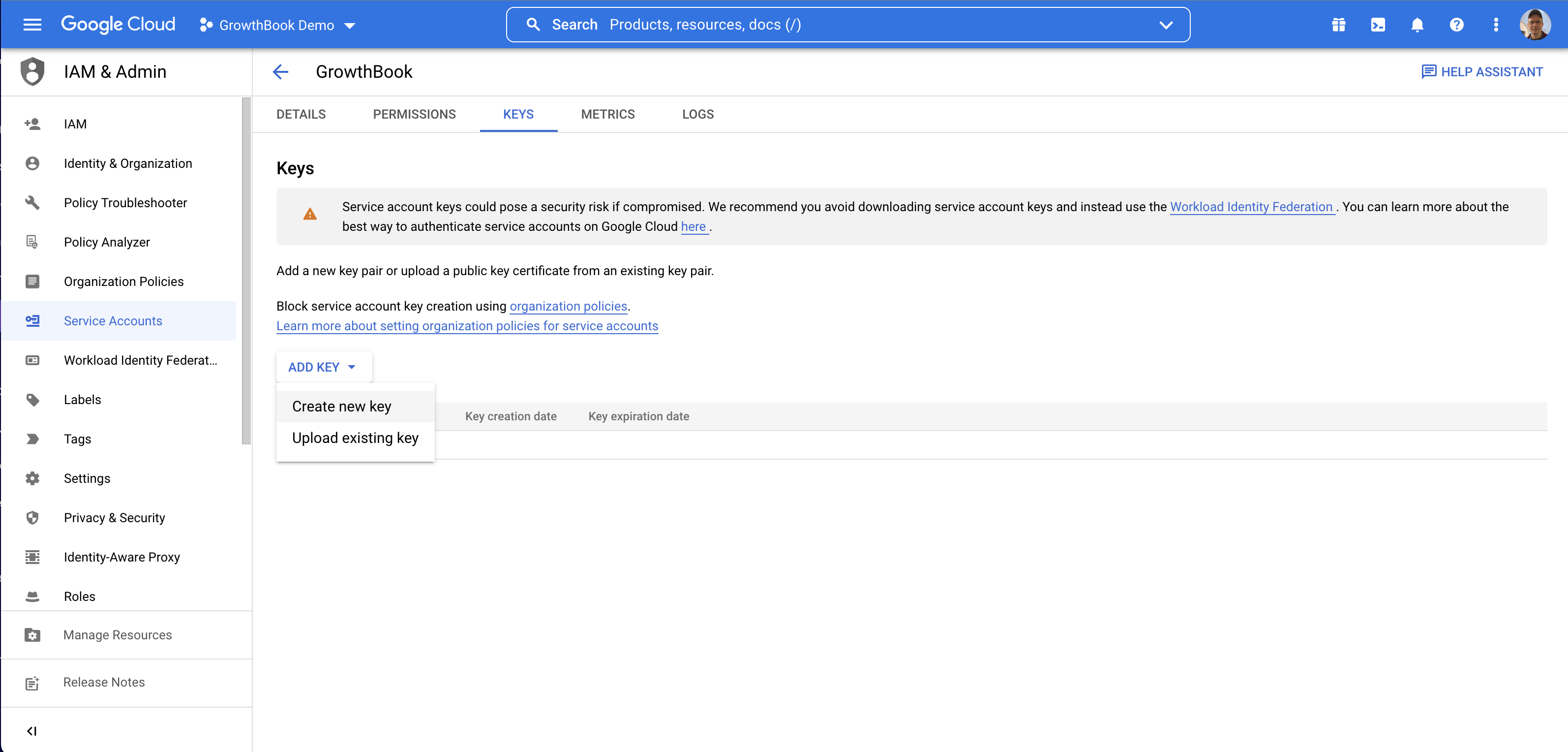
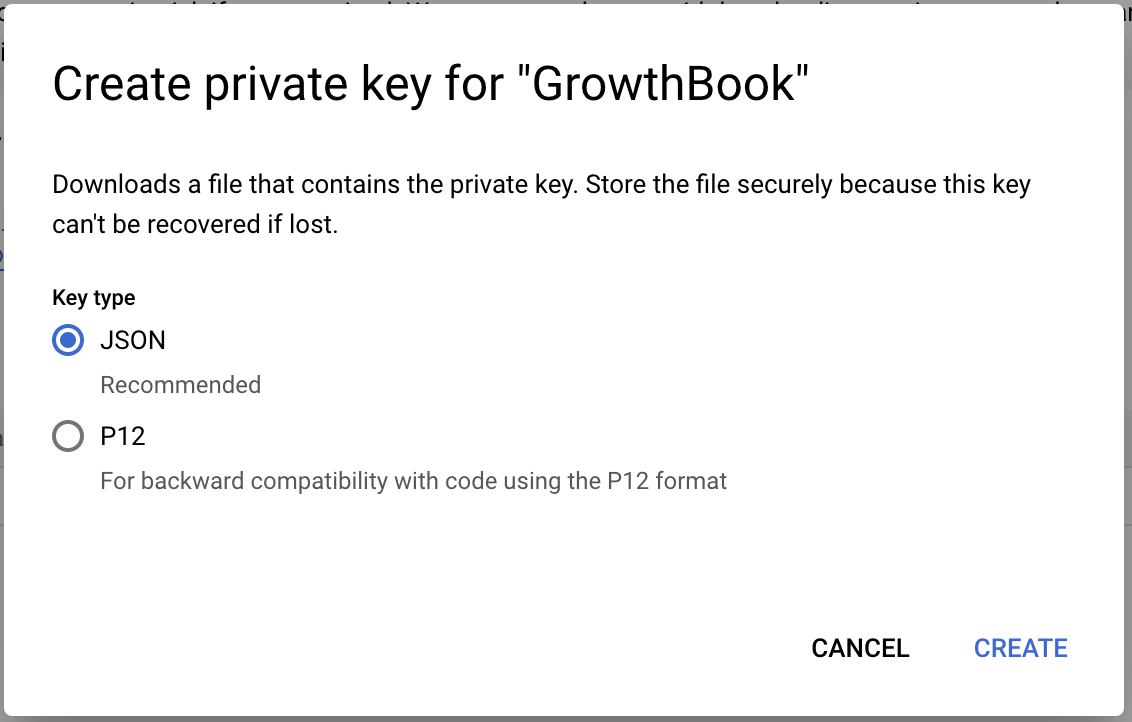
2. Connect GrowthBook to BigQuery
From the Metrics and Data → Data Source page, click on add new data source and select the event tracker you’re using. If your event tracker is not listed, or you’re using something custom, click on the “Custom” button at the bottom. Selecting an event tracker here will pre-populate the experiment exposure query which is need to determine which user saw which experiment variation. Depending on your needs, you may still need to adjust these queries to match your specific schema.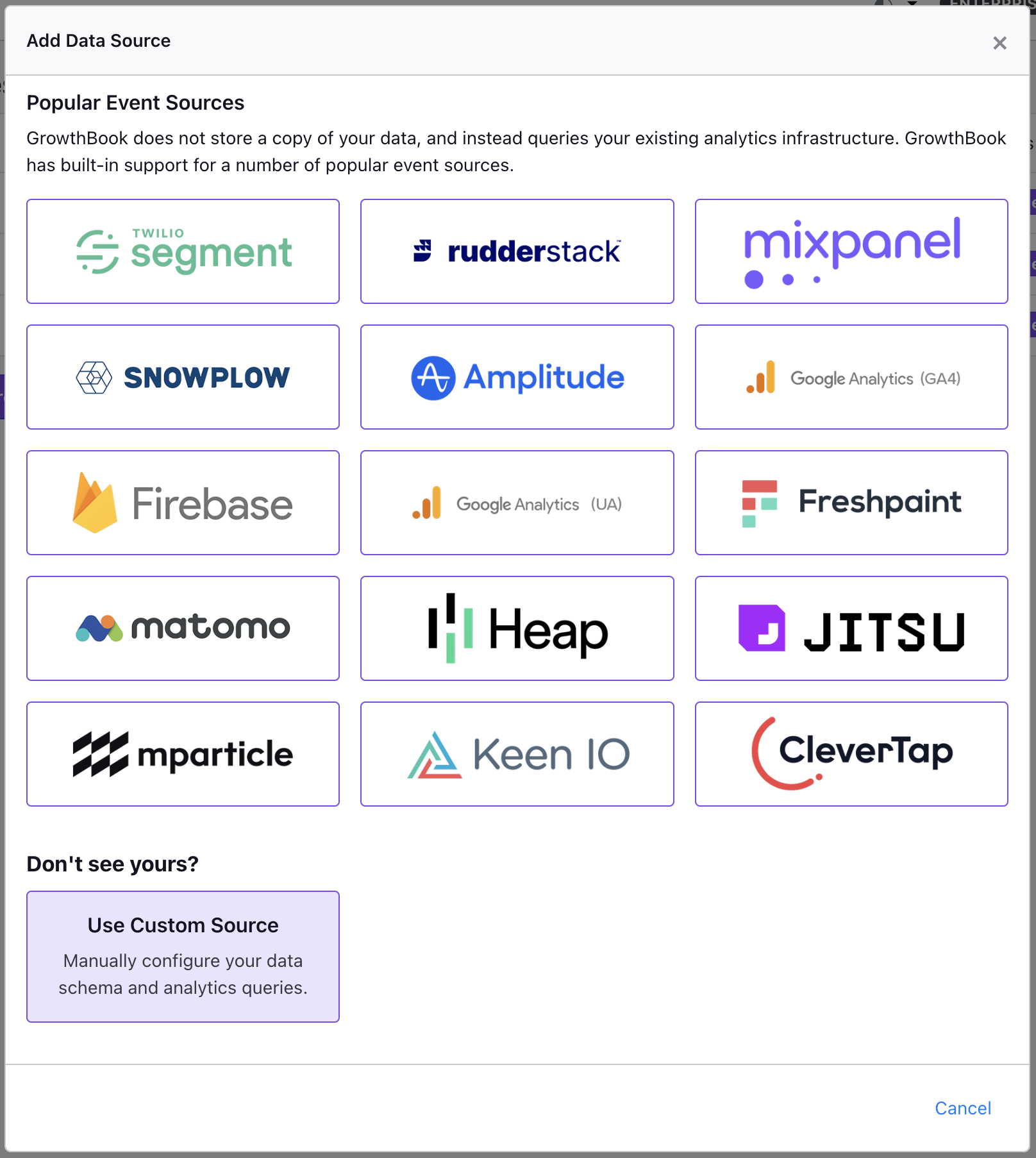
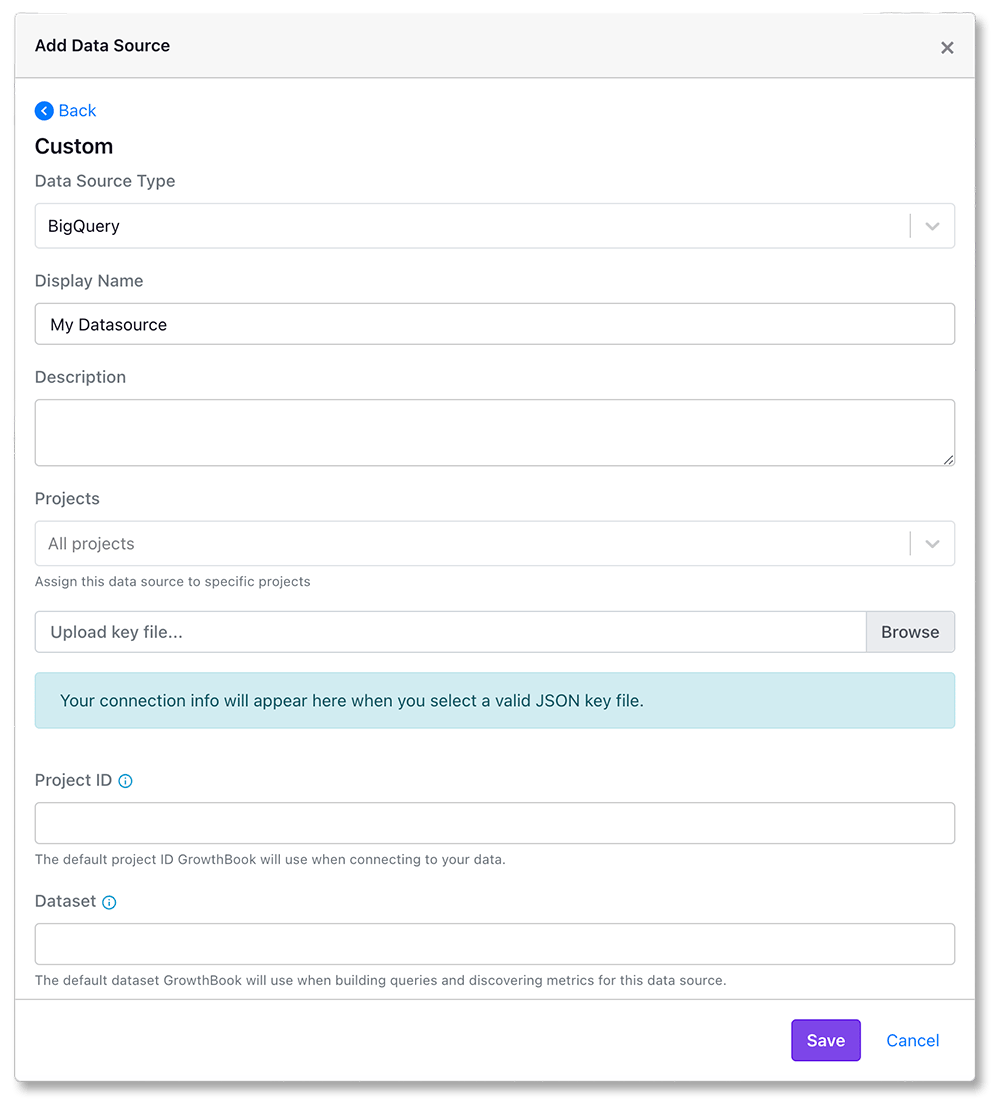
Project Id and Dataset you enter as the default ones when creating queries.
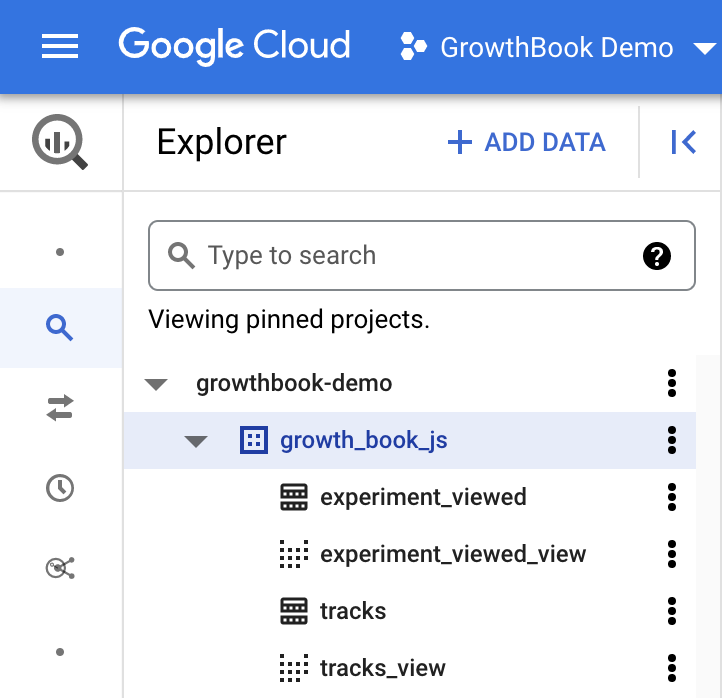
You can get the value for these fields from the Google Cloud explorer.
You will see the top level project id, and when expanded, find the dataset which has your experiment exposure
table (which will be experiment_viewed if you use Segment or Rudderstack).
Enabling Data Pipeline Mode
Pipeline mode can reduce query costs if you grant the GrowthBook service account write permissions in your data warehouse. More details can be found here.Monitoring GrowthBook query cost
Whenever we query your BigQuery database we add{ integration: "growthbook" } as a label to the query job to make it easy for you to monitor cost or filter GrowthBook query jobs by label for other use cases.
Read more about how to group by label value for a specific key here.