

No Access to Admin and even custom roles, each with a specific set of permissions (see below).
GrowthBook’s user permissions system allows organizations to define the level of access each user has within the application. This granular control ensures that users can only access the resources they need to perform their job, enhancing security and privacy.
Plan availabilityOn the Free plan, members can only be assigned the
Admin role — assigning any other role (including custom roles) requires a Pro or Enterprise account. Organizations created before this limit was introduced are unaffected, and existing role assignments always keep working.Adding Users
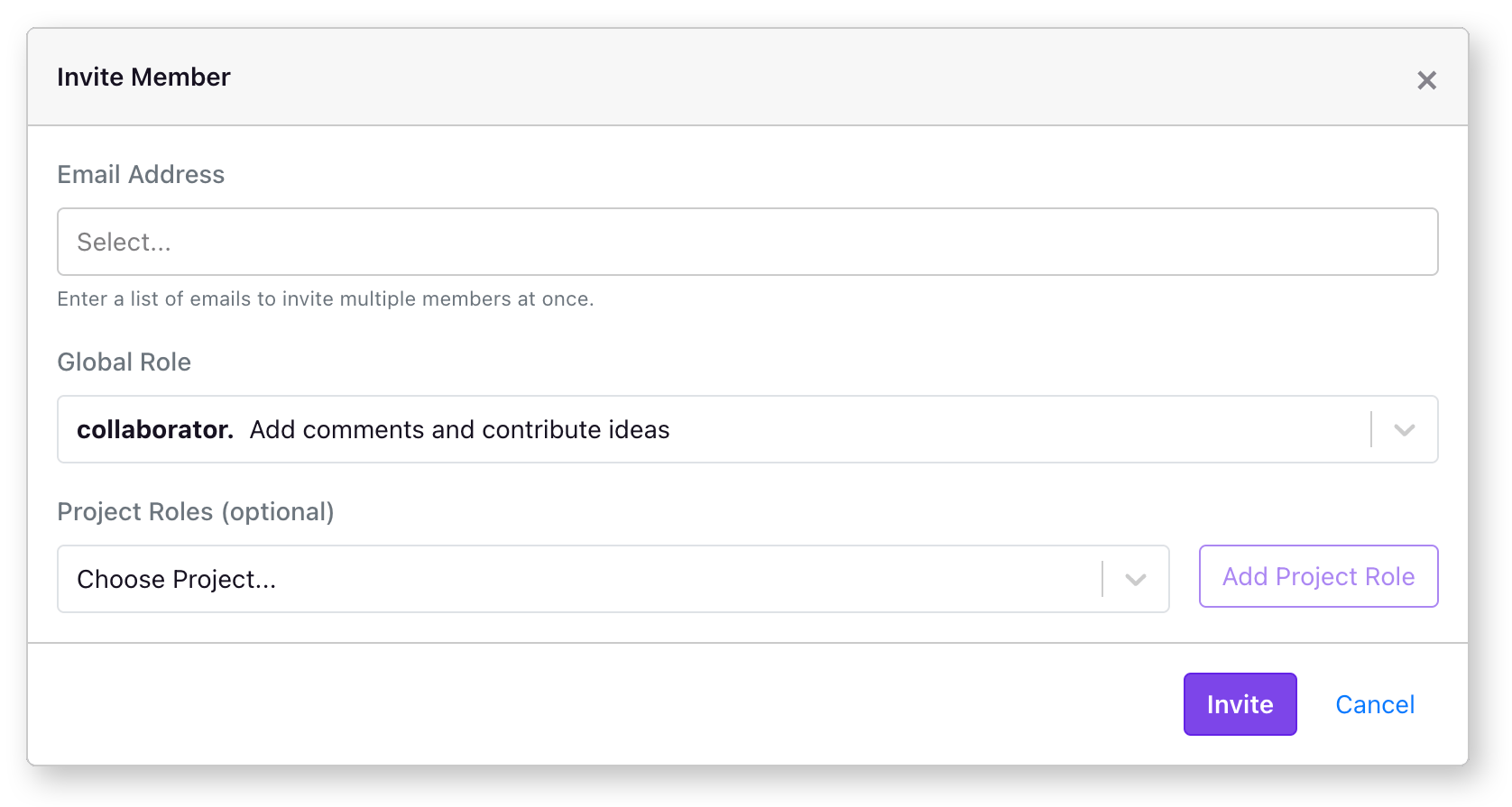
Team members can be added to your GrowthBook account via theSettings → Members page. From this main page, you’ll see an “Invite Member” button on the right. If you do not see this button, you do not have permission to add members to your organization. Clicking on “Invite Member” will open a modal window from which you can choose some options for the new user.
Environment Specific Limits
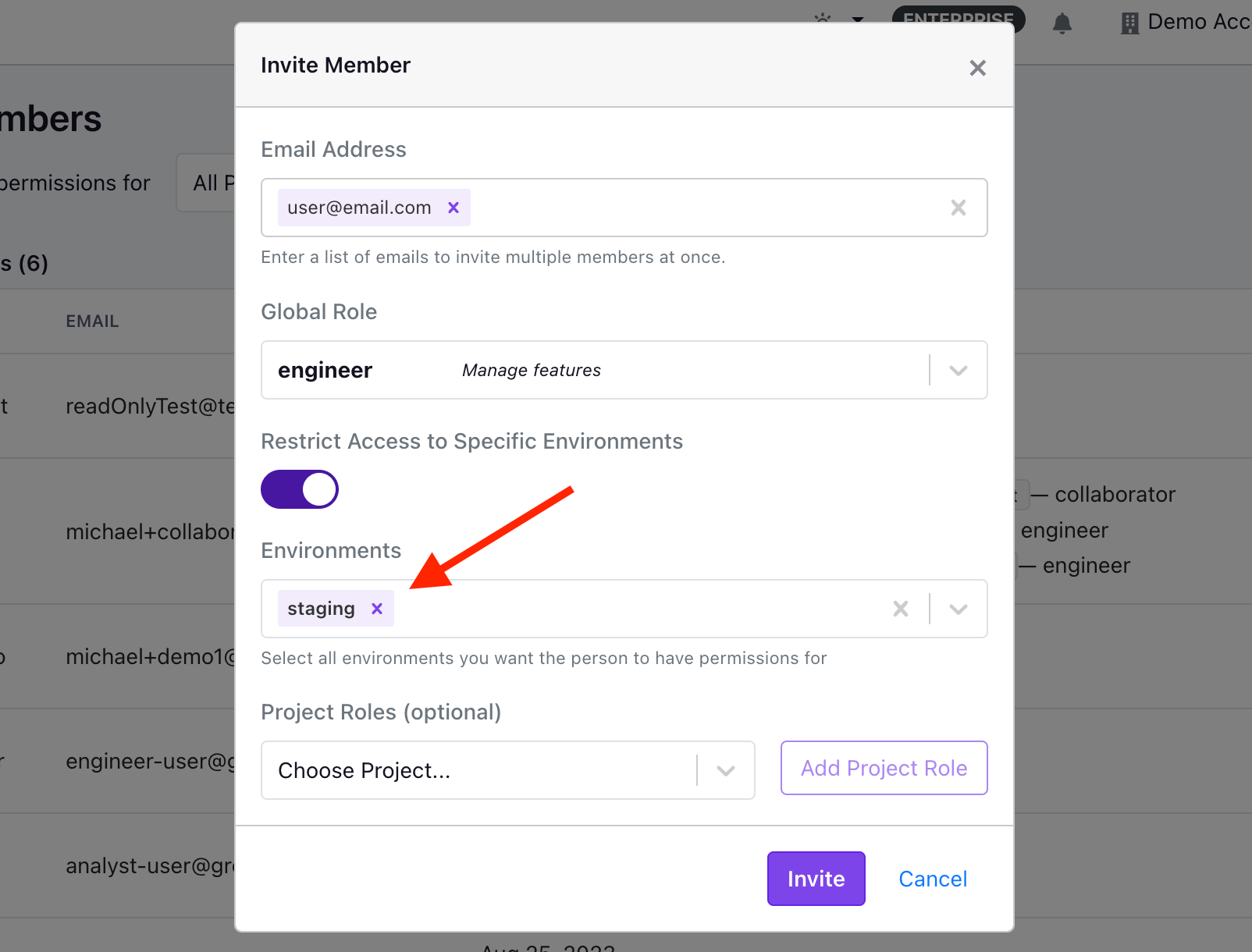
Engineer and Experimenter roles in Pro or Enterprise accounts. It allows you to limit the feature flags and experiments a user can manage to specific environments. For example, you can allow an Engineer to create and run experiments in a staging environment, but not in production.
Project Specific Permissions
Besides the global permissions, you can also assign project-specific permissions to users. This allows you to define a user’s default role across all projects and select per-project overrides. For example, a new user could be acollaborator by default for all projects, but on the mobile project, they could be an experimenter so they can manage all feature flags and experiments assigned to that project.
How permissions are evaluated
GrowthBook first determines whether the action is scoped to a specific project. Actions that target a project (for example, editing a feature flag that belongs to a project) are evaluated using project-specific roles:- If a project-specific role applies (the user’s own, or one from any team they’re on), only project-specific roles are used for that project; the global role is ignored. The effective permissions are the union of those project-specific roles (the user gets a permission if any of them grants it).
- Otherwise, the global role applies - itself the union of the user’s global role and the global roles of any teams they’re on.
Engineer but who has a Read Only role on a project is read-only on that project.
Actions that are not scoped to a project are evaluated against the global role. This includes organization-level settings and resources that always live at the org level, such as Dimensions, Namespaces, and Presentations.
For organizations without a Pro or Enterprise account, permissions are evaluated solely against the global role.
Default role for self-registered usersIf your organization has enabled the setting to allow verified users to automatically join your organization, they will receive the
Collaborator role by default when they join. However, you can change your organizations’ default role at the bottom of the Team page.Self-registering and Automatic Approvals
If users create an account with a verified email address that matches the domain of your account owner, they will be presented with an option to join your organization. If you have not selectedAutomatically approve new verified users (which is the default), those users will be listed at the bottom of the page under a section called Pending Members. From this list, you’ll have the option of approving or deleting these self-registered users.

pending members list, they will automatically join your organization.
Removing Users
To remove a user from your organization, you can click on the three dots next to their name and selectRemove User. This will remove the user from your organization and revoke their access to all projects and resources within your organization.
Permissions
Fine-tuning user permissions in an application like GrowthBook ensures a tailored experience, empowering organizations to grant precisely defined access levels. This granular control not only enhances security but also enables teams to collaborate efficiently while safeguarding sensitive features or data. Organizations using GrowthBook have a number of different ways of defining a user’s permission level, depending on the organization’s plan. Regardless of the plan, all organizations can assign a global role when inviting a user which defines their permissions across all projects. If you have a Pro or Enterprise account, you can also assign project-level roles for each user. For example, you can assign a user the global role ofCollaborator, allowing them to view features and experiments, add comments, and contribute ideas. You can then assign them an Experimenter role for a specific project, which allows them to create and run experiments, but only for that project.
And, for our Enterprise organizations, we offer the ability to create Teams, which are groups of users, all of which inherit the roles and permissions of the Team they’re on.
The table below lists the roles available in GrowthBook and their associated permissions.
*Limited to editing a subset of data source settings - identifier types, experiment assignment queries, Jupyter Notebook queries and Data Pipeline settings. Editing datasource name, projects, description, and connection parameters requires Admin permissions.
How does the No Access role work?
In some cases, an organization might want to hide certain projects from a user entirely. This is possible with theNo Access role. The No Access role can either be applied as the user’s global role, or it can be a project-specific role.
In the event you want a user to have access to a subset of projects, you can give them a global role of No Access and then give project-specific permissions for the projects you want them to be able to view.
If, however, you only want to hide a certain project from a user, you can assign their project-level role of No Access which will make it so the user isn’t able to view the project.
If you need to apply these rules to many users at once, you can create a Team with the permissions needed, and then add users to that team. Keep in mind how project-level and global roles combine when a user is on one or more teams:
- For a project where the user (or any team they are on) has an explicit project-level role, their access to that project is the union of those explicit project-level roles. Global roles are not used for that project.
- For a project where no explicit project-level role applies, the user’s global role (merged with their teams’ global roles) is used instead.
No Access, and do the same for any team they are on that would otherwise grant access to it.
How does the Project Admin role work?
The Project Admin role provides full access to all features and experiments within a project, similar to theExperimenter role. Additionally, Project Admin allows you to manage project settings and change project roles for other members within that project. This makes it ideal for delegating project-level administration without granting full Admin permissions.
The Project Admin role can be applied at either the global or project level. When applied globally, the user has Project Admin permissions across all projects. When applied at the project level, the user has Project Admin permissions only for that specific project.
Key differences from the Admin role:
- Project Admin can manage project settings and project member roles, but cannot manage organization-wide settings
- Project Admin cannot add or remove users, manage user’s global roles, add/remove users to teams, manage billing, or organization-level configurations
Organization-level resources are not project-specificWithin GrowthBook, not all resources are project-specific. For example,
Dimensions, Namespaces, and Presentations all live at the organization level. This means that all users, regardless of role, will be able to view these resources.If security of these resources is paramount to your organization, we recommend creating a separate organization, and keeping the resources you want to hide in that organization.Teams
Enterprise organizations using GrowthBook can create Teams with distinct capabilities. When setting up a Team, you have the option to define both a global role and project-level roles, much like how you do for individual users. Once a Team is established, multiple users can be added to it. Any user added to a Team will automatically inherit all permissions assigned to that Team. This feature becomes particularly useful when combined with GrowthBook’s SCIM integration, enabling automated user provisioning and de-provisioning. To create a Team, you can go toSettings → Members → Team via the Sidebar and then select the Teams tab at the top of the page. Here, you can create and configure various Teams, before adding members to a Team. When evaluating whether or not a user has permission to perform a certain action, we will merge the user’s permissions with the permissions inherited from all the Teams the user is on. So if the user’s global role is Collaborator but they’re on a Team that grants them Engineer permissions, that user’s permission will then be a merger of the Collaborator and Engineer roles.