> ## Documentation Index
> Fetch the complete documentation index at: https://docs2.growthbook.io/llms.txt
> Use this file to discover all available pages before exploring further.
# Setting Up Amazon Redshift as a Data Source in GrowthBook
> This document outlines the steps needed to add your Redshift database to GrowthBook.
Connecting Amazon Redshift to GrowthBook allows you to analyze experiment data and metrics directly from your data warehouse.
**This guide focuses on Redshift Serverless, but the steps are similar for provisioned Redshift instances.**
## 1: Find Connection Details
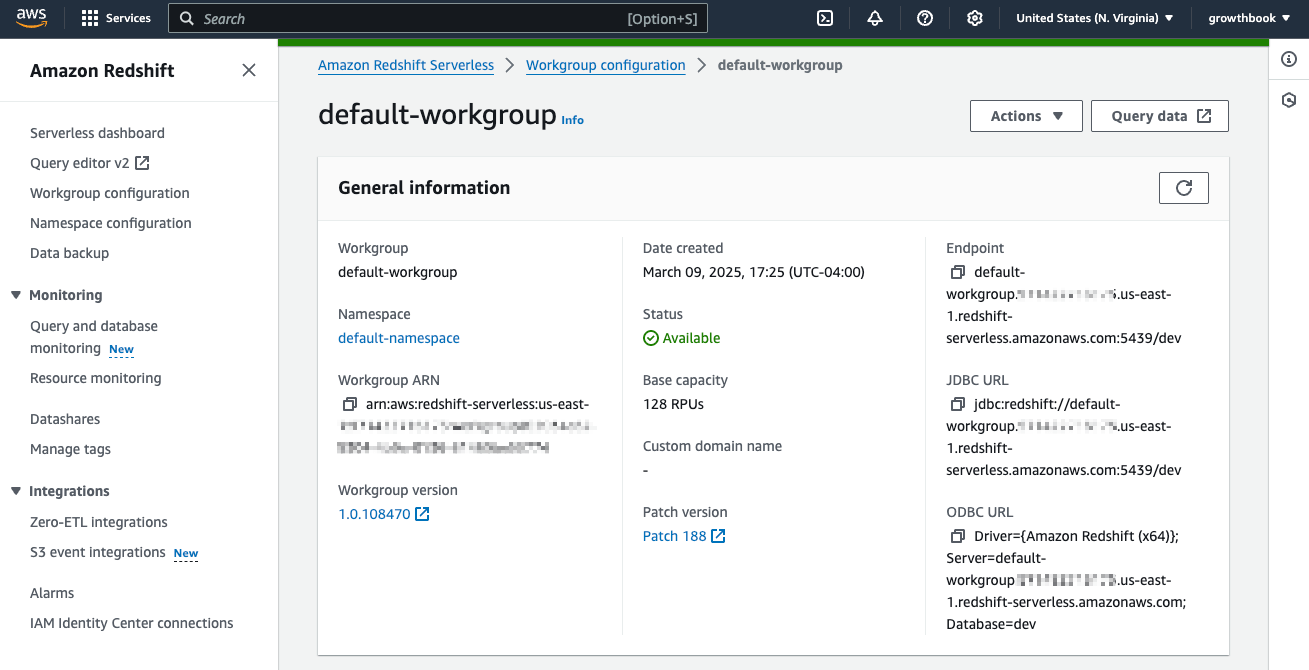
1. In the **AWS Management Console**, navigate to **Amazon Redshift** → **Serverless**.
2. Click on **Workgroup configuration**, select your workgroup.
3. Under **General information**, locate the **Endpoint**, which looks like this:
`default-workgroup.1234567890.us-east-1.redshift-serverless.amazonaws.com:5439/dev`
This string comprises the following parts:
* Host: `default-workgroup.1234567890.us-east-1.redshift-serverless.amazonaws.com`
* Port: `5439`
* Database Name: `dev`
 ## 2: Configure Security settings
1. Go to **AWS Console** → **Amazon Redshift** → **Serverless** → **Workgroups**.
2. Click on your Workgroup and scroll to **Network and Security**.
3. Click **Edit** and check **Turn on Publicly accessible**.
## 2: Configure Security settings
1. Go to **AWS Console** → **Amazon Redshift** → **Serverless** → **Workgroups**.
2. Click on your Workgroup and scroll to **Network and Security**.
3. Click **Edit** and check **Turn on Publicly accessible**.
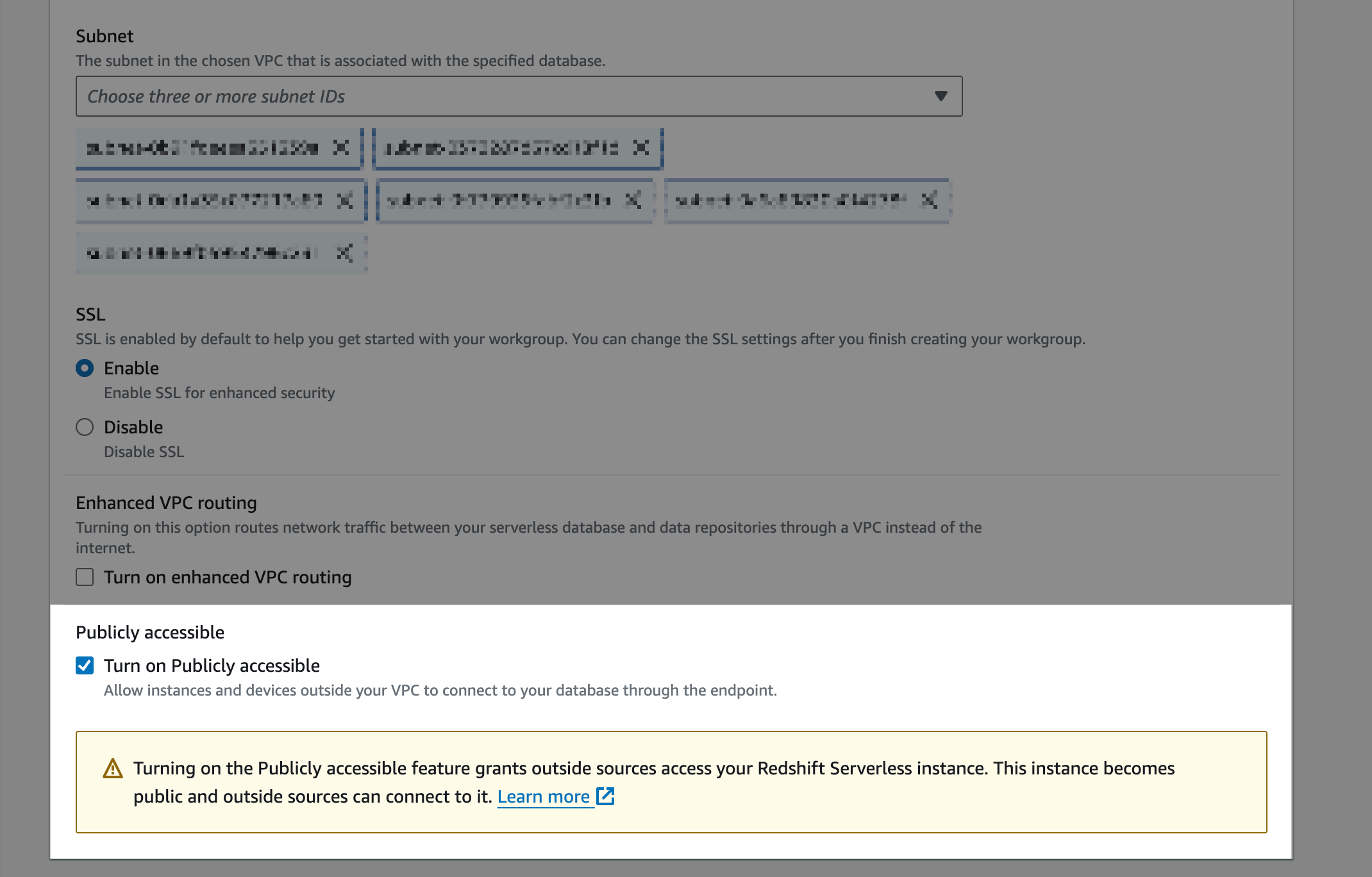 4. Click **Save Changes**.
5. Click on the **VPC security group** link.
6. Select the Security Group matching your Workgroup.
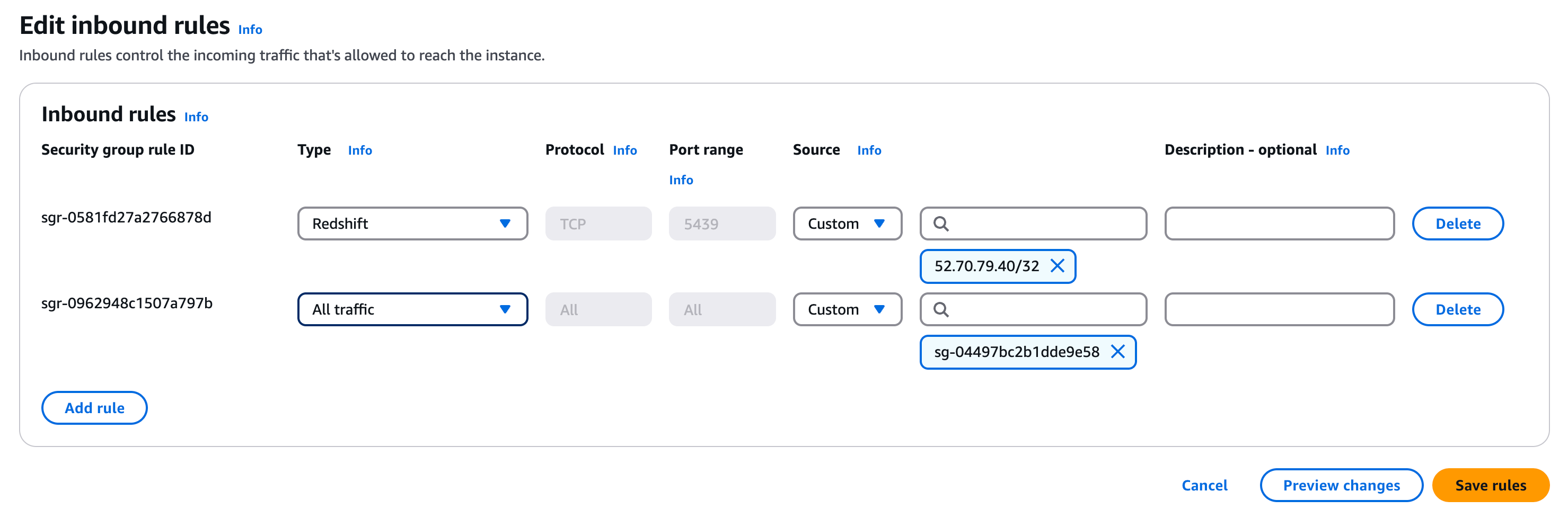
7. Edit **Inbound Rules**:
* Protocol: TCP
* Port: 5439
* Source: 52.70.79.40/32 (GrowthBook’s IP)
8. Click **Save Changes**.
4. Click **Save Changes**.
5. Click on the **VPC security group** link.
6. Select the Security Group matching your Workgroup.
7. Edit **Inbound Rules**:
* Protocol: TCP
* Port: 5439
* Source: 52.70.79.40/32 (GrowthBook’s IP)
8. Click **Save Changes**.
 **Enabling public access makes your database accessible from the internet.**
Ensure your security group settings are restrictive.
## 3: Create a Read-Only User
To prevent unauthorized changes, use a dedicated read-only user for GrowthBook.
1. Open AWS Query Editor or your preferred SQL client.
2. Run the following:
```sql theme={null}
CREATE USER growthbook_user WITH PASSWORD 'securepassword';
GRANT SELECT ON ALL TABLES IN SCHEMA public TO growthbook_user;
ALTER DEFAULT PRIVILEGES IN SCHEMA public GRANT SELECT ON TABLES TO growthbook_user;
```
**If your data is in a different schema (e.g., analytics), replace public with your schema name.**
3. Use this user when connecting GrowthBook.
## 4: Add Redshift as a Data Source in GrowthBook
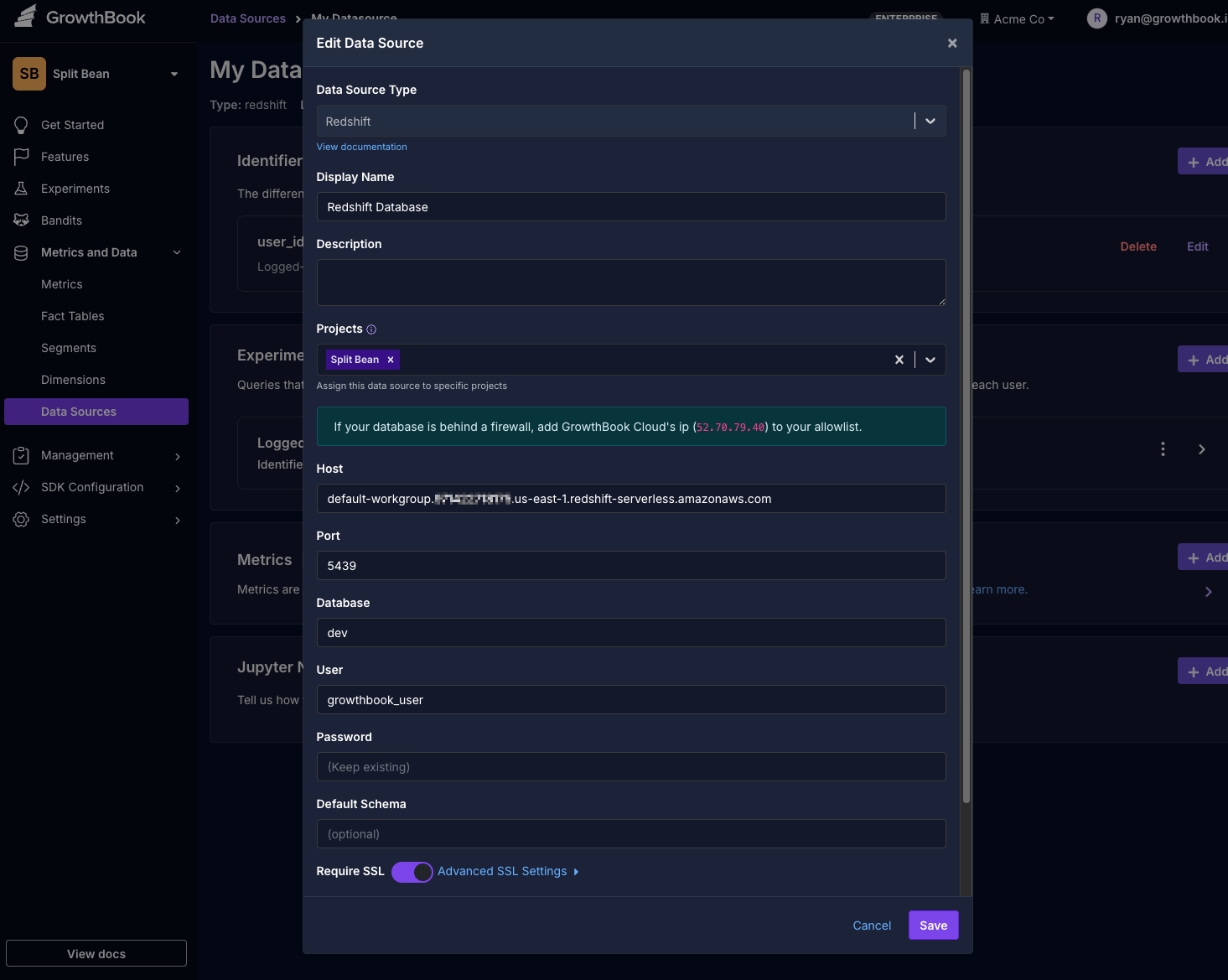
1. In GrowthBook, go to **Settings** → **Data Sources.**
2. **Click Add Data Source** and choose **Redshift**.
3. Enter the details from Step 1:
* Host: (Your Workgroup Endpoint for Serverless or Cluster Endpoint for Provisioned)
* Port: `5439`
* Database: (Your database name, e.g., `dev`)
* User: `growthbook_user`
* Password: (Your secure password)
* Require SSL: Recommended but may depend on your Redshift setup.
4. Click **Next** to test the connection.
**Enabling public access makes your database accessible from the internet.**
Ensure your security group settings are restrictive.
## 3: Create a Read-Only User
To prevent unauthorized changes, use a dedicated read-only user for GrowthBook.
1. Open AWS Query Editor or your preferred SQL client.
2. Run the following:
```sql theme={null}
CREATE USER growthbook_user WITH PASSWORD 'securepassword';
GRANT SELECT ON ALL TABLES IN SCHEMA public TO growthbook_user;
ALTER DEFAULT PRIVILEGES IN SCHEMA public GRANT SELECT ON TABLES TO growthbook_user;
```
**If your data is in a different schema (e.g., analytics), replace public with your schema name.**
3. Use this user when connecting GrowthBook.
## 4: Add Redshift as a Data Source in GrowthBook
1. In GrowthBook, go to **Settings** → **Data Sources.**
2. **Click Add Data Source** and choose **Redshift**.
3. Enter the details from Step 1:
* Host: (Your Workgroup Endpoint for Serverless or Cluster Endpoint for Provisioned)
* Port: `5439`
* Database: (Your database name, e.g., `dev`)
* User: `growthbook_user`
* Password: (Your secure password)
* Require SSL: Recommended but may depend on your Redshift setup.
4. Click **Next** to test the connection.
 🚀 Now, GrowthBook can securely query your Redshift database!