> ## Documentation Index
> Fetch the complete documentation index at: https://docs2.growthbook.io/llms.txt
> Use this file to discover all available pages before exploring further.

# Enterprise SSO

> Configure Enterprise SSO on GrowthBook Cloud or self-hosted using OpenID Connect with Okta, Google, Azure AD, and other providers.

export const CommercialFeature = ({feature, description}) => {
  const commercialFeatures = {
    "adv-presentations": {
      plan: "enterprise",
      displayName: "Adv Presentations"
    },
    "advanced-permissions": {
      plan: "pro",
      displayName: "Advanced Permissions"
    },
    "ai-byok": {
      plan: "enterprise",
      displayName: "Ai Byok"
    },
    "ai-suggestions": {
      plan: "enterprise",
      displayName: "AI Suggestions"
    },
    archetypes: {
      plan: "pro",
      displayName: "Archetypes"
    },
    "audit-logging": {
      plan: "enterprise",
      displayName: "Audit Logging"
    },
    "cloud-proxy": {
      plan: "pro",
      displayName: "Cloud Proxy"
    },
    "code-references": {
      plan: "pro",
      displayName: "Code References"
    },
    "contextual-bandits": {
      plan: "enterprise",
      displayName: "Contextual Bandits"
    },
    "custom-hooks": {
      plan: "enterprise",
      displayName: "Custom Hooks"
    },
    "custom-launch-checklist": {
      plan: "enterprise",
      displayName: "Custom Launch Checklist"
    },
    "custom-markdown": {
      plan: "enterprise",
      displayName: "Custom Markdown"
    },
    "custom-metadata": {
      plan: "enterprise",
      displayName: "Custom Metadata"
    },
    "custom-roles": {
      plan: "enterprise",
      displayName: "Custom Roles"
    },
    dashboards: {
      plan: "enterprise",
      displayName: "Dashboards"
    },
    "decision-framework": {
      plan: "pro",
      displayName: "Decision Framework"
    },
    "encrypt-features-endpoint": {
      plan: "pro",
      displayName: "Encrypt Features Endpoint"
    },
    "environment-inheritance": {
      plan: "enterprise",
      displayName: "Environment Inheritance"
    },
    "events-forwarder": {
      plan: "pro",
      displayName: "Events Forwarder"
    },
    "experiment-impact": {
      plan: "enterprise",
      displayName: "Experiment Impact"
    },
    "feature-configs": {
      plan: "enterprise",
      displayName: "Feature Configs"
    },
    "funnel-metrics": {
      plan: "pro",
      displayName: "Funnel Metrics"
    },
    "hash-secure-attributes": {
      plan: "pro",
      displayName: "Hash Secure Attributes"
    },
    "historical-power": {
      plan: "pro",
      displayName: "Historical Power"
    },
    holdouts: {
      plan: "enterprise",
      displayName: "Holdouts"
    },
    "incremental-refresh": {
      plan: "enterprise",
      displayName: "Incremental Refresh"
    },
    "json-validation": {
      plan: "enterprise",
      displayName: "JSON Validation"
    },
    "large-saved-groups": {
      plan: "enterprise",
      displayName: "Large Saved Groups"
    },
    learnings: {
      plan: "enterprise",
      displayName: "Learnings"
    },
    livechat: {
      plan: "pro",
      displayName: "Livechat"
    },
    "manage-official-resources": {
      plan: "enterprise",
      displayName: "Manage Official Resources"
    },
    "metric-correlations": {
      plan: "enterprise",
      displayName: "Metric Correlations"
    },
    "metric-effects": {
      plan: "enterprise",
      displayName: "Metric Effects"
    },
    "metric-groups": {
      plan: "enterprise",
      displayName: "Metric Groups"
    },
    "metric-populations": {
      plan: "pro",
      displayName: "Metric Populations"
    },
    "metric-slices": {
      plan: "enterprise",
      displayName: "Metric Slices"
    },
    "multi-armed-bandits": {
      plan: "pro",
      displayName: "Multi Armed Bandits"
    },
    "multi-metric-queries": {
      plan: "enterprise",
      displayName: "Multi Metric Queries"
    },
    "multi-org": {
      plan: "enterprise",
      displayName: "Multi Org"
    },
    "multiple-sdk-webhooks": {
      plan: "pro",
      displayName: "Multiple Sdk Webhooks"
    },
    "no-access-role": {
      plan: "enterprise",
      displayName: "No Access Role"
    },
    "override-metrics": {
      plan: "pro",
      displayName: "Override Metrics"
    },
    "pipeline-mode": {
      plan: "enterprise",
      displayName: "Pipeline Mode"
    },
    "post-stratification": {
      plan: "enterprise",
      displayName: "Post Stratification"
    },
    "precomputed-dimensions": {
      plan: "pro",
      displayName: "Precomputed Dimensions"
    },
    "prerequisite-targeting": {
      plan: "enterprise",
      displayName: "Prerequisite Targeting"
    },
    prerequisites: {
      plan: "pro",
      displayName: "Prerequisites"
    },
    "product-analytics-dashboards": {
      plan: "pro",
      displayName: "Product Analytics Dashboards"
    },
    "project-admin-role": {
      plan: "enterprise",
      displayName: "Project Admin Role"
    },
    "quantile-metrics": {
      plan: "pro",
      displayName: "Quantile Metrics"
    },
    "ramp-schedules": {
      plan: "pro",
      displayName: "Ramp Schedules"
    },
    redirects: {
      plan: "pro",
      displayName: "Redirects"
    },
    "regression-adjustment": {
      plan: "pro",
      displayName: "CUPED"
    },
    releases: {
      plan: "enterprise",
      displayName: "Releases"
    },
    "remote-evaluation": {
      plan: "pro",
      displayName: "Remote Evaluation"
    },
    "require-approvals": {
      plan: "enterprise",
      displayName: "Require Approvals"
    },
    "require-project-for-features-setting": {
      plan: "enterprise",
      displayName: "Require Project For Features Setting"
    },
    "require-project-for-sdk-connections-setting": {
      plan: "enterprise",
      displayName: "Require Project For Sdk Connections Setting"
    },
    "retention-metrics": {
      plan: "pro",
      displayName: "Retention Metrics"
    },
    "safe-rollout": {
      plan: "pro",
      displayName: "Safe Rollout"
    },
    saveSqlExplorerQueries: {
      plan: "pro",
      displayName: "Save SQL Explorer Queries"
    },
    "schedule-feature-flag": {
      plan: "pro",
      displayName: "Schedule Feature Flag"
    },
    "scheduled-revisions": {
      plan: "enterprise",
      displayName: "Scheduled Revisions"
    },
    scim: {
      plan: "enterprise",
      displayName: "SCIM"
    },
    "sequential-testing": {
      plan: "pro",
      displayName: "Sequential Testing"
    },
    "share-product-analytics-dashboards": {
      plan: "enterprise",
      displayName: "Share Product Analytics Dashboards"
    },
    simulate: {
      plan: "pro",
      displayName: "Simulate"
    },
    sso: {
      plan: "enterprise",
      displayName: "SSO"
    },
    "sticky-bucketing": {
      plan: "pro",
      displayName: "Sticky Bucketing"
    },
    teams: {
      plan: "enterprise",
      displayName: "Teams"
    },
    templates: {
      plan: "enterprise",
      displayName: "Templates"
    },
    "unlimited-managed-warehouse-usage": {
      plan: "pro",
      displayName: "Unlimited Managed Warehouse Usage"
    },
    "visual-editor": {
      plan: "pro",
      displayName: "Visual Editor"
    }
  };
  const {plan, displayName} = commercialFeatures[feature];
  const isEnterprise = plan === "enterprise";
  const defaultDescription = isEnterprise ? "is available on Enterprise plans." : "is available on Pro and Enterprise plans.";
  const planLabel = isEnterprise ? "Enterprise" : "Pro";
  const containerStyle = isEnterprise ? {
    backgroundColor: "color-mix(in srgb, var(--indigo-a3) 60%, transparent)"
  } : {
    backgroundColor: "color-mix(in srgb, var(--amber-a3) 60%, transparent)"
  };
  const badgeStyle = isEnterprise ? {
    boxShadow: "inset 0 0 0 1px var(--indigo-a8)",
    color: "var(--indigo-a11)"
  } : {
    boxShadow: "inset 0 0 0 1px var(--amber-a8)",
    color: "var(--amber-a11)"
  };
  return <div className="flex items-start gap-2 mb-4 p-3 text-sm leading-[1.4] rounded-lg" style={containerStyle} role="note">
      <span className="inline-flex items-center justify-center px-1.5 h-5 text-xs font-medium rounded-full shrink-0 leading-none" style={badgeStyle}>
        {planLabel}
      </span>
      <div className="flex-1 leading-[1.3]">
        <strong className="font-semibold">{displayName}</strong>{" "}
        {defaultDescription} {description}
      </div>
    </div>;
};

<CommercialFeature feature="sso" />

SSO is available on GrowthBook Cloud or Self-hosted via OpenID Connect. If you are using the Cloud, your account
representative will help you get this setup, though the steps are mostly the same. To enable SSO on your self hosted GrowthBook
instance, you will need an active license key and then you may add the SSO settings for your provider. If your provider
is not listed below, you can use the generic Open ID Connect.

For GrowthBook Cloud, you will need to send your account representative the following: **CLIENT\_ID**, **CLIENT\_SECRET**,
**EMAIL\_DOMAIN**, what provider you're using, and for some providers, the **TENANT\_ID**. You can use the instructions below to get these values.

If you are self-hosting, you can use the instructions below to create a JSON object with the settings, then it should be
JSON encoded and then set to the environment variable `SSO_CONFIG`.

## Generic Open ID Connect

* **LICENSE\_KEY** - Your signed license key provided by the GrowthBook team
* **SSO\_CONFIG** - A JSON-encoded string that configures SSO (using OpenID Connect). It should be an object with the following keys:
* `clientId` (string)
* `clientSecret` (string)
* `emailDomains` (array of strings, optional) - Allow [auto-joining](/account/user-permissions#self-registering-and-automatic-approvals) from a specified email domain.
* `metadata` (object)
* `issuer` (string)
* `authorization_endpoint` (string)
* `jwks_uri` (string)
* `id_token_signing_alg_values_supported` (array of strings)
* `token_endpoint` (string)
* `code_challenge_methods_supported` (array of strings)
* `logout_endpoint` (string, optional)
* `extraQueryParams` (object, optional) - Dictionary of extra query params to be passed along with the `/authorize` OAuth call
* `additionalScope` (string, optional) - Additional scopes to include, along with the default value: `openid profile email`

For SSO, make sure the following callback URL is whitelisted:

* `{APP_ORIGIN}/oauth/callback`

For the best SSO user experience, enable offline access and refresh tokens in your Identity Provider.

<Info>
  **Configuring SSO**

  With all the SSO providers listed below, replace the all caps values with values from the provider, JSON encode the object, and set to the `SSO_CONFIG` environment variable for GrowthBook.
</Info>

## SSO Providers

### Okta

```json theme={null}
{
    "clientId": "CLIENT_ID",
    "clientSecret": "CLIENT_SECRET",
    "emailDomains": ["EMAIL_DOMAIN"],
    "additionalScope": "offline_access",
    "metadata": {
        "issuer": "BASE_URL",
        "authorization_endpoint": "BASE_URL/oauth2/v1/authorize",
        "id_token_signing_alg_values_supported": [
            "RS256"
        ],
        "jwks_uri": "BASE_URL/oauth2/v1/keys",
        "token_endpoint": "BASE_URL/oauth2/v1/token",
        "code_challenge_methods_supported": [
            "S256"
        ]
    }
}
```

<Accordion title="See complete Okta instructions">
  <div>
    <ol>
      <li>
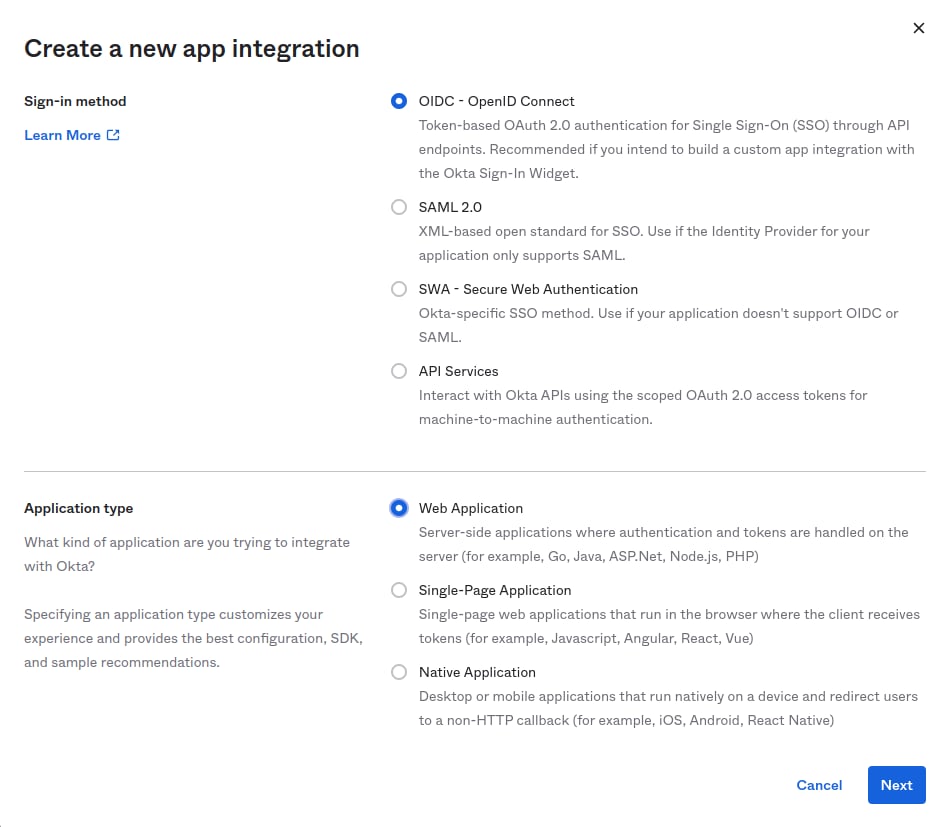
        <strong>Create an OIDC Web application:</strong> <br />

        <Frame>
          <img src="https://mintcdn.com/growthbook-ea15456d/1rsmujQCDzXz2Vho/static/images/guides/SSO-Okta-1.png?fit=max&auto=format&n=1rsmujQCDzXz2Vho&q=85&s=cbfb834124d644acbc5478a6455c966e" alt="Create an OIDC Web application" width="949" height="827" data-path="static/images/guides/SSO-Okta-1.png" />
        </Frame>
      </li>

      <li>
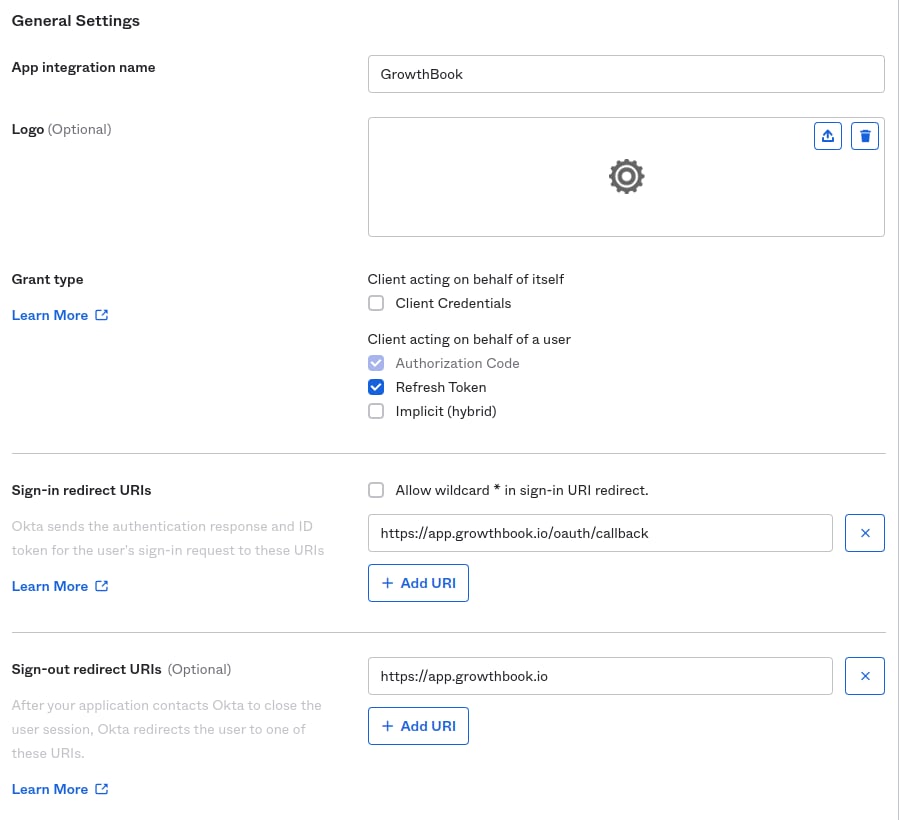
        Allow refresh tokens and specify callback URLs. If you are using the cloud, you can use the following values:

        <ul>
          <li><strong>Sign-in redirect URIs</strong> - <code>[https://app.growthbook.io/oauth/callback](https://app.growthbook.io/oauth/callback)</code></li>
          <li><strong>Sign-out redirect URIs</strong> (optional) - <code>[https://app.growthbook.io](https://app.growthbook.io)</code></li>
        </ul>

        <p>If you are self-hosting, replace with <code>[https://app.growthbook.io](https://app.growthbook.io)</code> with the value from your <code>APP\_ORIGIN</code></p>

        <Frame>
          <img src="https://mintcdn.com/growthbook-ea15456d/1rsmujQCDzXz2Vho/static/images/guides/SSO-Okta-2.png?fit=max&auto=format&n=1rsmujQCDzXz2Vho&q=85&s=a3e05cd4ed01c1fc3d39eef7f14c252a" alt="Okta settings" width="899" height="820" data-path="static/images/guides/SSO-Okta-2.png" />
        </Frame>
      </li>

      <li>
        <strong>Require PKCE as additional verification</strong>(optional)<br />

        <Frame>
          <img src="https://mintcdn.com/growthbook-ea15456d/1rsmujQCDzXz2Vho/static/images/guides/SSO-Okta-3.png?fit=max&auto=format&n=1rsmujQCDzXz2Vho&q=85&s=c2c04de01ce5dd7edc87eb85ca0dcec9" alt="Require PKCE" width="800" data-path="static/images/guides/SSO-Okta-3.png" />
        </Frame>

        <div>
          You will need the following in order to configure SSO in GrowthBook:

          <ul>
            <li><code>CLIENT\_ID</code></li>
            <li><code>CLIENT\_SECRET</code></li>
            <li><code>BASE\_URL</code> - This is typically in the format: <code>[https://your-company.okta.com/](https://your-company.okta.com/)</code> or <code>[https://your-company.oktapreview.com/](https://your-company.oktapreview.com/)</code></li>
            <li><code>EMAIL\_DOMAIN</code></li>
          </ul>

          <p>
            If using GrowthBook Cloud, send your account representative the above and we will enable SSO on your account.
          </p>

          <p>
            If self-hosting, add the environment settings at the beginning of this section to enable SSO on your instance.
          </p>
        </div>
      </li>
    </ol>
  </div>
</Accordion>

### Google

```json theme={null}
{
    "clientId": "CLIENT_ID",
    "clientSecret": "CLIENT_SECRET",
    "emailDomains": ["EMAIL_DOMAIN"],
    "metadata": {
        "issuer": "https://accounts.google.com",
        "authorization_endpoint": "https://accounts.google.com/o/oauth2/v2/auth",
        "token_endpoint": "https://oauth2.googleapis.com/token",
        "jwks_uri": "https://www.googleapis.com/oauth2/v3/certs",
        "id_token_signing_alg_values_supported": [
            "RS256"
        ],
        "code_challenge_methods_supported": [
            "S256"
        ]
    },
    "extraQueryParams": {
        "access_type": "offline",
        "prompt": "consent"
    }
}
```

### Auth0

```json theme={null}
{
    "clientId": "CLIENT_ID",
    "clientSecret": "CLIENT_SECRET",
    "emailDomains": ["EMAIL_DOMAIN"],
    "additionalScope": "offline_access",
    "metadata": {
        "issuer": "https://TENANT.auth0.com/",
        "authorization_endpoint": "https://TENANT.auth0.com/authorize",
        "logout_endpoint": "https://TENANT.auth0.com/v2/logout?client_id=CLIENT_ID",
        "id_token_signing_alg_values_supported": [
            "HS256",
            "RS256"
        ],
        "jwks_uri": "https://TENANT.auth0.com/.well-known/jwks.json",
        "token_endpoint": "https://TENANT.auth0.com/oauth/token",
        "code_challenge_methods_supported": [
            "S256",
            "plain"
        ],
        "audience": "AUDIENCE"
    }
}
```

<Note>
  **Enabling offline access and OIDC compliance**

  When setting up Auth0, please ensure that you've enabled offline access, and check the `OIDC Compliant` checkbox.
</Note>

### Azure AD

```json theme={null}
{
  "clientId": "CLIENT_ID",
  "clientSecret": "CLIENT_SECRET",
  "emailDomains": ["EMAIL_DOMAIN"],
  "additionalScope": "offline_access",
  "metadata": {
    "token_endpoint": "https://login.microsoftonline.com/TENANT_ID/oauth2/v2.0/token",
    "jwks_uri": "https://login.microsoftonline.com/TENANT_ID/discovery/v2.0/keys",
    "id_token_signing_alg_values_supported": ["RS256"],
    "code_challenge_methods_supported": ["S256"],
    "issuer": "https://login.microsoftonline.com/TENANT_ID/v2.0",
    "authorization_endpoint": "https://login.microsoftonline.com/TENANT_ID/oauth2/v2.0/authorize",
    "logout_endpoint": "https://login.microsoftonline.com/TENANT_ID/oauth2/v2.0/logout"
  }
}
```

<Note>
  **Registering an Application in Azure**

  In Azure, register an Application, instead of Enterprise, as we use OpenID Connect, not SAML.
</Note>

<Accordion title="See complete Azure instructions">
  <div>
    <ol>
      <li>
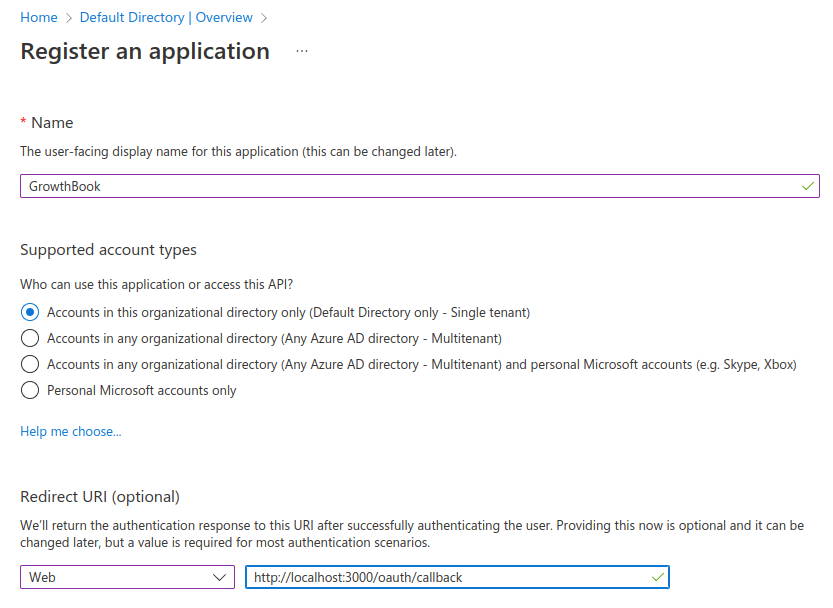
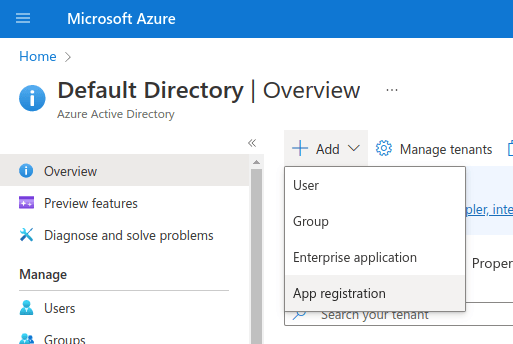
        Register an Application (we use OpenID Connect, so choose regular app, not Enterprise)

        <Frame>
          <img src="https://mintcdn.com/growthbook-ea15456d/1rsmujQCDzXz2Vho/static/images/guides/SSO-Azure-1.png?fit=max&auto=format&n=1rsmujQCDzXz2Vho&q=85&s=7a5f26122af58c0cad4764107cbe3813" alt="Register an Application" width="800" data-path="static/images/guides/SSO-Azure-1.png" />
        </Frame>
      </li>

      <li>
        Enter the redirect URL as APP\_HOST/oauth/callback

        <Frame>
          <img src="https://mintcdn.com/growthbook-ea15456d/1rsmujQCDzXz2Vho/static/images/guides/SSO-Azure-2.png?fit=max&auto=format&n=1rsmujQCDzXz2Vho&q=85&s=d624f91e0a93edb3c804824037a800de" alt="Redirect URL" width="800" data-path="static/images/guides/SSO-Azure-2.png" />
        </Frame>
      </li>

      <li>
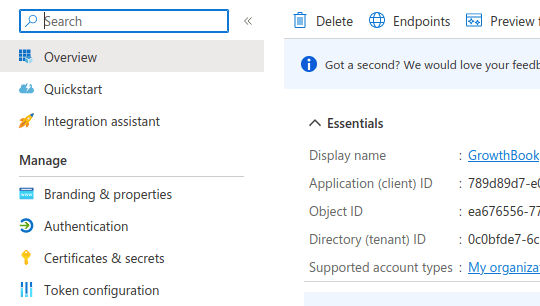
        Take note of your Application Id (CLIENT\_ID) and Directory Id (TENANT\_ID). You will need it later

        <Frame>
          <img src="https://mintcdn.com/growthbook-ea15456d/1rsmujQCDzXz2Vho/static/images/guides/SSO-Azure-3.png?fit=max&auto=format&n=1rsmujQCDzXz2Vho&q=85&s=63f498224390e1c965eacf0d35bd21a6" alt="Application Id" width="800" data-path="static/images/guides/SSO-Azure-3.png" />
        </Frame>
      </li>

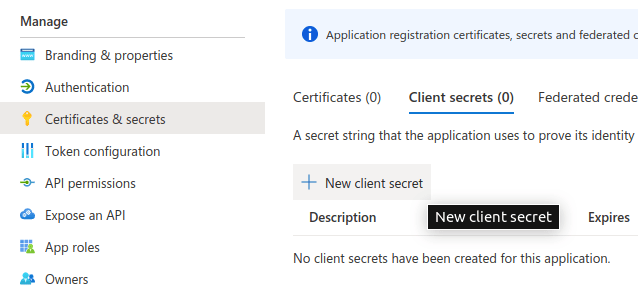
      <li>
        Generate a new Client Secret<br />

        <Frame>
          <img src="https://mintcdn.com/growthbook-ea15456d/1rsmujQCDzXz2Vho/static/images/guides/SSO-Azure-4.png?fit=max&auto=format&n=1rsmujQCDzXz2Vho&q=85&s=969130dc2af005a74699d6e9488cd48b" alt="Client Secret" width="800" data-path="static/images/guides/SSO-Azure-4.png" />
        </Frame>
      </li>

      <li>
        Take note of the Secret Value (CLIENT\_SECRET). You will need it in the next step
      </li>

      <li>
        Construct the JSON configuration for GrowthBook. Replace <pre>CLIENT\_ID</pre>, CLIENT\_SECRET, EMAIL\_DOMAIN, and TENANT\_ID, as into the JSON object above.
      </li>

      <li>
        Pass the JSON string into the environment variable SSO\_CONFIG of your GrowthBook container
      </li>
    </ol>
  </div>
</Accordion>

### OneLogin

```json theme={null}
{
  "clientId": "CLIENT_ID",
  "clientSecret": "CLIENT_SECRET",
  "emailDomains": [
    "EMAIL_DOMAIN"
  ],
  "additionalScope": "",
  "metadata": {
    "issuer": "https://[ONELOGIN_DOMAIN]/oidc/2",
    "authorization_endpoint": "https://[ONELOGIN_DOMAIN]/oidc/2/auth",
    "token_endpoint": "https://[ONELOGIN_DOMAIN]/oidc/2/token",
    "id_token_signing_alg_values_supported": [
      "RS256",
      "HS256",
      "PS256"
    ],
    "jwks_uri": "https://[ONELOGIN_DOMAIN]/oidc/2/certs",
    "code_challenge_methods_supported": [
      "S256"
    ],
    "logout_endpoint": "https://[ONELOGIN_DOMAIN]/oidc/2/logout"
  }
}
```

<Accordion title="See complete OneLogin instructions">
  <div>
    <ol>
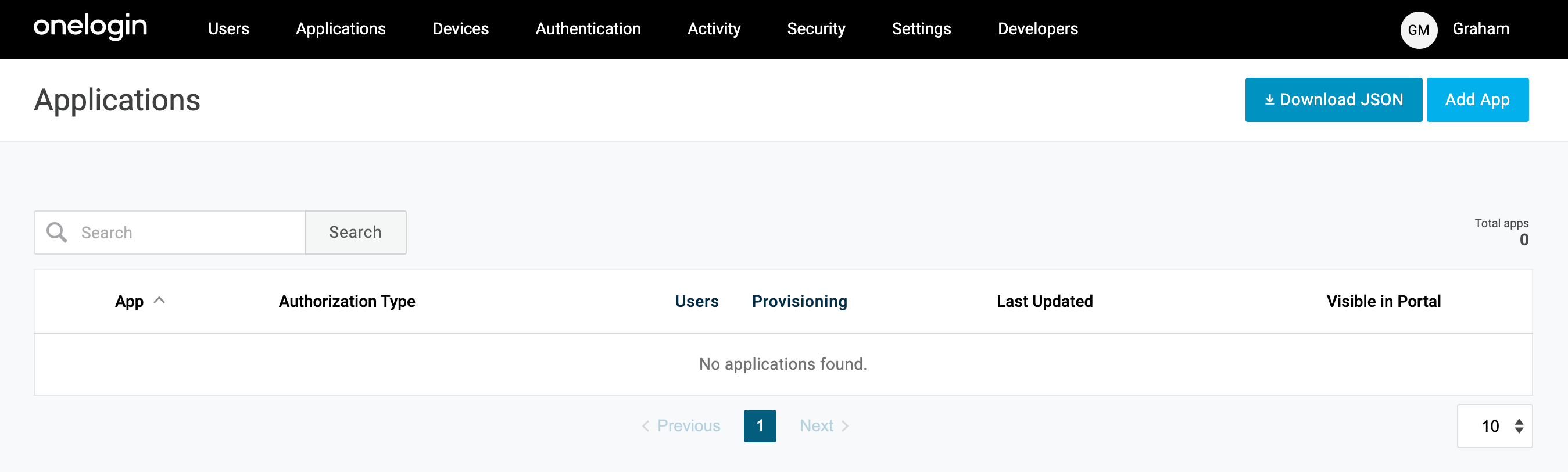
      <li>
        Create a new OIDC Web application. Browse to the Applications section of OneLogin from the top nav, then choose "Add App" from the top right.

        <Frame>
          <img src="https://mintcdn.com/growthbook-ea15456d/1rsmujQCDzXz2Vho/static/images/guides/SSO-Onelogin-1.png?fit=max&auto=format&n=1rsmujQCDzXz2Vho&q=85&s=c11ef1f314fedf0d3d7fe5904b02a85a" alt="Create a new OIDC Web application" width="2698" height="812" data-path="static/images/guides/SSO-Onelogin-1.png" />
        </Frame>
      </li>

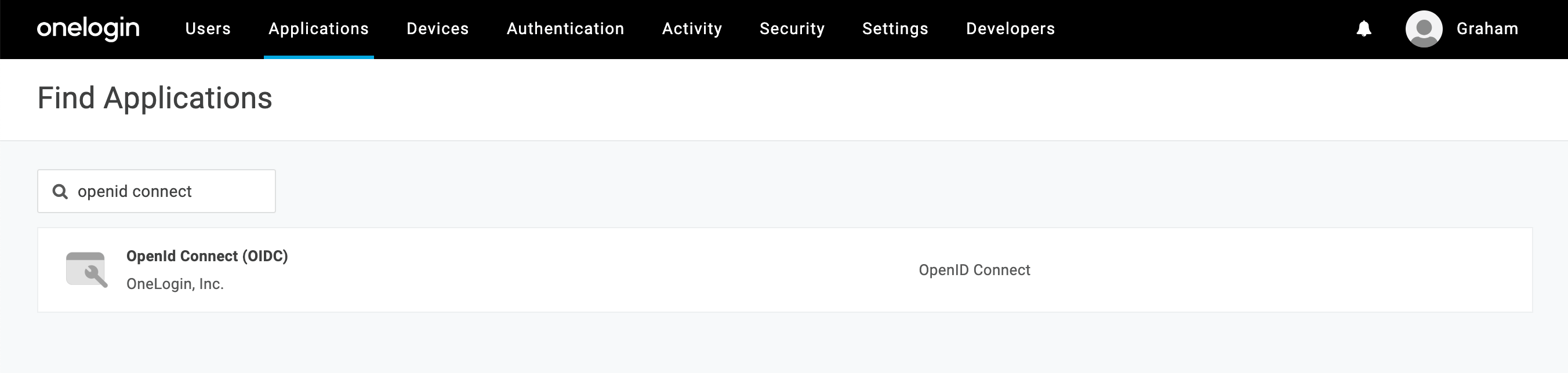
      <li>
        When the list of applications opens, search for <strong>"openid connect"</strong>. Select the option named <strong>"OpenID Connect (OIDC)"</strong>.

        <Frame>
          <img src="https://mintcdn.com/growthbook-ea15456d/1rsmujQCDzXz2Vho/static/images/guides/SSO-Onelogin-2.png?fit=max&auto=format&n=1rsmujQCDzXz2Vho&q=85&s=2e19828089526aa8e105cd1e2101dba1" alt="Select OpenID Connect" width="2704" height="644" data-path="static/images/guides/SSO-Onelogin-2.png" />
        </Frame>
      </li>

      <li>
        Add the name "GrowthBook" (or whatever you would like to name it), an optional description and click save. The first save may not look like anything has happened, but you should see more options on the left menu when successful.
      </li>

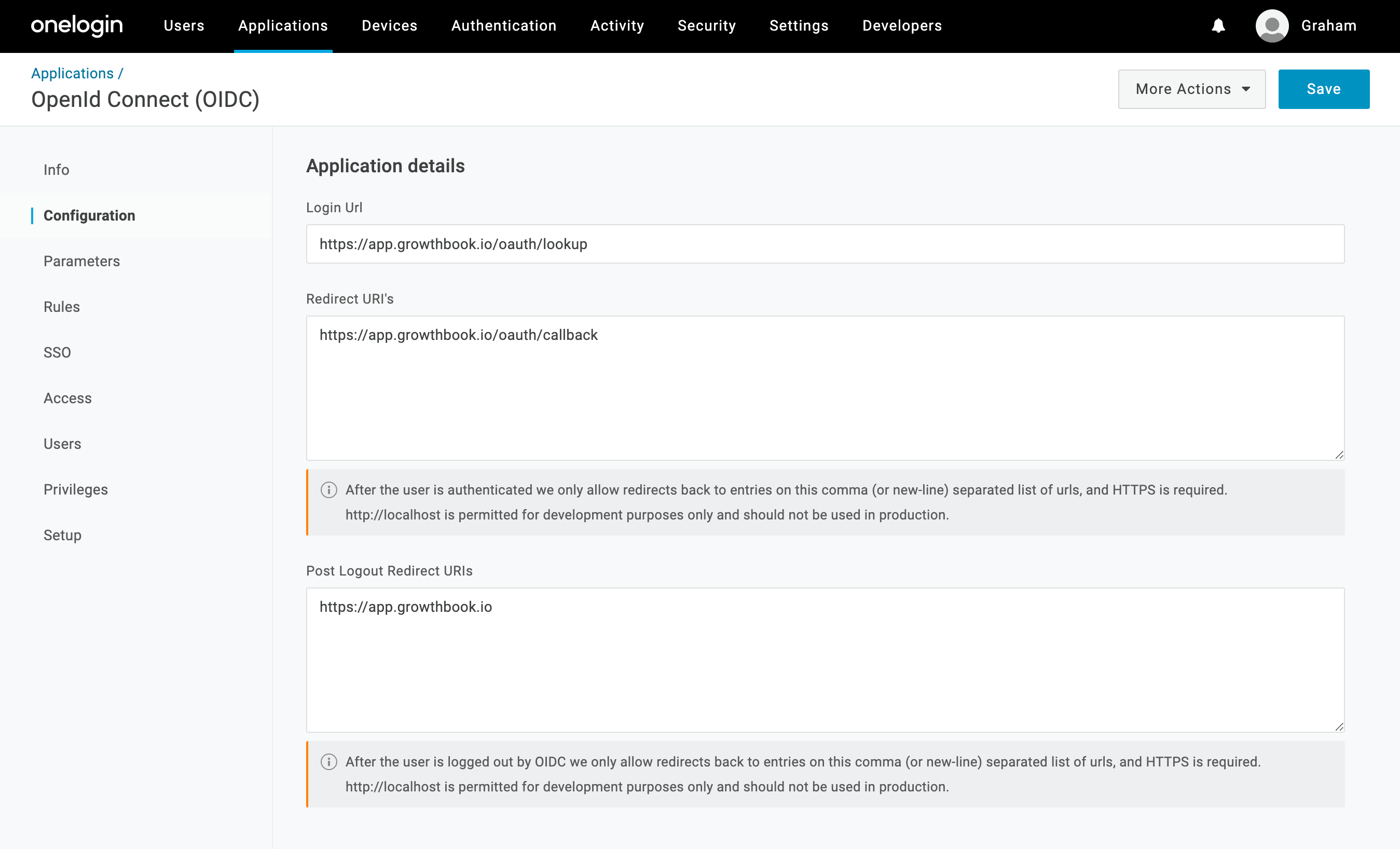
      <li>
        Click on the "Configuration" item in the left nav menu, and enter the following values for the three input fields (note: for self-hosting, replace <pre>app.growthbook.io</pre> with your own domain)

        <ul>
          <li><strong>Login URL</strong>: <pre>[https://app.growthbook.io](https://app.growthbook.io)</pre></li>
          <li><strong>Redirect URIs</strong>: <pre>[https://app.growthbook.io/oauth/callback](https://app.growthbook.io/oauth/callback)</pre></li>
          <li><strong>Post Logout Redirect URIs</strong>: <pre>[https://app.growthbook.io](https://app.growthbook.io)</pre></li>
        </ul>

        <Frame>
          <img src="https://mintcdn.com/growthbook-ea15456d/1rsmujQCDzXz2Vho/static/images/guides/SSO-Onelogin-3.png?fit=max&auto=format&n=1rsmujQCDzXz2Vho&q=85&s=abe9c653aa0c750ef308bcb4d24ecaf9" alt="OneLogin settings" width="2698" height="1636" data-path="static/images/guides/SSO-Onelogin-3.png" />
        </Frame>

        You can optionally add images for the application from the info if you like. <strong>Click Save</strong>.
      </li>

      <li>
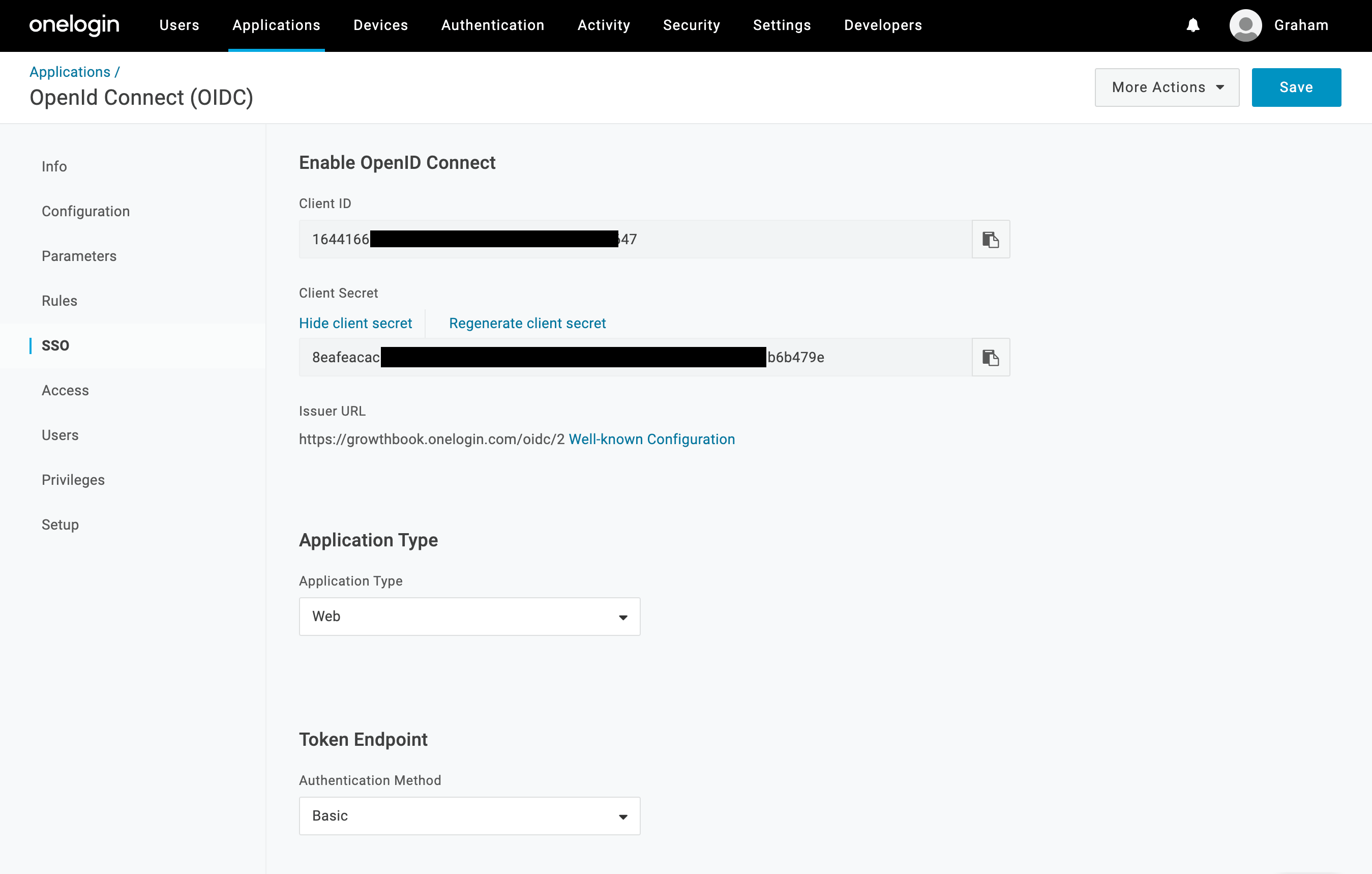
        Click on the "SSO" item from the left nav menu. Here you need to record the <strong>Client ID</strong> and <strong>Client Secret</strong> and <strong>Issuer URL</strong>

        <Frame>
          <img src="https://mintcdn.com/growthbook-ea15456d/1rsmujQCDzXz2Vho/static/images/guides/SSO-Onelogin-4.png?fit=max&auto=format&n=1rsmujQCDzXz2Vho&q=85&s=51ba8c886b5f1315e4578e51b366420b" alt="OneLogin SSO settings" width="2698" height="1718" data-path="static/images/guides/SSO-Onelogin-4.png" />
        </Frame>

        You can leave the other settings as default (Application Type: Web, and Authentication Method: Basic). Click save if you haven't already.
      </li>

      <li>
        For self-hosted instances: construct the JSON configuration for GrowthBook. Replace CLIENT\_ID, CLIENT\_SECRET, EMAIL\_DOMAIN, and TENANT\_ID, as into the JSON object above. The ONELOGIN\_DOMAIN will be the same domain from your Issuer URL you recorded earlier.
      </li>

      <li>
        Pass the JSON string into the environment variable SSO\_CONFIG of your GrowthBook container
      </li>
    </ol>
  </div>
</Accordion>

### JumpCloud

```json theme={null}
{
  "clientId": "CLIENT_ID",
  "clientSecret": "CLIENT_SECRET",
  "emailDomains": [
    "EMAIL_DOMAIN"
  ],
  "additionalScope": "offline_access",
  "metadata": {
    "token_endpoint": "https://oauth.id.jumpcloud.com/oauth2/token",
    "jwks_uri": "https://oauth.id.jumpcloud.com/.well-known/jwks.json",
    "id_token_signing_alg_values_supported": [
      "RS256"
    ],
    "code_challenge_methods_supported": [
      "S256"
    ],
    "issuer": "https://oauth.id.jumpcloud.com/",
    "authorization_endpoint": "https://oauth.id.jumpcloud.com/oauth2/auth",
    "logout_endpoint": "https://oauth.id.jumpcloud.com/oauth2/sessions/logout",
    "audience": ""
  }
}
```

<Accordion title="See complete JumpCloud instructions">
  <div>
    <ol>
      <li>
        Create a new SSO Application. Browse to the User Authentication → SSO Applications from the left nav. Choose "Add new Application" from the top left.
      </li>

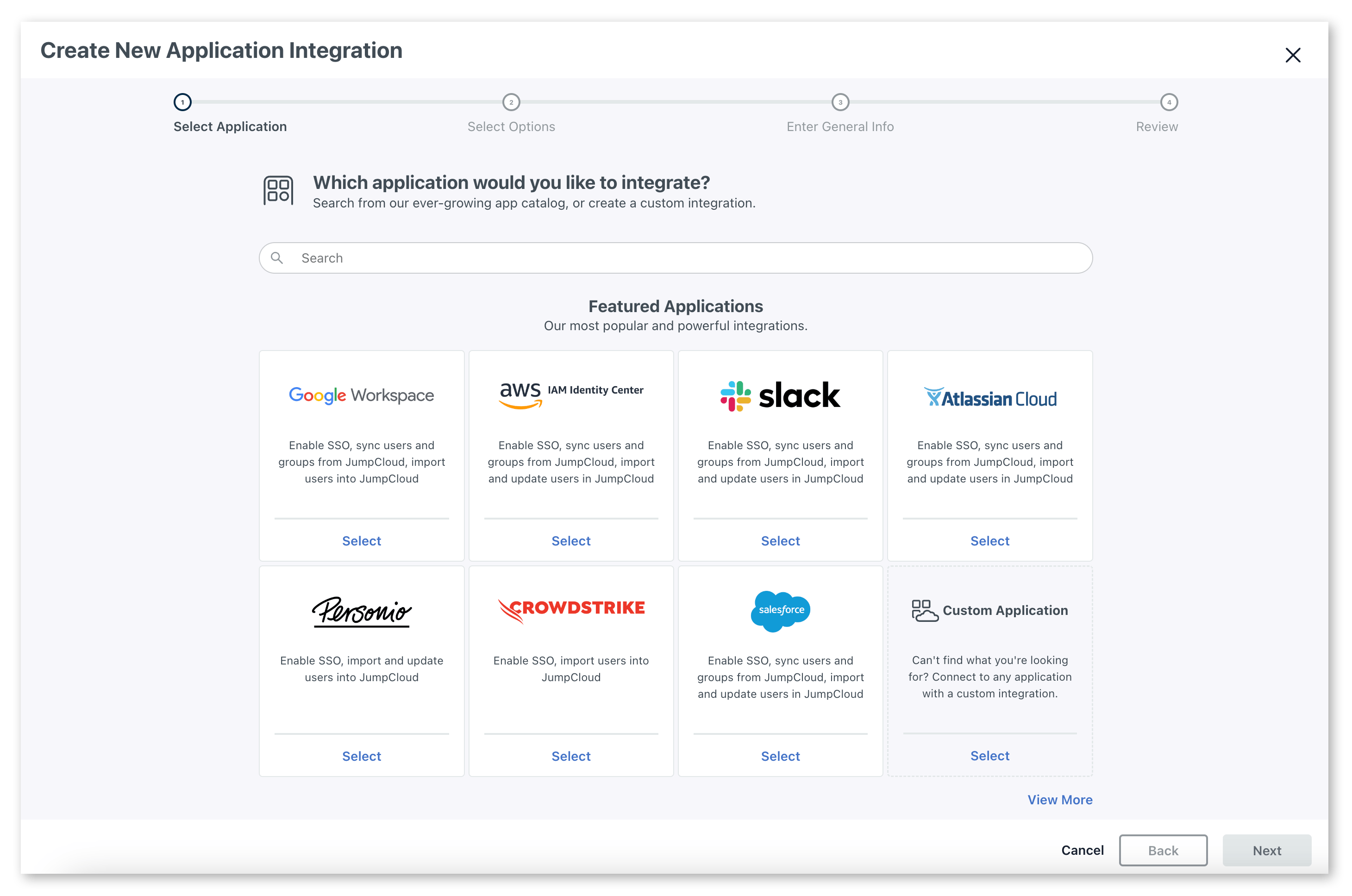
      <li>
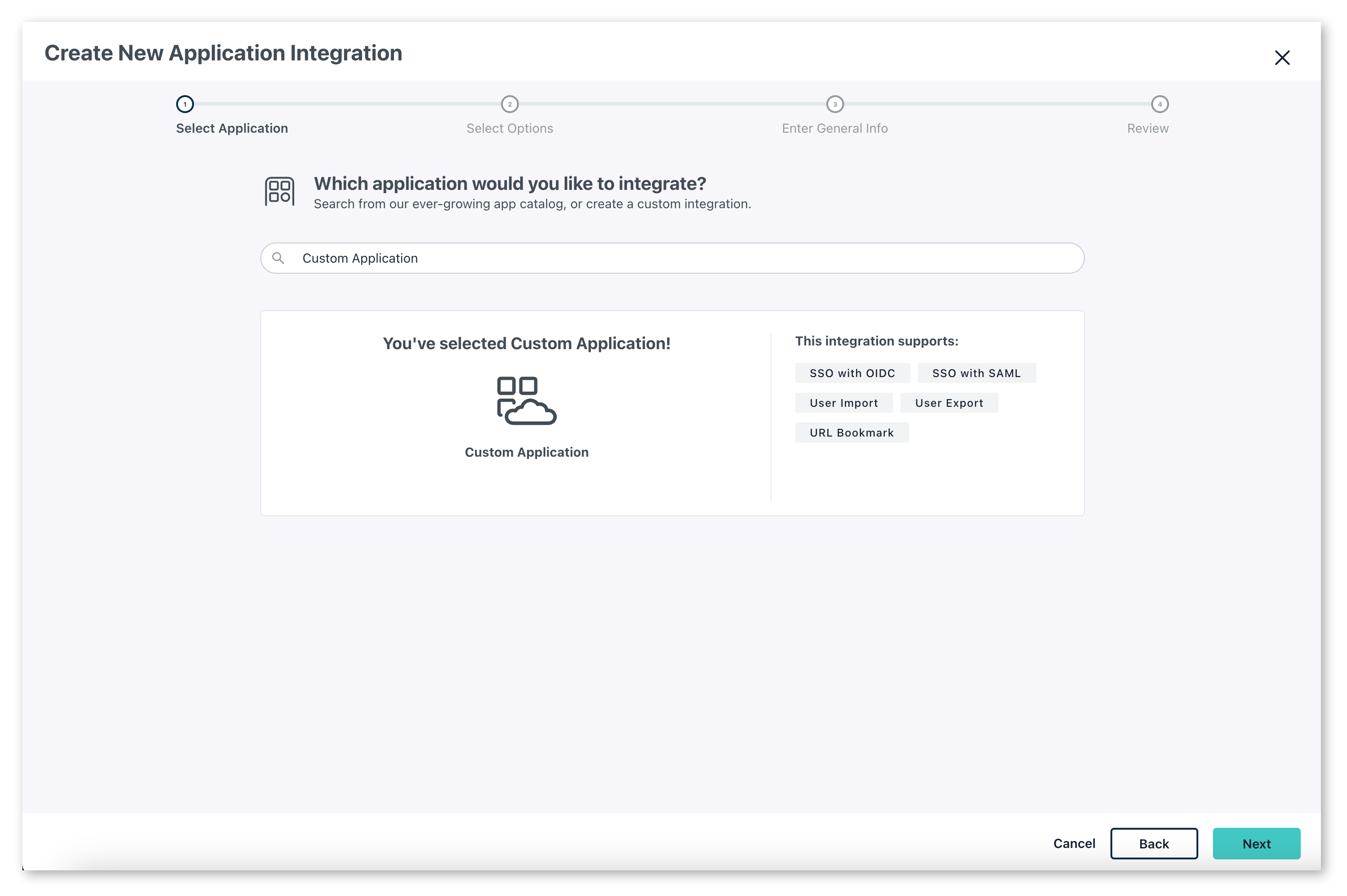
        Choose a custom application by clicking 'select' under `custom application`, then click next then next again to confirm.

        <Frame>
          <img src="https://mintcdn.com/growthbook-ea15456d/1rsmujQCDzXz2Vho/static/images/guides/SSO-jumpcloud-1.png?fit=max&auto=format&n=1rsmujQCDzXz2Vho&q=85&s=c9c79be9d03c16c41eba4ca749f1d7a5" alt="JumpCloud custom application, page 1" width="2920" height="1935" data-path="static/images/guides/SSO-jumpcloud-1.png" />
        </Frame>

        <Frame>
          <img src="https://mintcdn.com/growthbook-ea15456d/1rsmujQCDzXz2Vho/static/images/guides/SSO-jumpcloud-2.png?fit=max&auto=format&n=1rsmujQCDzXz2Vho&q=85&s=62ce7636c75a0f5ce33ae1a7c9b1ca77" alt="JumpCloud custom application, page 2" width="2944" height="1958" data-path="static/images/guides/SSO-jumpcloud-2.png" />
        </Frame>
      </li>

      <li>
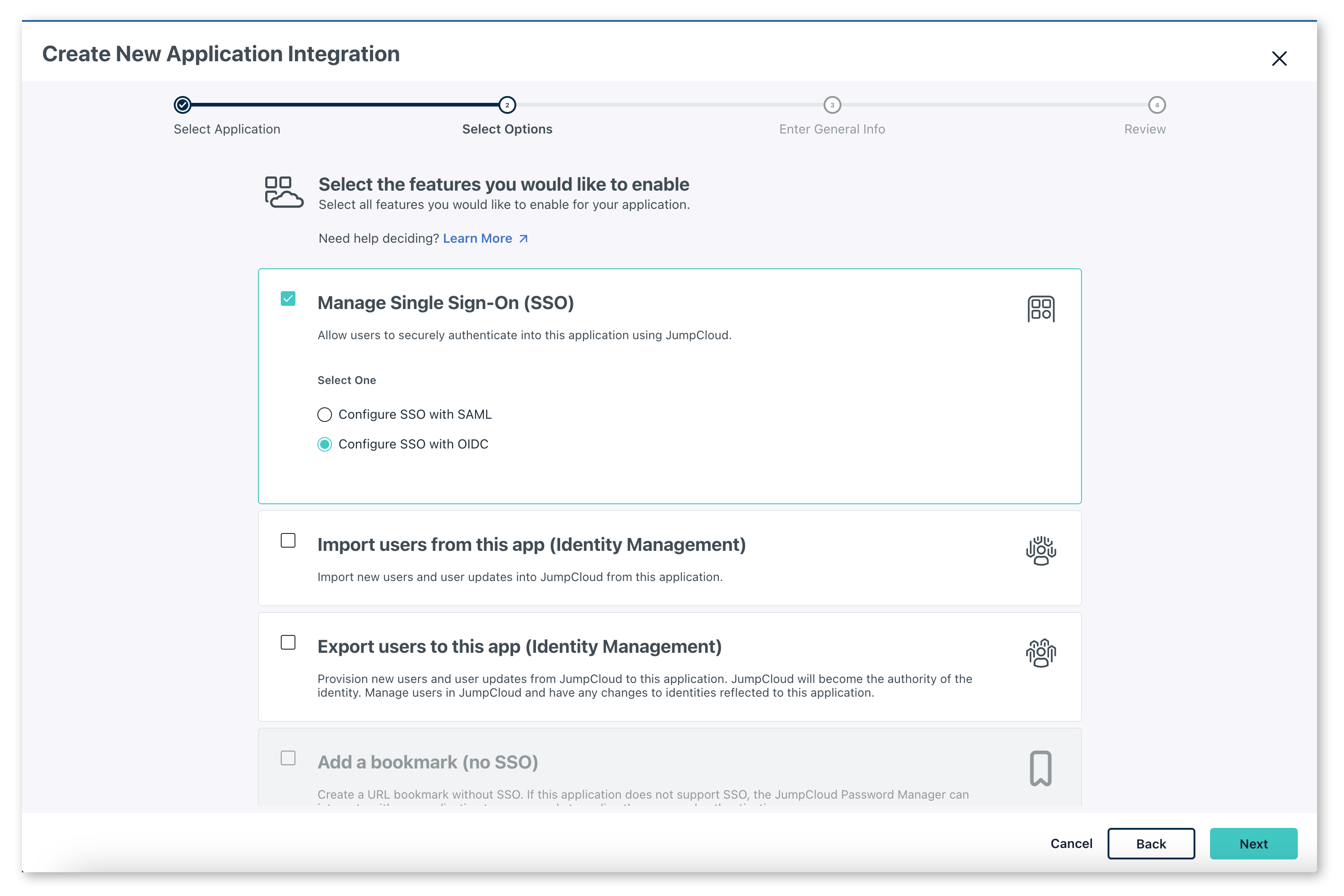
        You will then be asked what features you want to enable. Select `Manage Single Sign-On (SSO)`. Then, in the radio buttons, select <strong>"Configure SSO with OIDC"</strong>.

        <Frame>
          <img src="https://mintcdn.com/growthbook-ea15456d/1rsmujQCDzXz2Vho/static/images/guides/SSO-jumpcloud-3.png?fit=max&auto=format&n=1rsmujQCDzXz2Vho&q=85&s=2957c2023744f723c3518d3f00f79159" alt="JumpCloud SSO configuration" width="2939" height="1960" data-path="static/images/guides/SSO-jumpcloud-3.png" />
        </Frame>
      </li>

      <li>
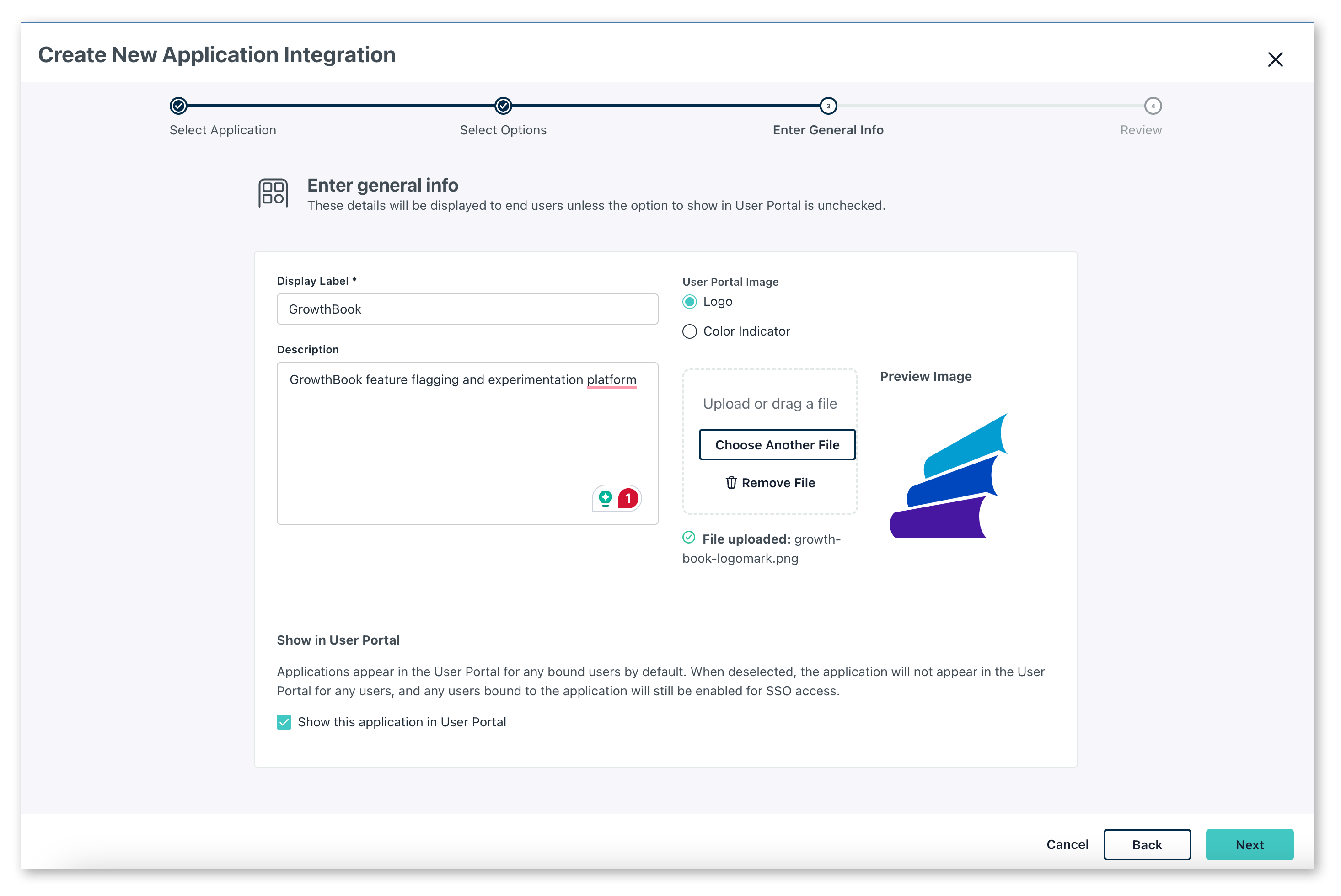
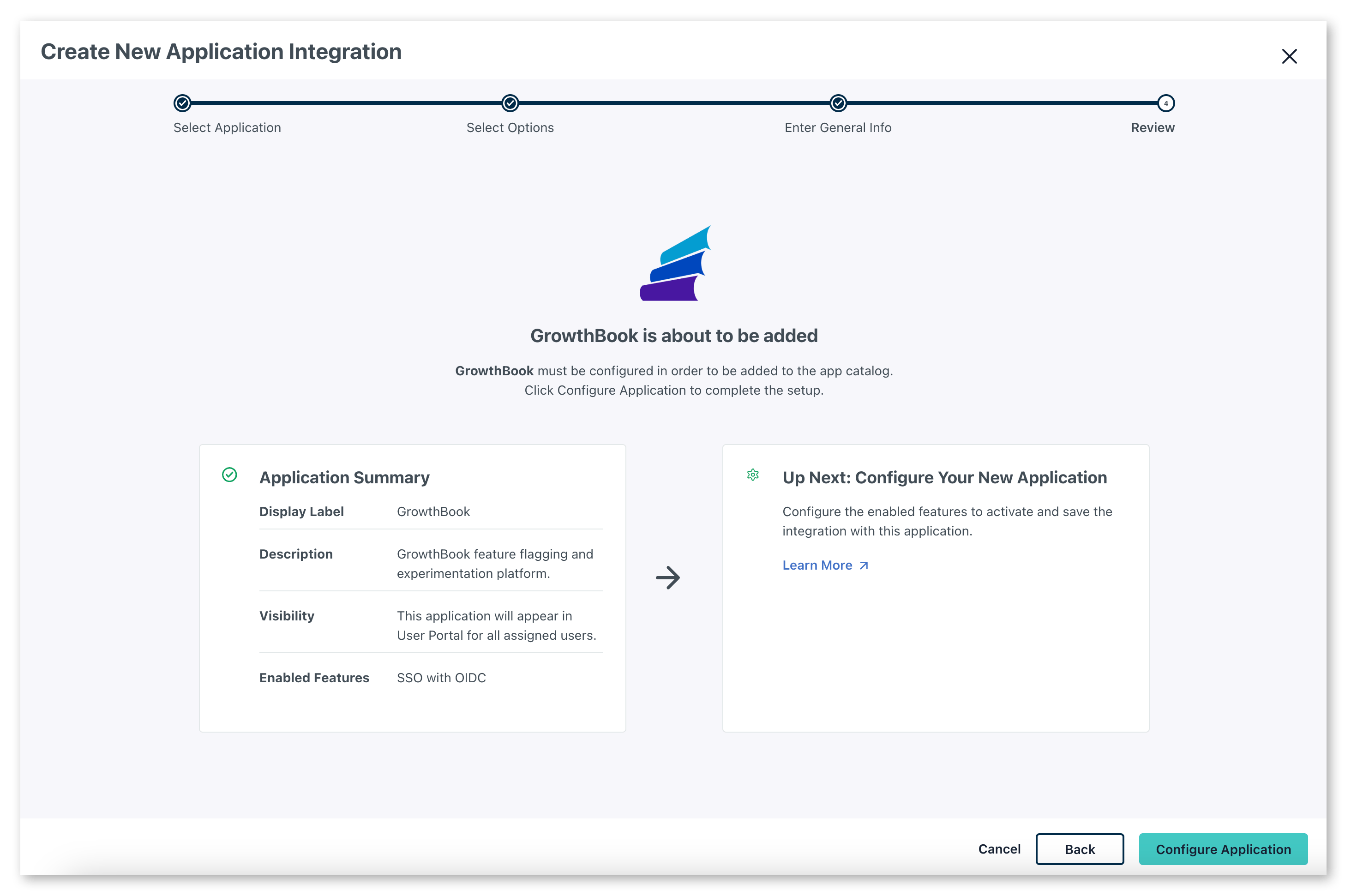
        Add the name "GrowthBook" (or whatever you would like to name it), an optional description and click `next`. When you've confirmed the details, click `Configure Application`.

        <Frame>
          <img src="https://mintcdn.com/growthbook-ea15456d/1rsmujQCDzXz2Vho/static/images/guides/SSO-jumpcloud-4.png?fit=max&auto=format&n=1rsmujQCDzXz2Vho&q=85&s=263d51c522fafdb051ae264d14e2e523" alt="JumpCloud SSO configuration with general info fields" width="2932" height="1960" data-path="static/images/guides/SSO-jumpcloud-4.png" />
        </Frame>

        <Frame>
          <img src="https://mintcdn.com/growthbook-ea15456d/1rsmujQCDzXz2Vho/static/images/guides/SSO-jumpcloud-5.png?fit=max&auto=format&n=1rsmujQCDzXz2Vho&q=85&s=f552f2c083bed731fa48b7767d45e150" alt="JumpCloud SSO configuration confirmation screen" width="2927" height="1941" data-path="static/images/guides/SSO-jumpcloud-5.png" />
        </Frame>
      </li>

      <li>
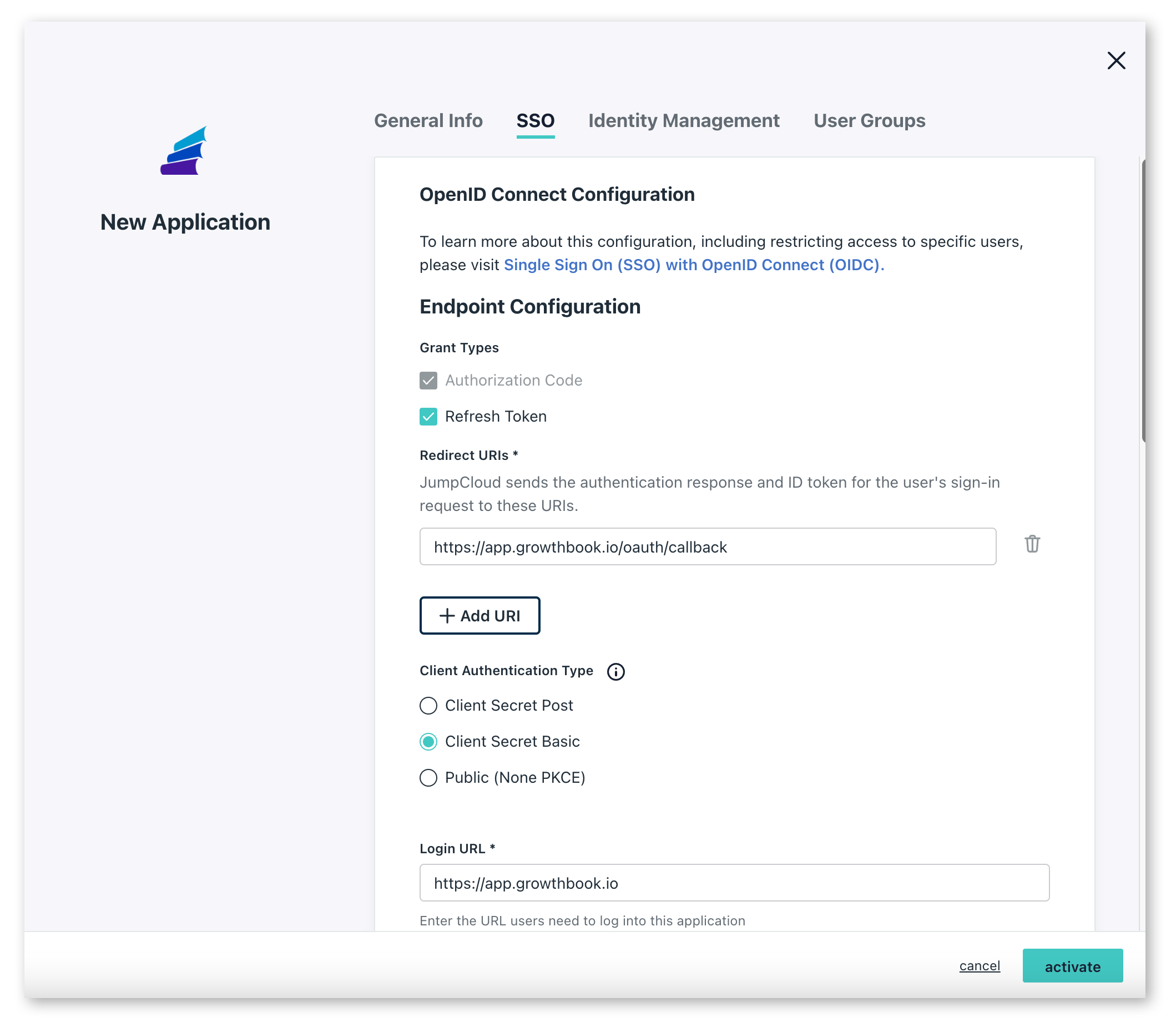
        This will open a window letting you add additional configuration options for the GrowthBook application. Here are the settings you should set:

        <ul>
          <li><strong>Grant types</strong>: Select "Refresh Token" and Authentication Code</li>
          <li><strong>Redirect URIs</strong>: <pre>[https://app.growthbook.io/oauth/callback](https://app.growthbook.io/oauth/callback)</pre></li>
          <li><strong>Client Authentication Type</strong>: Client Secret Basic</li>
          <li><strong>Login URL</strong>: <pre>[https://app.growthbook.io](https://app.growthbook.io)</pre></li>
          <li><strong>Attribute Mapping</strong>: Select both email and profile. The defaults for the fields that appear are all that is required.</li>
        </ul>

        <Frame>
          <img src="https://mintcdn.com/growthbook-ea15456d/1rsmujQCDzXz2Vho/static/images/guides/SSO-jumpcloud-6.png?fit=max&auto=format&n=1rsmujQCDzXz2Vho&q=85&s=624498e35c6b76b0b0553eccc3f61303" alt="JumpCloud SSO OpenID Connect" width="2119" height="1844" data-path="static/images/guides/SSO-jumpcloud-6.png" />
        </Frame>

        Once you have made the above settings, click 'Activate' from the bottom bar.
      </li>

      <li>
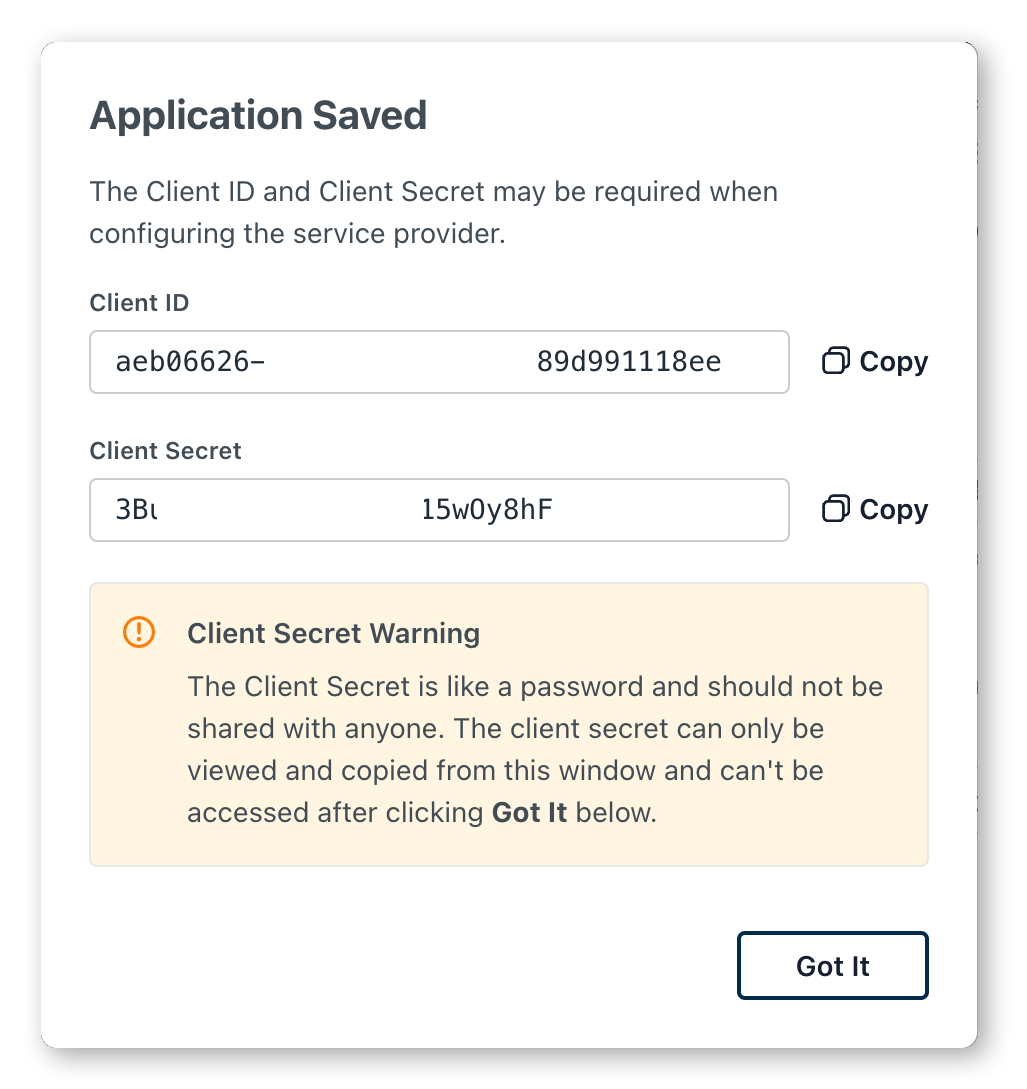
        You'll then be presented with a modal giving you the client id and client secret. Here you need to record the <strong>Client ID</strong> and <strong>Client Secret</strong>

        <Frame>
          <img src="https://mintcdn.com/growthbook-ea15456d/1rsmujQCDzXz2Vho/static/images/guides/SSO-jumpcloud-7.png?fit=max&auto=format&n=1rsmujQCDzXz2Vho&q=85&s=85a5b81e7d301e83fbcec144f929cd61" alt="JumpCloud SSO client id and secret" width="600" data-path="static/images/guides/SSO-jumpcloud-7.png" />
        </Frame>
      </li>

      <li>
        For self-hosted instances, construct the JSON configuration for GrowthBook. Replace CLIENT\_ID, CLIENT\_SECRET, and EMAIL\_DOMAIN, as into the JSON object above.
      </li>

      <li>
        Pass the JSON string into the environment variable SSO\_CONFIG of your GrowthBook container
      </li>
    </ol>
  </div>
</Accordion>