> ## Documentation Index
> Fetch the complete documentation index at: https://docs2.growthbook.io/llms.txt
> Use this file to discover all available pages before exploring further.
# Official GrowthBook MCP Server
> Connect local AI tools like Cursor, VS Code, Windsurf, Cline, and Claude to GrowthBook using the Model Context Protocol (MCP). Create feature flags, see experiments, and more without leaving your editor.
[Model Context Protocol](https://modelcontextprotocol.io/introduction) (MCP) is a standard for integrating AI tools and agents with developer platforms like GrowthBook. This guide shows you how to connect your AI tools to GrowthBook's MCP server and which tools are available for use.
**It's official!**
Check us out on the [official MCP Registry](https://registry.modelcontextprotocol.io/?q=growthbook)
## Prerequisites
* **Node.js**: Check if you have it by running `node -v`. Install it from [nodejs.org](https://nodejs.org/)
* **GrowthBook API Key**: To create a new key, go to **Settings** → **API Keys** → **New Secret Key**. Use this key in the next step.
## Installation
We cover how to connect the GrowthBook MCP server for the most popular tools below, but the installation steps are similar for most AI tools.
Configuration uses the following environment variables:
| Variable Name | Status | Description |
| ------------------ | -------- | ----------------------------------------------------------------------------------------------------- |
| GB\_API\_KEY | Required | A GrowthBook API key or PAT. When using a PAT, you can only access tools that your permissions allow. |
| GB\_EMAIL | Required | Your email address used with GrowthBook. Used when creating feature flags and experiments. |
| GB\_API\_URL | Optional | Your GrowthBook API URL. Defaults to `https://api.growthbook.io`. |
| GB\_APP\_ORIGIN | Optional | Your GrowthBook app URL Defaults to `https://app.growthbook.io`. |
| GB\_HTTP\_HEADER\* | Optional | Custom HTTP headers included in all API requests. See [Custom Headers](#custom-headers) below. |
**On GrowthBook Cloud?**
You only need to configure `GB_API_KEY` and `GB_EMAIL`.
### Cursor
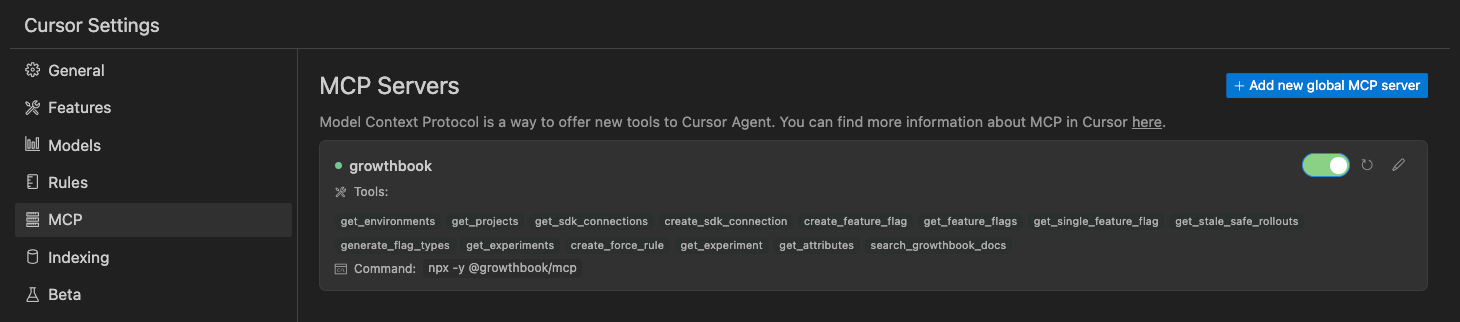
1. Open **Cursor Settings** → **MCP**
2. Click **Add new global MCP server**
3. Add an entry for the GrowthBook MCP, following the pattern below:
```json macOS theme={null}
{
"mcpServers": {
"growthbook": {
"command": "npx",
"args": ["-y", "@growthbook/mcp@latest"],
"env": {
"GB_API_KEY": "YOUR_API_KEY",
"GB_API_URL": "YOUR_API_URL",
"GB_APP_ORIGIN": "YOUR_APP_ORIGIN",
"GB_EMAIL": "YOUR_EMAIL"
}
}
}
}
```
```json Windows theme={null}
{
"mcpServers": {
"growthbook": {
"command": "cmd",
"args": ["/c", "npx", "-y", "@growthbook/mcp@latest"],
"env": {
"GB_API_KEY": "YOUR_API_KEY",
"GB_API_URL": "YOUR_API_URL",
"GB_APP_ORIGIN": "YOUR_APP_ORIGIN",
"GB_EMAIL": "YOUR_EMAIL"
}
}
}
}
```
```json WSL theme={null}
{
"mcpServers": {
"growthbook": {
"command": "wsl",
"args": ["npx", "-y", "@growthbook/mcp@latest"],
"env": {
"GB_API_KEY": "YOUR_API_KEY",
"GB_API_URL": "YOUR_API_URL",
"GB_APP_ORIGIN": "YOUR_APP_ORIGIN",
"GB_EMAIL": "YOUR_EMAIL"
}
}
}
}
```
```json Linux theme={null}
{
"mcpServers": {
"growthbook": {
"command": "npx",
"args": ["-y", "@growthbook/mcp@latest"],
"env": {
"GB_API_KEY": "YOUR_API_KEY",
"GB_API_URL": "YOUR_API_URL",
"GB_APP_ORIGIN": "YOUR_APP_ORIGIN",
"GB_EMAIL": "YOUR_EMAIL"
}
}
}
}
```
4. Save the settings.
You should now see a green active status after the server successfully connects!
### VS Code
1. Open **User Settings (JSON)**
2. Add an MCP entry:
```json macOS theme={null}
{
"servers": {
"growthbook": {
"command": "npx",
"args": ["-y", "@growthbook/mcp@latest"],
"env": {
"GB_API_KEY": "YOUR_API_KEY",
"GB_API_URL": "YOUR_API_URL",
"GB_APP_ORIGIN": "YOUR_APP_ORIGIN",
"GB_EMAIL": "YOUR_EMAIL"
}
}
}
}
```
```json Windows theme={null}
{
"servers": {
"growthbook": {
"command": "cmd",
"args": ["/c", "npx", "-y", "@growthbook/mcp@latest"],
"env": {
"GB_API_KEY": "YOUR_API_KEY",
"GB_API_URL": "YOUR_API_URL",
"GB_APP_ORIGIN": "YOUR_APP_ORIGIN",
"GB_EMAIL": "YOUR_EMAIL"
}
}
}
}
```
```json WSL theme={null}
{
"servers": {
"growthbook": {
"command": "wsl",
"args": ["npx", "-y", "@growthbook/mcp@latest"],
"env": {
"GB_API_KEY": "YOUR_API_KEY",
"GB_API_URL": "YOUR_API_URL",
"GB_APP_ORIGIN": "YOUR_APP_ORIGIN",
"GB_EMAIL": "YOUR_EMAIL"
}
}
}
}
```
```json Linux theme={null}
{
"servers": {
"growthbook": {
"command": "npx",
"args": ["-y", "@growthbook/mcp@latest"],
"env": {
"GB_API_KEY": "YOUR_API_KEY",
"GB_API_URL": "YOUR_API_URL",
"GB_APP_ORIGIN": "YOUR_APP_ORIGIN",
"GB_EMAIL": "YOUR_EMAIL"
}
}
}
}
```
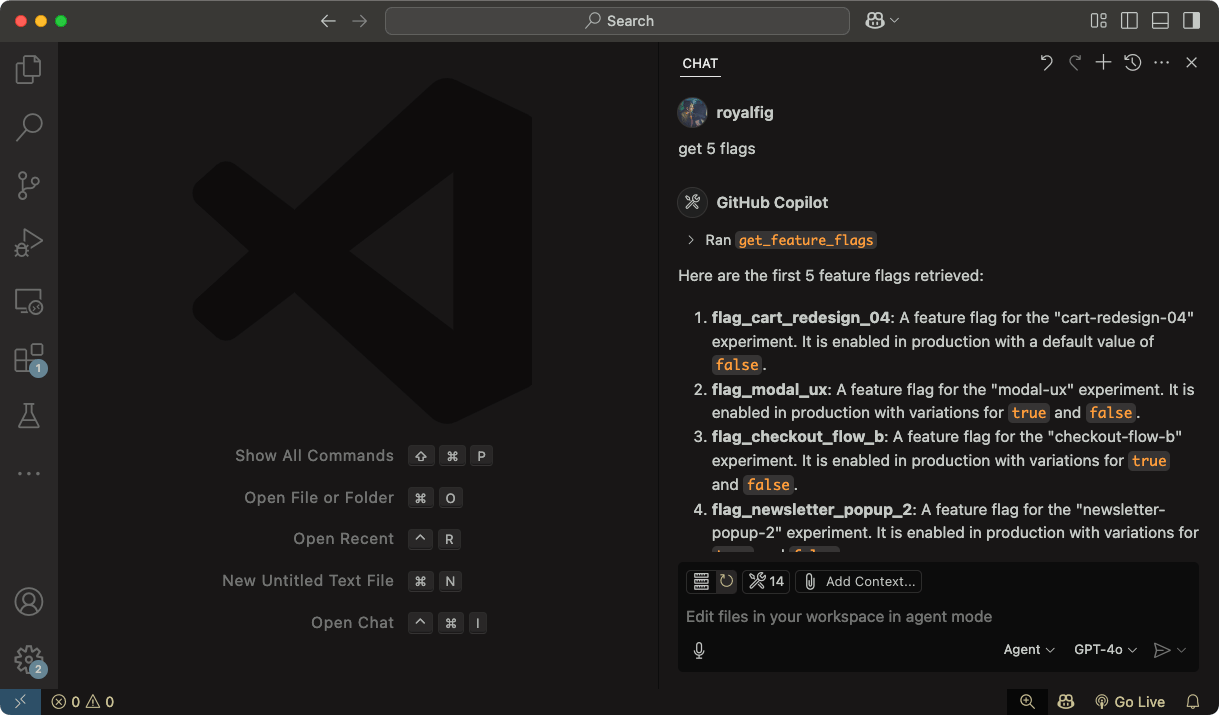
3. Save your settings. In your file, a **Start** button will appear. Click it to the start the server.
In CoPilot Chat, you'll see a tool icon, indicating the server is connected successfully. GrowthBook MCP is now ready to use in VS Code.
### Claude Code
Claude Code uses command-line commands to add MCP servers. Run the following command in your terminal:
```bash theme={null}
claude mcp add growthbook --transport stdio --env GB_API_KEY=YOUR_API_KEY --env GB_API_URL=YOUR_API_URL --env GB_APP_ORIGIN=YOUR_APP_ORIGIN --env GB_EMAIL=YOUR_EMAIL -- npx -y @growthbook/mcp@latest
```
**Command structure**
All options (`--transport`, `--env`, etc.) must come **before** the server name. The `--` (double dash) separates the server name from the command and arguments that get passed to the MCP server.
You can verify the server was added by running:
```bash theme={null}
claude mcp get growthbook
```
To see all configured MCP servers, use:
```bash theme={null}
claude mcp list
```
Within Claude Code, you can check server status using the `/mcp` command.
### Claude Desktop
We have an official extension in the Connectors Directory.
1. Go to **Settings** → **Extensions** → **Browse Extensions**
2. Select **Desktop Extensions** and search for "GrowthBook"
3. Follow the prompts to install and configure the extension
4. That's it!
**Node not required**
Claude Desktop ships with its own version of Node, which means it's not required here
## Custom Headers
If your GrowthBook instance is behind a reverse proxy or requires additional authentication headers (e.g. Cloudflare Access), you can pass custom HTTP headers via environment variables using the `GB_HTTP_HEADER_*` prefix.
Each environment variable following this pattern is automatically converted to a proper HTTP header and included in every API request the MCP server makes.
### Naming Convention
The variable name after the `GB_HTTP_HEADER_` prefix is converted from `UPPER_SNAKE_CASE` to `Title-Case-With-Dashes`:
| Environment Variable | HTTP Header Sent |
| -------------------------------- | ----------------- |
| `GB_HTTP_HEADER_X_TENANT_ID` | `X-Tenant-ID` |
| `GB_HTTP_HEADER_CF_ACCESS_TOKEN` | `Cf-Access-Token` |
| `GB_HTTP_HEADER_X_CUSTOM_AUTH` | `X-Custom-Auth` |
**Header precedence**
Custom headers cannot override the `Authorization` or `Content-Type` headers, which are always set by the MCP server.
### Example: Cloudflare Access
If your self-hosted GrowthBook is protected by [Cloudflare Access](https://developers.cloudflare.com/cloudflare-one/policies/access/), add the service token headers:
```json macOS / Linux theme={null}
{
"mcpServers": {
"growthbook": {
"command": "npx",
"args": ["-y", "@growthbook/mcp@latest"],
"env": {
"GB_API_KEY": "YOUR_API_KEY",
"GB_API_URL": "https://growthbook.internal.example.com",
"GB_APP_ORIGIN": "https://growthbook.internal.example.com",
"GB_EMAIL": "YOUR_EMAIL",
"GB_HTTP_HEADER_CF_ACCESS_CLIENT_ID": "YOUR_CF_CLIENT_ID",
"GB_HTTP_HEADER_CF_ACCESS_CLIENT_SECRET": "YOUR_CF_CLIENT_SECRET"
}
}
}
}
```
```json Windows theme={null}
{
"mcpServers": {
"growthbook": {
"command": "cmd",
"args": ["/c", "npx", "-y", "@growthbook/mcp@latest"],
"env": {
"GB_API_KEY": "YOUR_API_KEY",
"GB_API_URL": "https://growthbook.internal.example.com",
"GB_APP_ORIGIN": "https://growthbook.internal.example.com",
"GB_EMAIL": "YOUR_EMAIL",
"GB_HTTP_HEADER_CF_ACCESS_CLIENT_ID": "YOUR_CF_CLIENT_ID",
"GB_HTTP_HEADER_CF_ACCESS_CLIENT_SECRET": "YOUR_CF_CLIENT_SECRET"
}
}
}
}
```
For Claude Code, append the custom headers as additional `--env` flags:
```bash theme={null}
claude mcp add growthbook --transport stdio \
--env GB_API_KEY=YOUR_API_KEY \
--env GB_API_URL=https://growthbook.internal.example.com \
--env GB_APP_ORIGIN=https://growthbook.internal.example.com \
--env GB_EMAIL=YOUR_EMAIL \
--env GB_HTTP_HEADER_CF_ACCESS_CLIENT_ID=YOUR_CF_CLIENT_ID \
--env GB_HTTP_HEADER_CF_ACCESS_CLIENT_SECRET=YOUR_CF_CLIENT_SECRET \
-- npx -y @growthbook/mcp@latest
```
### Example: Multi-Tenant Proxy
If your API gateway requires a tenant identifier:
```json theme={null}
"env": {
"GB_API_KEY": "YOUR_API_KEY",
"GB_EMAIL": "YOUR_EMAIL",
"GB_HTTP_HEADER_X_TENANT_ID": "your-tenant-id"
}
```
You can add as many `GB_HTTP_HEADER_*` variables as needed — each one becomes a separate header on every request.
## Tools
### Feature Flags
* `create_feature_flag`: Create, add, or wrap an element with a feature flag. Accepts key, type, default value, and other metadata.
* `get_feature_flags`: List feature flags in your GrowthBook instance. Include a feature ID to retrieve a single flag.
* `get_stale_feature_flags`: Given a list of feature flag IDs, checks whether each one is stale and returns cleanup guidance including replacement values and SDK search patterns.
* `create_force_rule`: Add a targeting condition (e.g., `country = CA`) to an existing flag.
* `generate_flag_types`: Generate TypeScript types for feature flags.
### Experiments
* `get_experiments`: List experiments in GrowthBook. Include an experiment ID to return data about a single experiment.
* This tool has 3 modes:
1. `metadata`: The default response from the GrowthBook API, including basic information about experiments.
2. `full`: Metadata about experiments plus results. Warning: This returns a large payload, which fills up the context window quickly.
3. `summary`: Presents a high-level summary of experiments and their results, combining experiment metadata, results, and metrics.
* `get_attributes`: List user attributes tracked in GrowthBook (useful for targeting).
* `create_experiment`: Creates an A/B test. Optionally, provide a feature ID to link the experiment to a feature flag. Note: this tool calls `get_defaults`, which provides a sampling of previous experiments to help the AI agent create the experiment correctly. For better performance, these defaults are saved to the local file system and periodically updated.
* `get_defaults`: Get default values for experiments including hypothesis, description, datasource, and assignment query. (Runs automatically when the create experiment tool is called.)
* `create_defaults`: Set custom default values for experiments that will be used when creating new experiments.
* `clear_user_defaults`: Clear user-defined defaults and revert to automatic defaults.
### Environments
* `get_environments`: List all environments (e.g., production, staging) configured in GrowthBook.
### Projects
* `get_projects`: List all projects in your GrowthBook instance.
### SDK Connections
* `get_sdk_connections`: List SDK connections (how GrowthBook connects to your apps).
* `create_sdk_connection`: Create a new SDK connection for your app, specifying language and environment.
### Metrics
* `get_metrics`: List fact and legacy metrics (useful for better understanding experiments). Include a metric ID to return details about a specific metric.
### Documentation Search
* `search_growthbook_docs`: Search the GrowthBook documentation for information on how to use a feature, by keyword or question.
## Example Prompts
Here are some prompts to try with your AI assistant once the MCP server is connected:
### Feature Flags
* "Create a boolean feature flag called `new-checkout-flow` that defaults to `false`"
* "Show me the details and rules for the `dark-mode` feature flag"
* "Add a force rule to `new-checkout-flow` that enables it for users where `country` is `US`"
* "Check if these flags are stale and can be cleaned up: `old-banner`, `beta-pricing`, `temp-fix`"
* "Generate TypeScript types for all my feature flags"
### Experiments
* "Summarize the results of my last 5 experiments"
* "Create an A/B test on the `new-checkout-flow` flag with a control (`false`) and treatment (`true`)"
* "Show me the full results for experiment `exp_abc123`, including metric breakdowns"
### General
* "What SDK connections do I have set up?"
* "Search the GrowthBook docs for how to set up a fact metric"
* "List all my projects and environments"
## Video Tutorial
Watch this video for a complete walkthrough of setting up and using the GrowthBook MCP Server:
## Next steps
Now that you're connected, start using GrowthBook's MCP tools directly from your editor to:
* Add new flags to your code and GrowthBook
* Generate type definitions for your flags for [typesafe feature flagging](https://github.com/growthbook/examples/tree/main/vanilla-typescript)
* Create new feature-flag experiements
* Search the GrowthBooks docs without leaving the editor
* Check out the [GrowthBook MCP Server code on GitHub](https://github.com/growthbook/growthbook-mcp)
[Join our community Slack for additional tips and tricks](https://join.slack.com/t/growthbookusers/shared_invite/zt-2xw8fu279-Y~hwnfCEf7WrEI9qScHURQ)

 ### VS Code
1. Open **User Settings (JSON)**
2. Add an MCP entry:
### VS Code
1. Open **User Settings (JSON)**
2. Add an MCP entry:
 ### Claude Code
Claude Code uses command-line commands to add MCP servers. Run the following command in your terminal:
```bash theme={null}
claude mcp add growthbook --transport stdio --env GB_API_KEY=YOUR_API_KEY --env GB_API_URL=YOUR_API_URL --env GB_APP_ORIGIN=YOUR_APP_ORIGIN --env GB_EMAIL=YOUR_EMAIL -- npx -y @growthbook/mcp@latest
```
### Claude Code
Claude Code uses command-line commands to add MCP servers. Run the following command in your terminal:
```bash theme={null}
claude mcp add growthbook --transport stdio --env GB_API_KEY=YOUR_API_KEY --env GB_API_URL=YOUR_API_URL --env GB_APP_ORIGIN=YOUR_APP_ORIGIN --env GB_EMAIL=YOUR_EMAIL -- npx -y @growthbook/mcp@latest
```