> ## Documentation Index
> Fetch the complete documentation index at: https://docs2.growthbook.io/llms.txt
> Use this file to discover all available pages before exploring further.
# Configuring GrowthBook to work with RudderStack
> Learn how to use GrowthBook with RudderStack to easily add A/B testing to your application
GrowthBook supports RudderStack as an event source for easily adding A/B testing to your application. This document is a
how-to guide for setting up RudderStack with your application, connecting RudderStack to BigQuery and then connecting
GrowthBook to this data.
## 1. Setup RudderStack
If you have already set up RudderStack, you can skip this step. RudderStack allows you to send events from your application to any data destination, including BigQuery, which is what we're going to use it for here.
Once you have a RudderStack account, you need to create a BigQuery bucket for the event data to be stored. You can follow the [directions from RudderStack](https://www.rudderstack.com/docs/destinations/storage-platforms/google-cloud-storage/), but the short version is:
* From the Google Cloud console for BigQuery, create a new bucket (or you can also use an already existing bucket).
* Create a new service account under [IAM & Admin → Service Accounts](https://console.cloud.google.com/iam-admin/serviceaccounts) for RudderStack to connect to this bucket.
* Give Storage `Object Admin` role access to the newly created service account.
* Under the `actions` menu on the service account you just created, click on manage keys to create a new key. Choose key
type as JSON. This will cause a JSON key file to be downloaded to your computer.
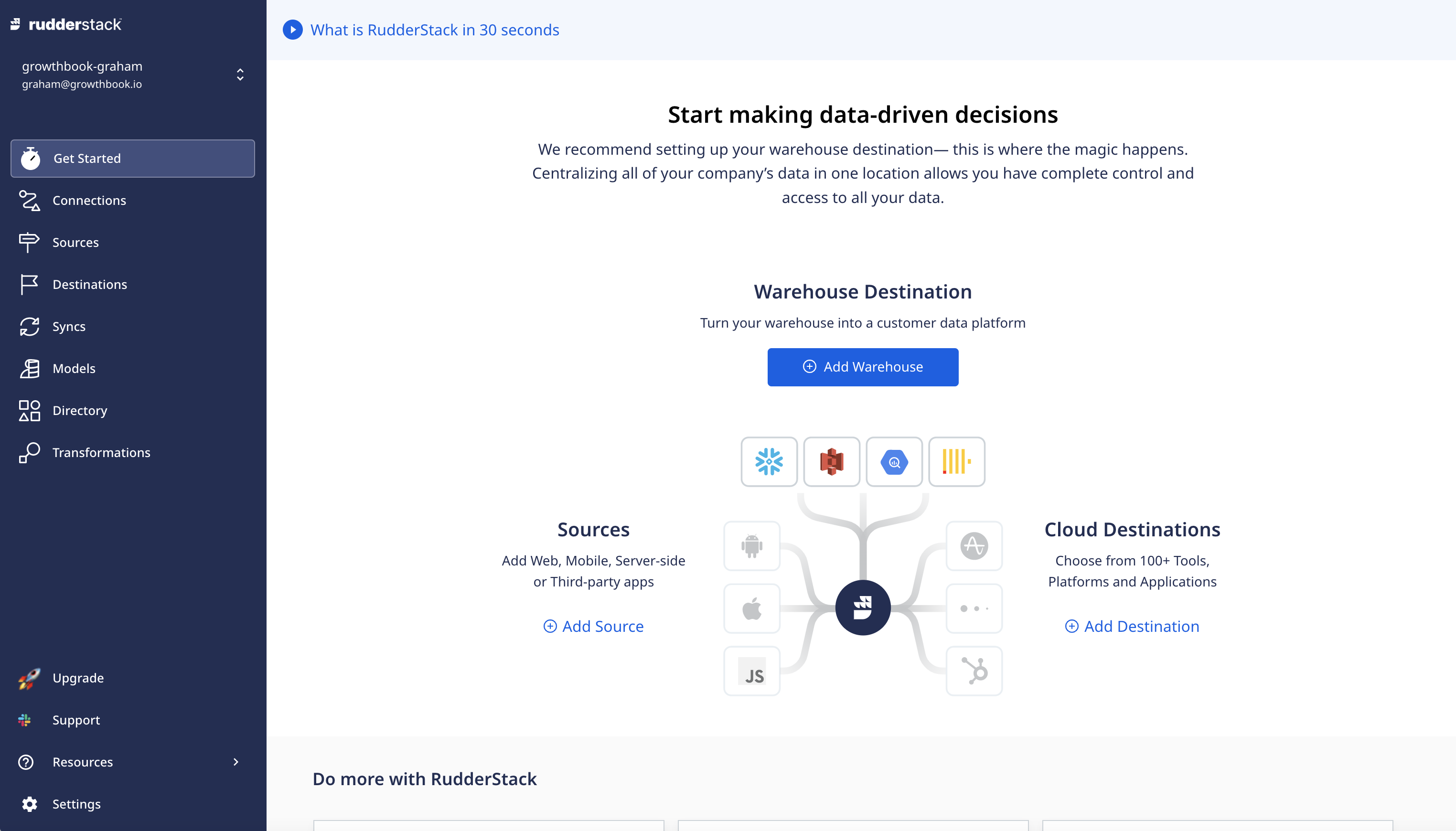
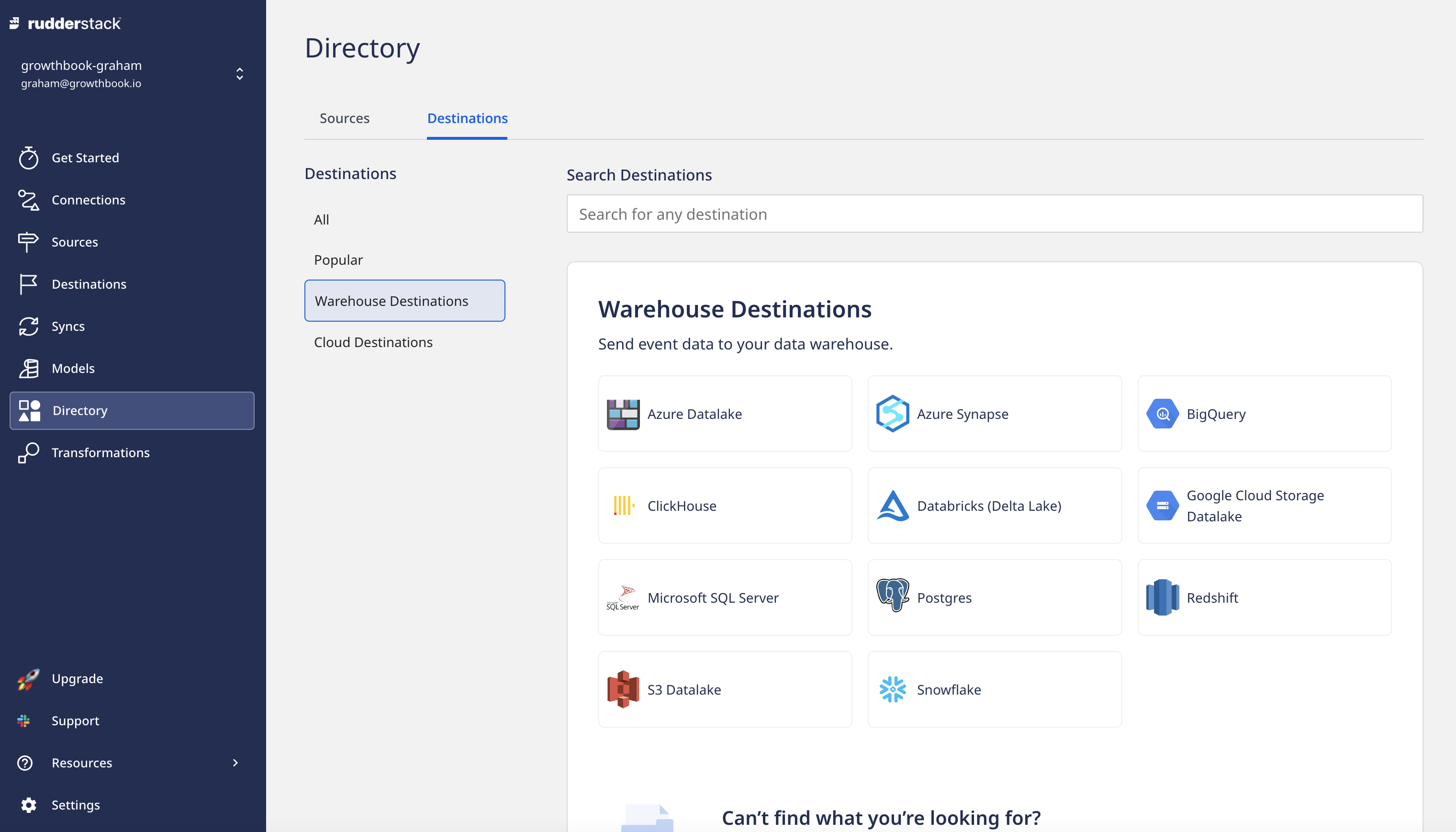
With the bucket created, we can create a RudderStack warehouse destination.
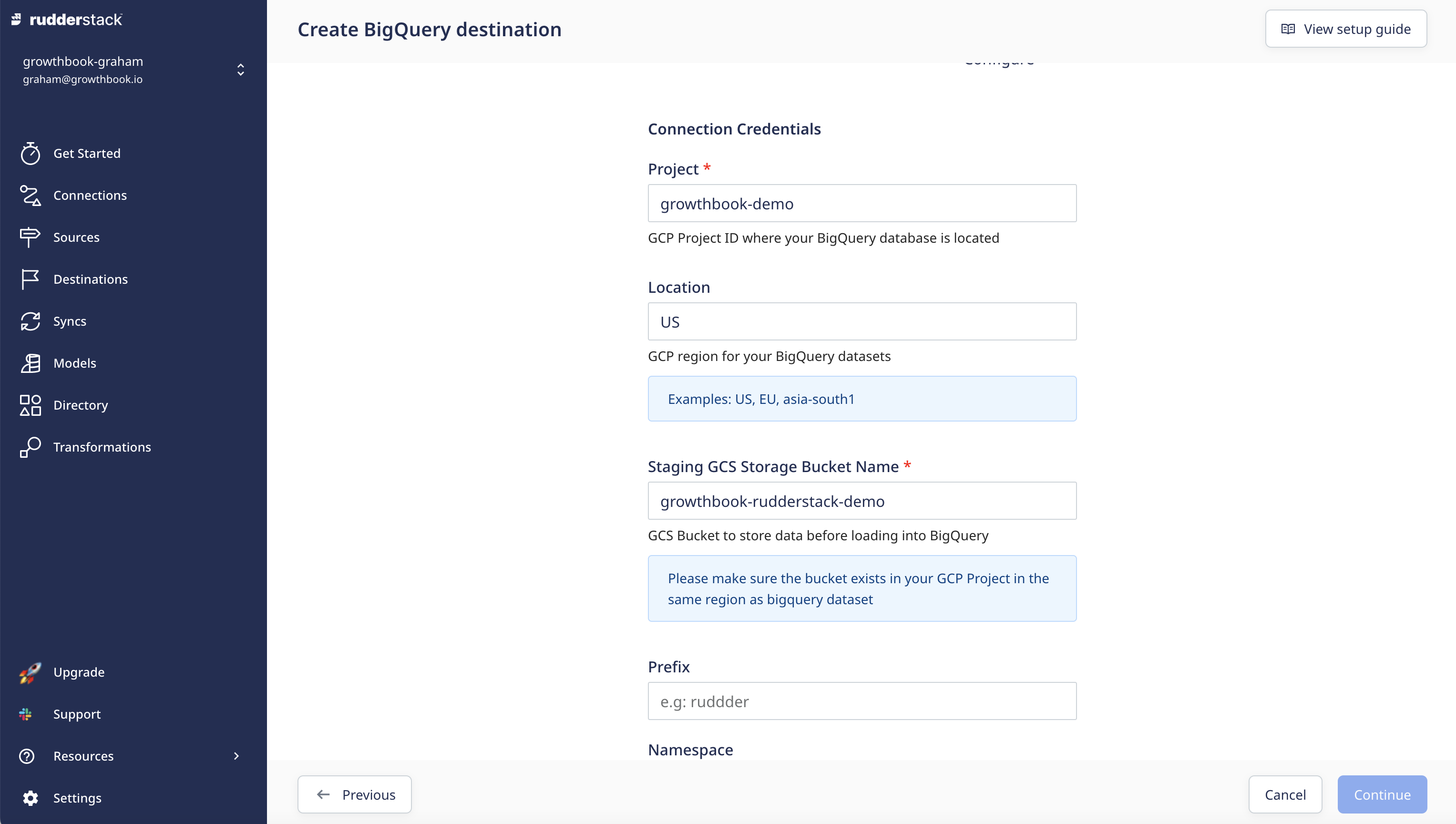 The `Project` and `bucket name` needs to match the values you set up when creating the Google cloud project and bucket.
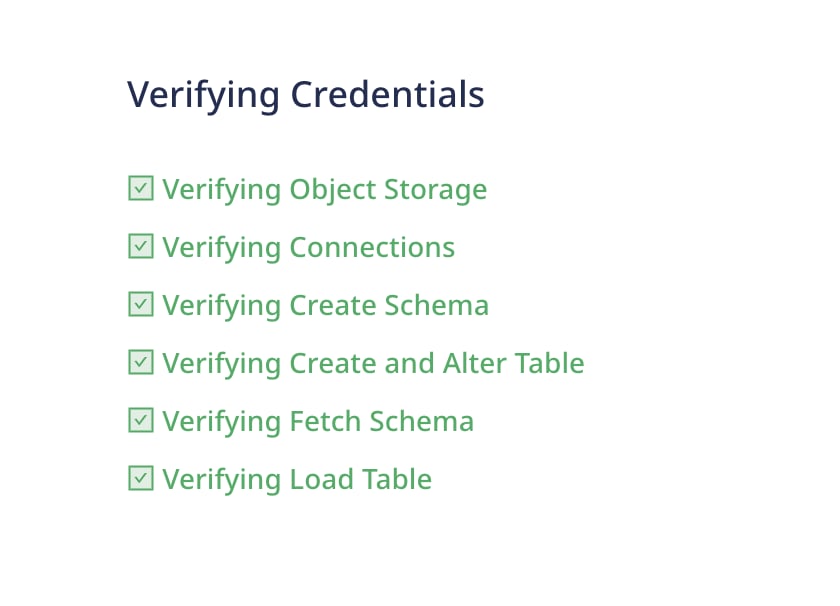
Once you've created the destination, you should see it successfully connect
The `Project` and `bucket name` needs to match the values you set up when creating the Google cloud project and bucket.
Once you've created the destination, you should see it successfully connect
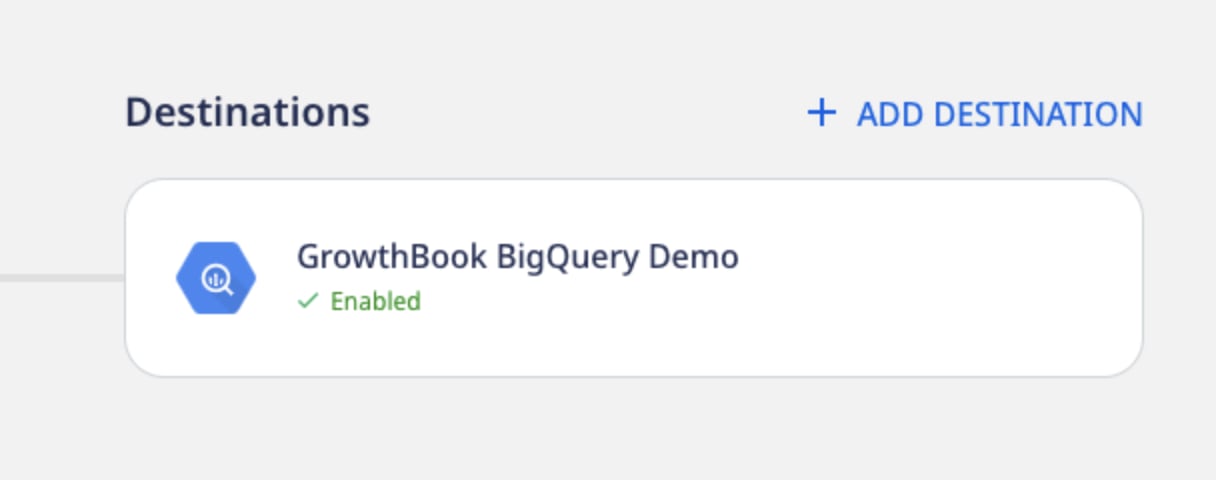
 And it will show up as a connected destination on your RudderStack Connect dashboard.
 ## 2. Connect GrowthBook
Now that we have data flowing into BigQuery, we need to have GrowthBook connect to it. It
is best practice to create another service account for GrowthBook to connect to BigQuery.
(We have a complete guide on how to do this here: [Setting up BigQuery as a data source](/guide/bigquery))
Navigate to Analysis → Data Sources from within GrowthBook and click on 'Add Data Source'
Button. From the window that pops up, select RudderStack:
## 2. Connect GrowthBook
Now that we have data flowing into BigQuery, we need to have GrowthBook connect to it. It
is best practice to create another service account for GrowthBook to connect to BigQuery.
(We have a complete guide on how to do this here: [Setting up BigQuery as a data source](/guide/bigquery))
Navigate to Analysis → Data Sources from within GrowthBook and click on 'Add Data Source'
Button. From the window that pops up, select RudderStack:
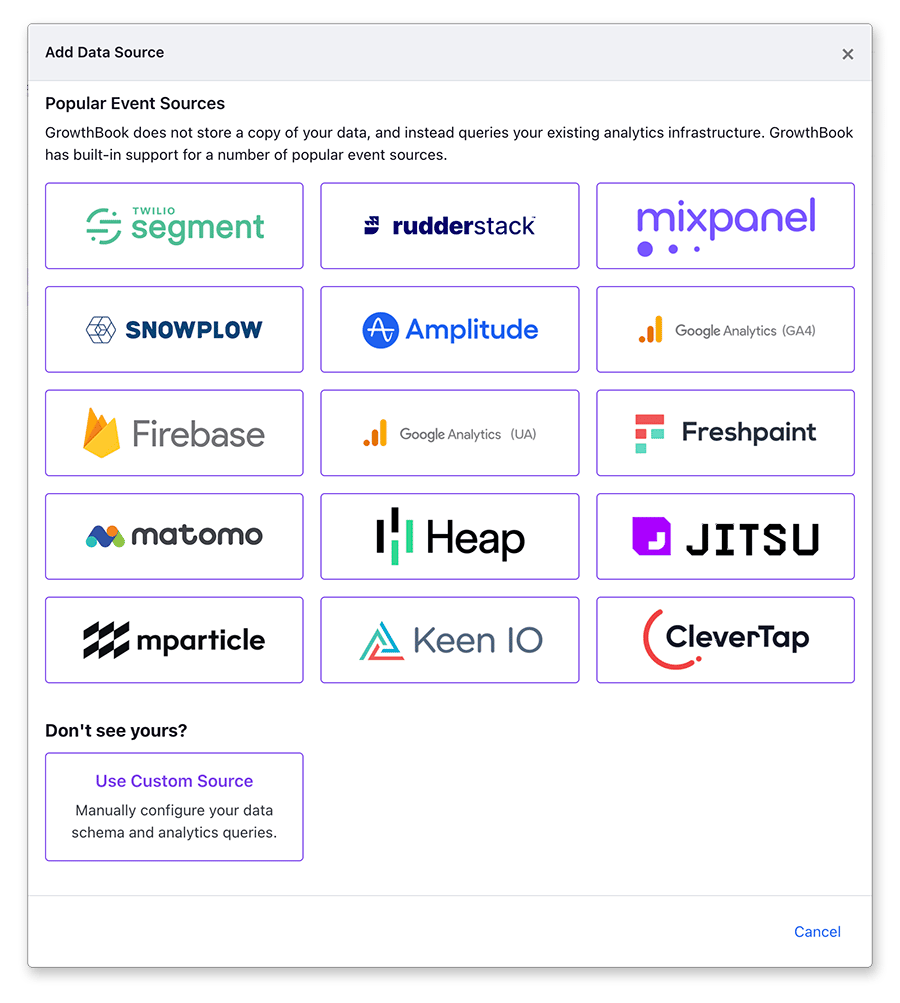 After choosing RudderStack you'll be presented with a connection window to connect to BigQuery.
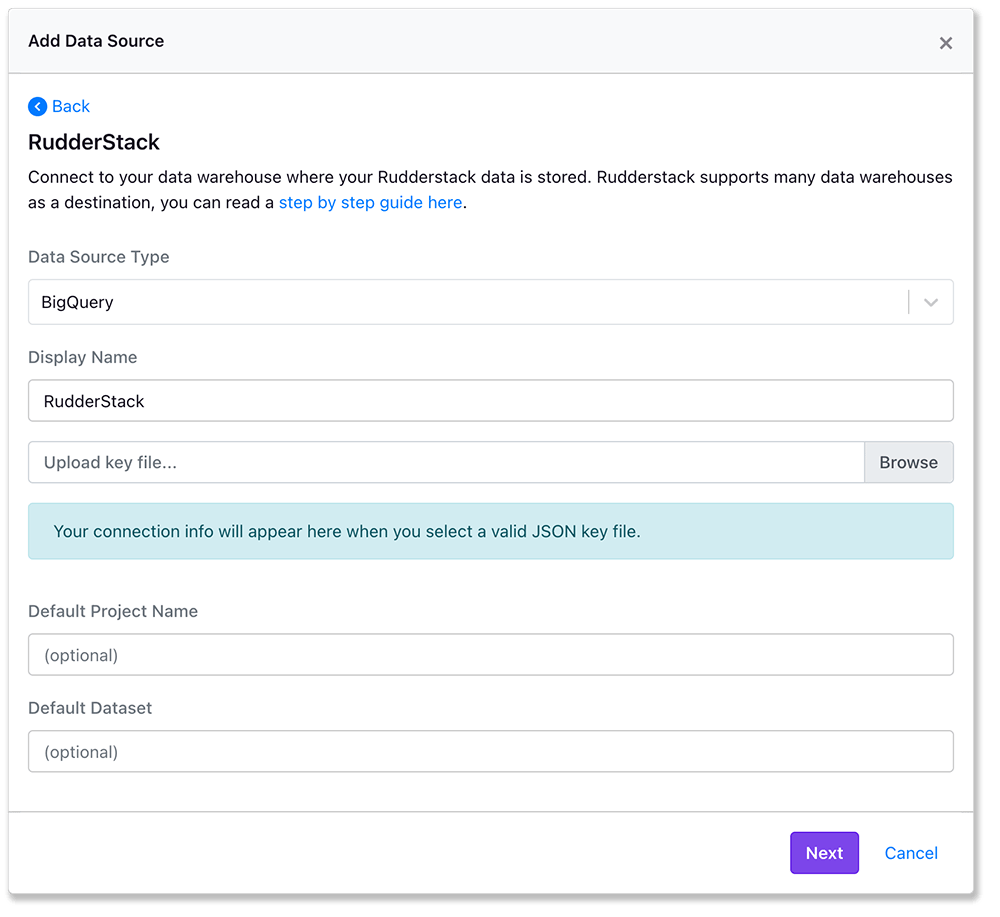 When successfully connected, you'll be redirected to the data source page. You'll see all the connection
options for BigQuery as well as the queries used. By choosing RudderStack as you added the data source, GrowthBook
will pre-populate the experiment exposure query which is need to determine which user saw which experiment variation.
Depending on your needs, you may still need to adjust these queries - for instance if you're tracking both
`anonymous_id` and `user_id`, you'll need to add the `user_id` query.
## 3. Add Metrics
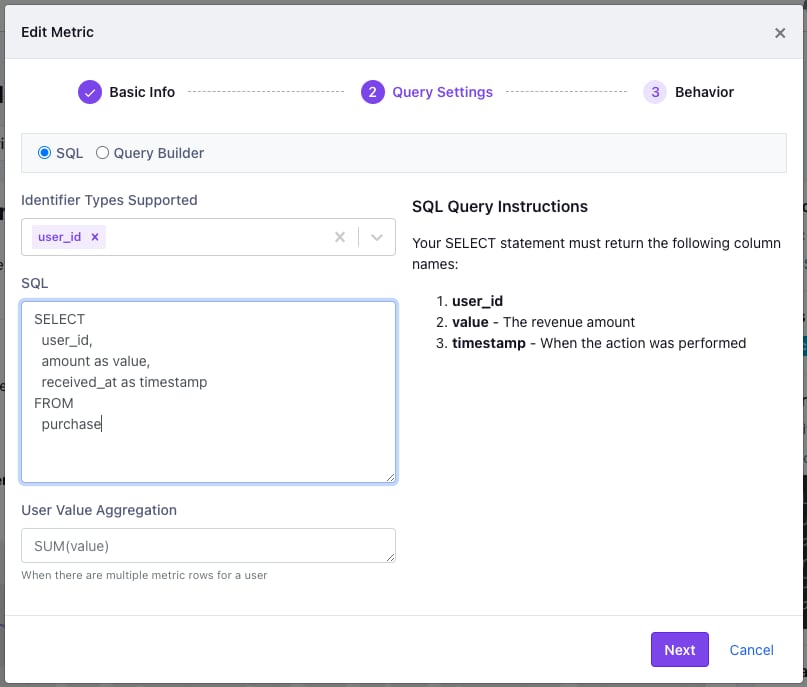
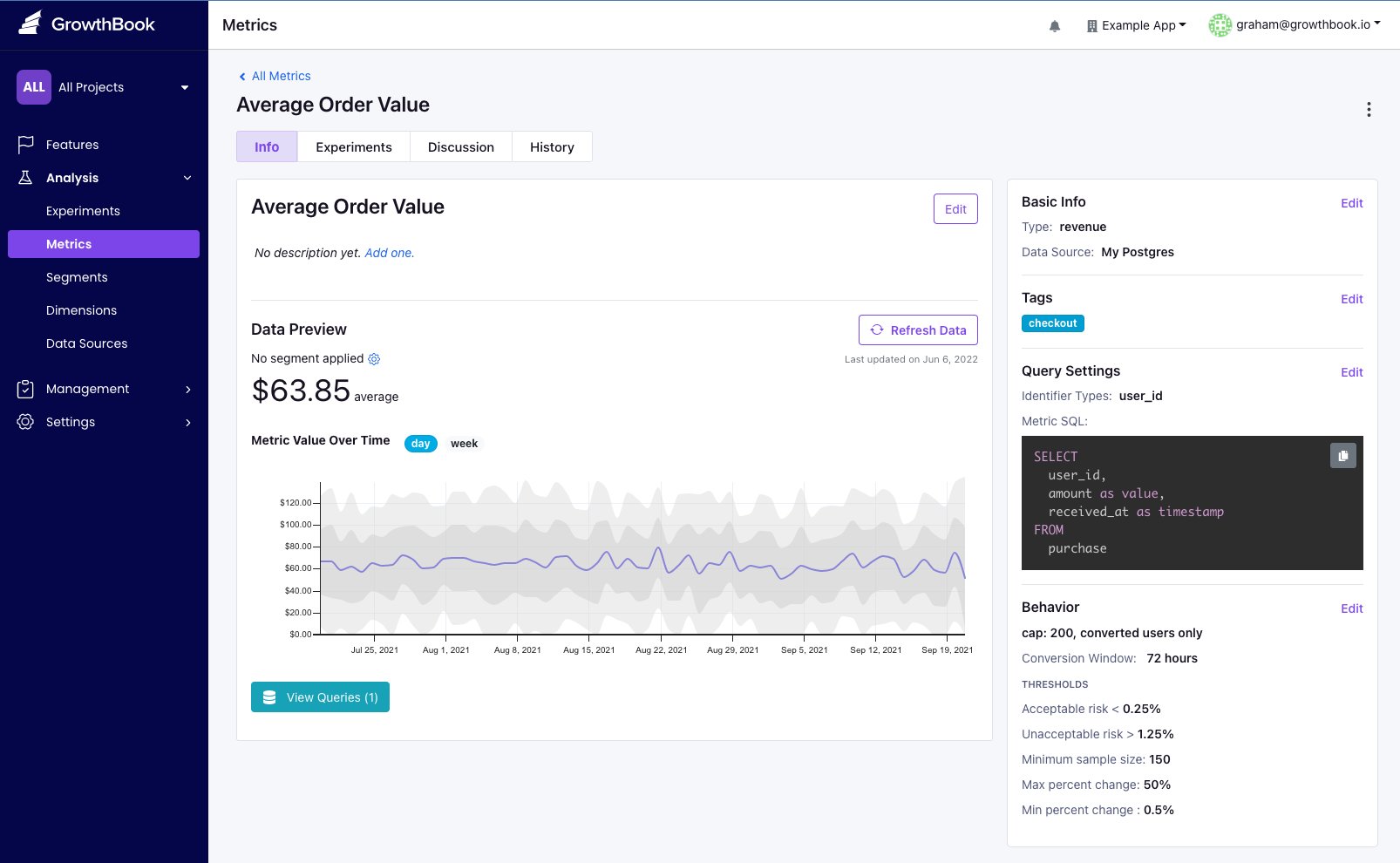
GrowthBook needs to know what metrics you want to use in your experiments, and how to query this data from BigQuery.
This step depends on your needs as an organization. Keep in mind that metric queries will be generic, returning all
users who do an event, but will be joined to the experiment exposure information when determining the impact of
experiment results.
Metrics are added from the **Analysis** → **Metrics** menu.
When successfully connected, you'll be redirected to the data source page. You'll see all the connection
options for BigQuery as well as the queries used. By choosing RudderStack as you added the data source, GrowthBook
will pre-populate the experiment exposure query which is need to determine which user saw which experiment variation.
Depending on your needs, you may still need to adjust these queries - for instance if you're tracking both
`anonymous_id` and `user_id`, you'll need to add the `user_id` query.
## 3. Add Metrics
GrowthBook needs to know what metrics you want to use in your experiments, and how to query this data from BigQuery.
This step depends on your needs as an organization. Keep in mind that metric queries will be generic, returning all
users who do an event, but will be joined to the experiment exposure information when determining the impact of
experiment results.
Metrics are added from the **Analysis** → **Metrics** menu.