> ## Documentation Index
> Fetch the complete documentation index at: https://docs2.growthbook.io/llms.txt
> Use this file to discover all available pages before exploring further.
# GrowthBook and Contentful
> This guide walks you through using GrowthBook with Contentful to enable content teams to run A/B tests without requiring developer intervention for each test.
GrowthBook and Contentful work together to enable content teams to run A/B tests without requiring developer intervention for each test. Once configured, content editors can create and manage experiments directly within the Contentful interface, eliminating the need for code changes. With these experiments, teams can leverage GrowthBook's advanced experimentation analysis to understand outcomes and make informed product decisions.
## Requirements
Before you begin, ensure you have the following:
* [GrowthBook account](https://www.growthbook.io/ "https://www.growthbook.io") (free tier available)
* [Contentful account](https://www.contentful.com/ "https://www.contentful.com") (free tier available)
## Key concepts
### Experiment content type
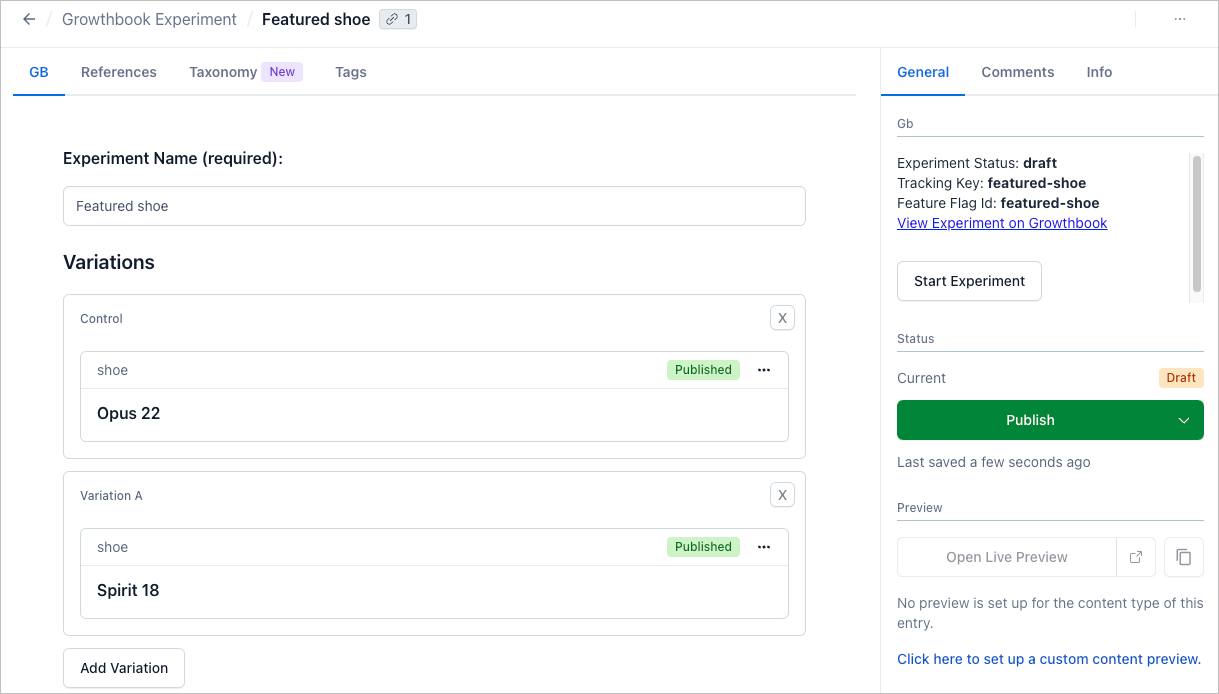
Installing GrowthBook's Contentful plugin adds a new **GrowthBook Experiment** content type to your Contentful space. This content type lets you create GrowthBook experiments right from the Contentful interface.
### Variations field
The **GrowthBook Experiment** includes a **Variations** field that acts as a container for the content you want to test. For example, to test which featured product increases sales the most, you'd add these products to the **Variations** container.
### Experiment
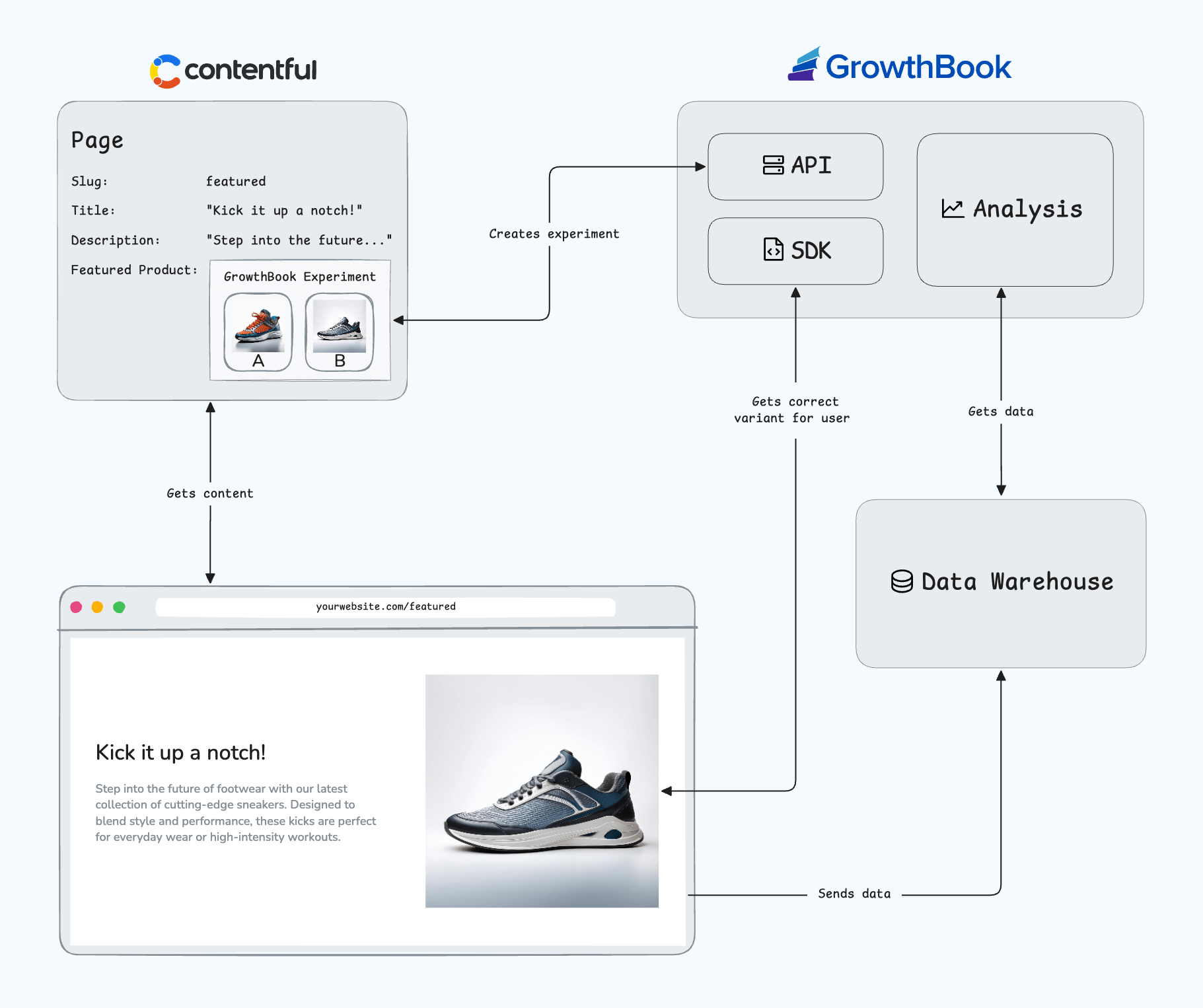
Once configured, you're ready to start your experiment. This syncs the data created in Contentful with GrowthBook, so you can analyze the experiment results and see which version of your test performs best.
The diagram below illustrates how the above components work together.
Continue reading to learn how to set up GrowthBook and Contentful to run A/B tests on your site.
## Set up GrowthBook
### 1. Create an SDK Connection
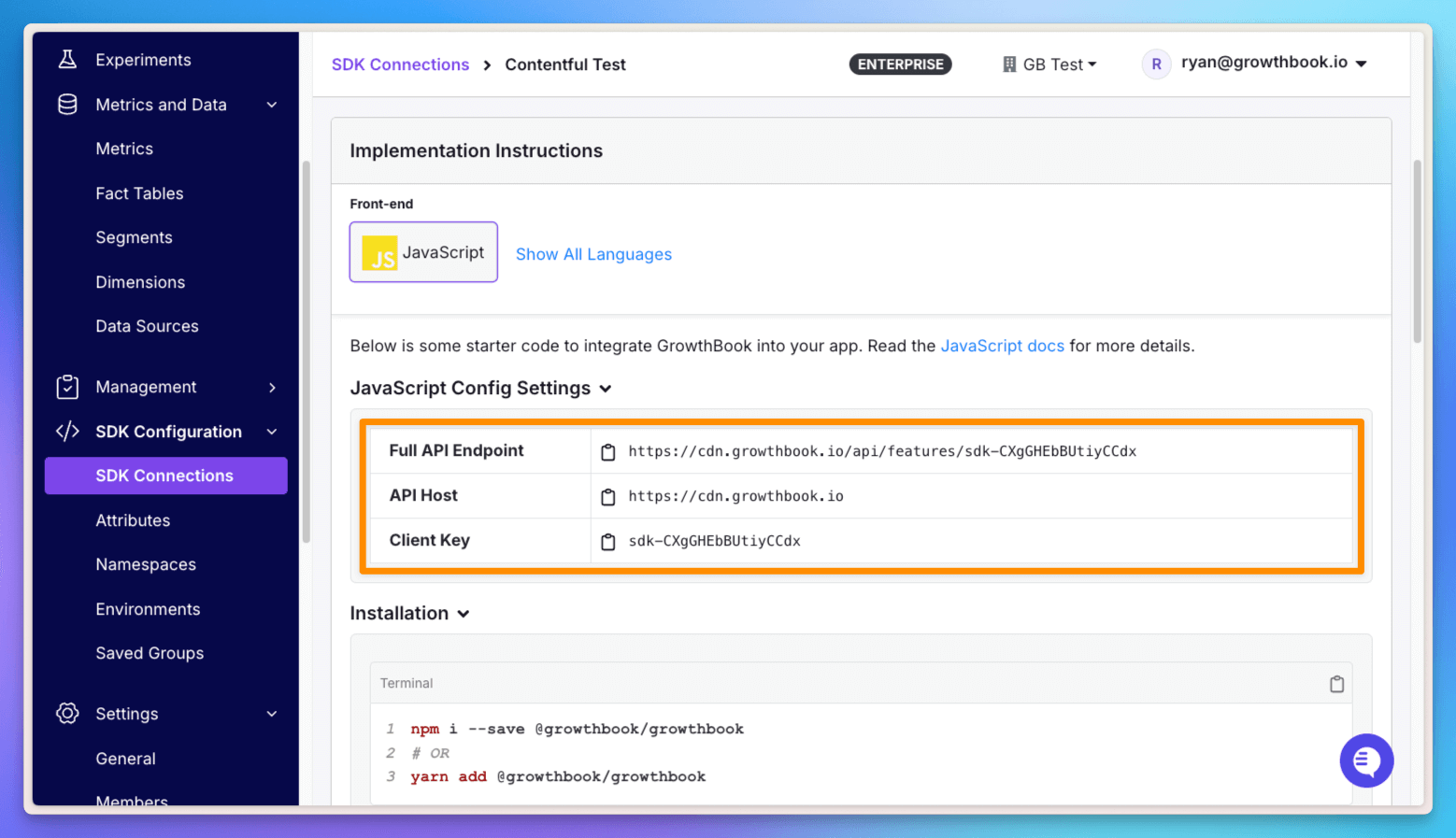
An SDK connection is a link between your GrowthBook account, your frontend codebase, and the Contentful plugin. It allows GrowthBook to serve the correct content variations to your users.
1. Log in to GrowthBook
2. Navigate to **SDK Configuration** → **SDK Connections** in the sidebar
3. Click **Add SDK Connection**
4. Select **JavaScript** or **React** as your language
5. Save your **API Host** URL for later use
### 2. Configure data source
A data source is the connection between GrowthBook and your analytics platform. This connection allows GrowthBook to analyze your experiment data and provide insights. It's also informs Contentful which data source to use when creating experiments.
1. Go to **Metrics and Data** → **Data Sources** in GrowthBook
2. Click **Add Data Source**
3. Choose your preferred analytics platform
4. Follow the connection guide
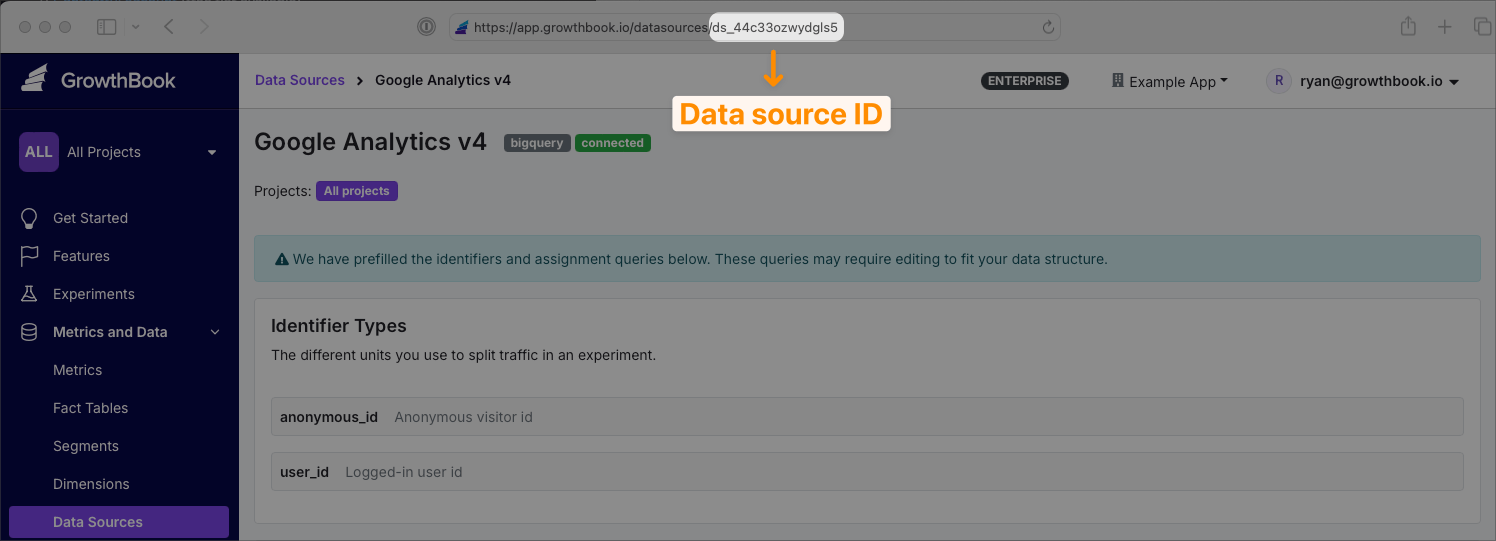
5. Save your data source ID (found in the URL of your data source page)
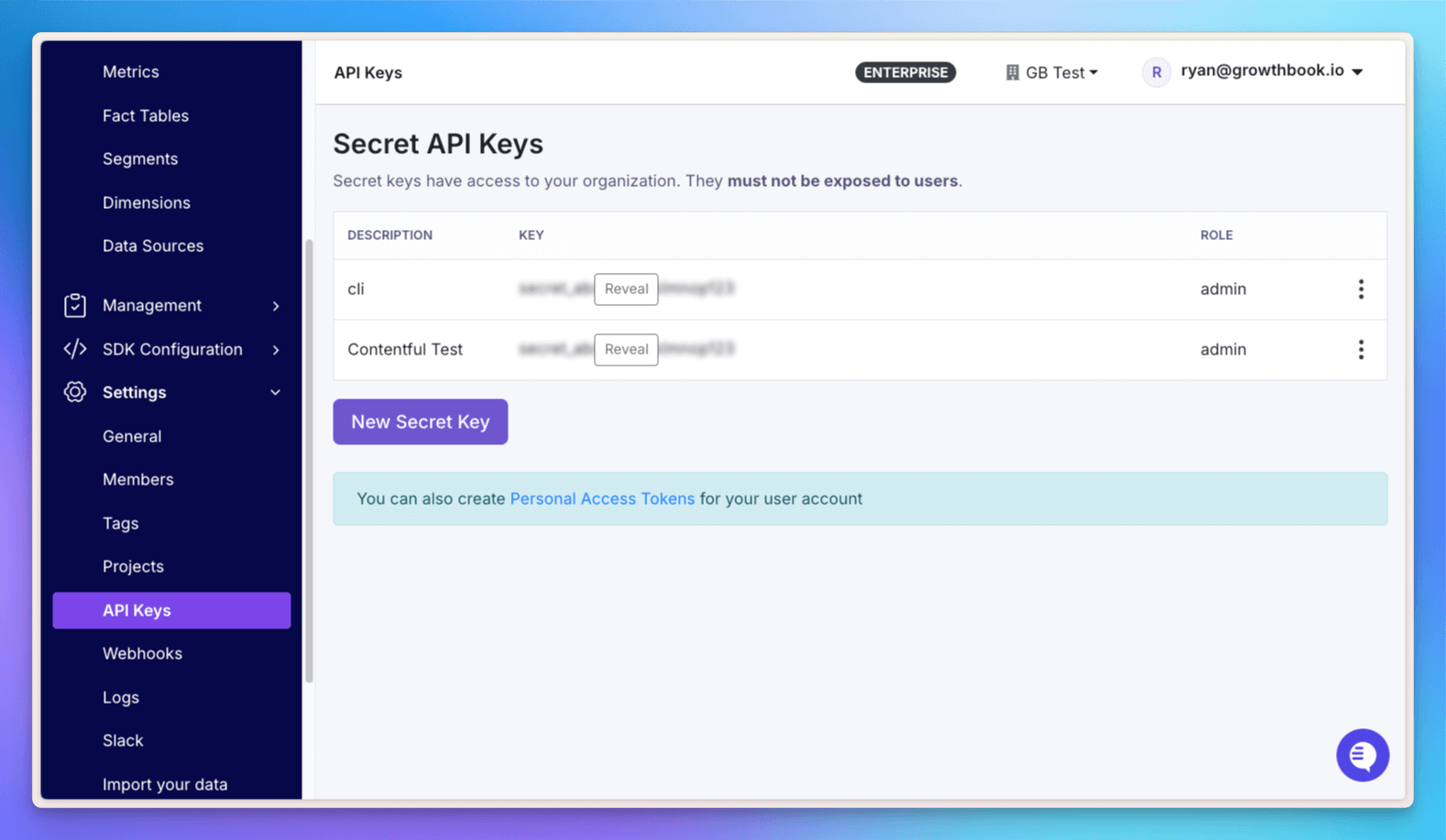
### 3. Generate API key
To connect Contentful to GrowthBook, you need an API key with admin permissions. This key allows Contentful to communicate with GrowthBook and sync your experiments.
1. Navigate to **Settings** → **API Keys**
2. Click **Create New Key**
3. Select `admin` role
4. Save the generated key securely
## Install and configure the GrowthBook app
Find the [official GrowthBook app](https://www.contentful.com/marketplace/growthbook-experiment/) in the Contentful marketplace.
1. Go to **Apps** → **Marketplace**
2. Search for GrowthBook
3. Click **Install**
4. Configure the plugin:
* Enter your GrowthBook API host URL from above
* Enter your data source ID from step 2
* Enter your Admin API key from step 3
* Click **Save**
## Run your first experiment
With everything configured, you're ready to run your first experiment.
### 1. Add or update your content model
Create a new content model or update an existing one to include the **GrowthBook Experiment** content type. This content type will allow you to create and manage experiments directly within Contentful.
### 2. Add the **GrowthBook Experiment** to a page
Open the content entry where you want to add the experiment. In the relevant reference field, click **Add content** and choose **GrowthBook Experiment**.
### 3. Add **Variations**
Name your experiment. Add your variations by linking existing Contentful entries or creating new ones.
### 4. Launch experiment
Click **Create New Experiment** and then **Start Experiment**. This will sync your variations and experiment data to GrowthBook and start your A/B test.
### 5. Publish changes
Publish changes to the **Experiment** content as well as to the page that contains the experiment. Your changes will now be live, serving different content to users!
## Frontend integration
To accommodate the **GrowthBook Experiment** type, changes need to be made to your front-end codebase.
At a high level, a front-end integration requires the following parts:
### Connect the GrowthBook SDK
[Adding the GrowthBook SDK to your codebase](/lib/) enables the content variations returned by Contentful to be properly rendered: `User 123` sees `Product A`, while `User XYZ` sees `Product B`.
### Content Model Structure
The **GrowthBook Experiment** content model is fetched via the following GraphQL code, which contains the `featureFlagId` and the `variationsCollection`. The response contains data about your experiment content, as you set it up in Contentful.
To get specific Variation content, make an additional call to the Contentful API using its `id` and `_typename`, or, as in the example below, add the fields for each Content Type you want to be able to experiment on.
```ts theme={null}
// Example GraphQL fields for your content type
export const GROWTHBOOK_EXPERIMENT_GRAPHQL_FIELDS = `
sys {
id
}
featureFlagId
variationsCollection {
items {
sys {
id
}
__typename
... on yourContentType {
${YOUR_CONTENT_TYPE_GRAPHQL_FIELDS}
}
}
}
`;
```
### Variation Selection Logic
The `getVariation` function uses your GrowthBook data to determine the variation's state. Calling `gb.getFeatureValue` with the `featureFlagId` returns the index of the variation to show in the `variationsCollection`.
```ts theme={null}
// Example getVariation function in TypeScript
export function getVariation(
gb: GrowthBook,
growthbookExperiment: GrowthbookExperimentInterface
) {
const featureFlagId = growthbookExperiment.featureFlagId;
const variationsCollection = growthbookExperiment.variationsCollection;
const index = gb.getFeatureValue(featureFlagId ?? "", 0);
if (index > variationsCollection.items.length + 1) {
return variationsCollection.items[0];
}
return variationsCollection.items[index];
}
```
### Tracking callback
An essential part of configuring the GrowthBook SDK to run experiments is setting up the tracking callback. It's what sends the experiment exposure data (that `User 123` saw `Product A`) to your data warehouse, which, in turn, enables GrowthBook to analyze your experiment and determine which variation performed best.
Your particular implementation will depend on your codebase and will require a developer's help. The good news is that this change only needs to be made once to enable streamlined A/B testing directly from Contentful. We also have a [full example project](https://github.com/growthbook/examples) that shows how to integrate Contentful and GrowthBook with Next.js.
## FAQs and troubleshooting
### Common questions
**Q: How does the GrowthBook app affect my Contentful environment?**
A: The app creates a new content type called GrowthBook Experiment that enables A/B testing functionality.
**Q: Where can I activate my experiments?**
A: Experiments are managed through both Contentful (content variations) and GrowthBook (experiment settings and analysis).
**Q: What happens after an experiment is complete?**
A: Replace the GrowthBook Experiment content with the winning variation.
### Troubleshooting
**Variations not showing up?**
* Ensure all variation content is published
* Verify the experiment is properly configured in Contentful and GrowthBook
* Check that the frontend integration is correctly implemented
**Configuration not saving?**
* Make sure to click the "Save" button after making changes
* Verify you have the necessary permissions in both platforms
 ### Experiment
Once configured, you're ready to start your experiment. This syncs the data created in Contentful with GrowthBook, so you can analyze the experiment results and see which version of your test performs best.
The diagram below illustrates how the above components work together.
### Experiment
Once configured, you're ready to start your experiment. This syncs the data created in Contentful with GrowthBook, so you can analyze the experiment results and see which version of your test performs best.
The diagram below illustrates how the above components work together.
 Continue reading to learn how to set up GrowthBook and Contentful to run A/B tests on your site.
## Set up GrowthBook
### 1. Create an SDK Connection
An SDK connection is a link between your GrowthBook account, your frontend codebase, and the Contentful plugin. It allows GrowthBook to serve the correct content variations to your users.
1. Log in to GrowthBook
2. Navigate to **SDK Configuration** → **SDK Connections** in the sidebar
3. Click **Add SDK Connection**
4. Select **JavaScript** or **React** as your language
5. Save your **API Host** URL for later use
Continue reading to learn how to set up GrowthBook and Contentful to run A/B tests on your site.
## Set up GrowthBook
### 1. Create an SDK Connection
An SDK connection is a link between your GrowthBook account, your frontend codebase, and the Contentful plugin. It allows GrowthBook to serve the correct content variations to your users.
1. Log in to GrowthBook
2. Navigate to **SDK Configuration** → **SDK Connections** in the sidebar
3. Click **Add SDK Connection**
4. Select **JavaScript** or **React** as your language
5. Save your **API Host** URL for later use
 ### 2. Configure data source
A data source is the connection between GrowthBook and your analytics platform. This connection allows GrowthBook to analyze your experiment data and provide insights. It's also informs Contentful which data source to use when creating experiments.
1. Go to **Metrics and Data** → **Data Sources** in GrowthBook
2. Click **Add Data Source**
3. Choose your preferred analytics platform
4. Follow the connection guide
5. Save your data source ID (found in the URL of your data source page)
### 2. Configure data source
A data source is the connection between GrowthBook and your analytics platform. This connection allows GrowthBook to analyze your experiment data and provide insights. It's also informs Contentful which data source to use when creating experiments.
1. Go to **Metrics and Data** → **Data Sources** in GrowthBook
2. Click **Add Data Source**
3. Choose your preferred analytics platform
4. Follow the connection guide
5. Save your data source ID (found in the URL of your data source page)
 ### 3. Generate API key
To connect Contentful to GrowthBook, you need an API key with admin permissions. This key allows Contentful to communicate with GrowthBook and sync your experiments.
1. Navigate to **Settings** → **API Keys**
2. Click **Create New Key**
3. Select `admin` role
4. Save the generated key securely
### 3. Generate API key
To connect Contentful to GrowthBook, you need an API key with admin permissions. This key allows Contentful to communicate with GrowthBook and sync your experiments.
1. Navigate to **Settings** → **API Keys**
2. Click **Create New Key**
3. Select `admin` role
4. Save the generated key securely
 ## Install and configure the GrowthBook app