> ## Documentation Index
> Fetch the complete documentation index at: https://docs2.growthbook.io/llms.txt
> Use this file to discover all available pages before exploring further.
# A/B Testing with Google Analytics 4 (GA4) and GrowthBook
> This guide walks you through using GrowthBook with Google Analytics 4 (GA4) to track your experiments and measure their impact on your business.
This guide walks you through using GrowthBook with Google Analytics 4 (GA4) for A/B testing. There are a few parts to
this, connecting GA4 to BigQuery, connecting GrowthBook to BigQuery, and then configuring GrowthBook to track correctly
with GA4.
For help debugging GA4 integration issues, please review our [GA4 Troubleshooting Guide](/kb/google-analytics/google-analytics-ga4-troubleshooting).
You can watch a video version of this guide, largely focused on Google Optimize replacement, here:
## Configuring GrowthBook to use Google Analytics GA4 as a data source
GrowthBook connects to Google Analytics (GA4) via BigQuery. This process is straight forward, and outlined below.
You can also find Google's documentation on how to create this link [here](https://support.google.com/analytics/answer/9823238).
### 1. Create a BigQuery Project (if you don't have one)
If you don't have a BigQuery project, you'll need to create one. Go to your [Google Cloud Console](https://console.cloud.google.com/) and create a new project:
Click on ***Create new project*** from the right and give your project a name.
Once created, you'll be redirected to the BigQuery dashboard.
If you created a new project, the BigQuery API is automatically enabled. Otherwise, you'll need to [enable it manually](https://console.cloud.google.com/flows/enableapi?apiid=bigquery)
**Using the BigQuery sandbox project**
If you are just testing GrowthBook with GA4 out, you can use the sandbox project that Google provides for free. When you create a new cloud project the sandbox should be automatically enabled. You can find more information about the sandbox [here](https://cloud.google.com/bigquery/docs/sandbox).
### 2. Connect Google Analytics to BigQuery
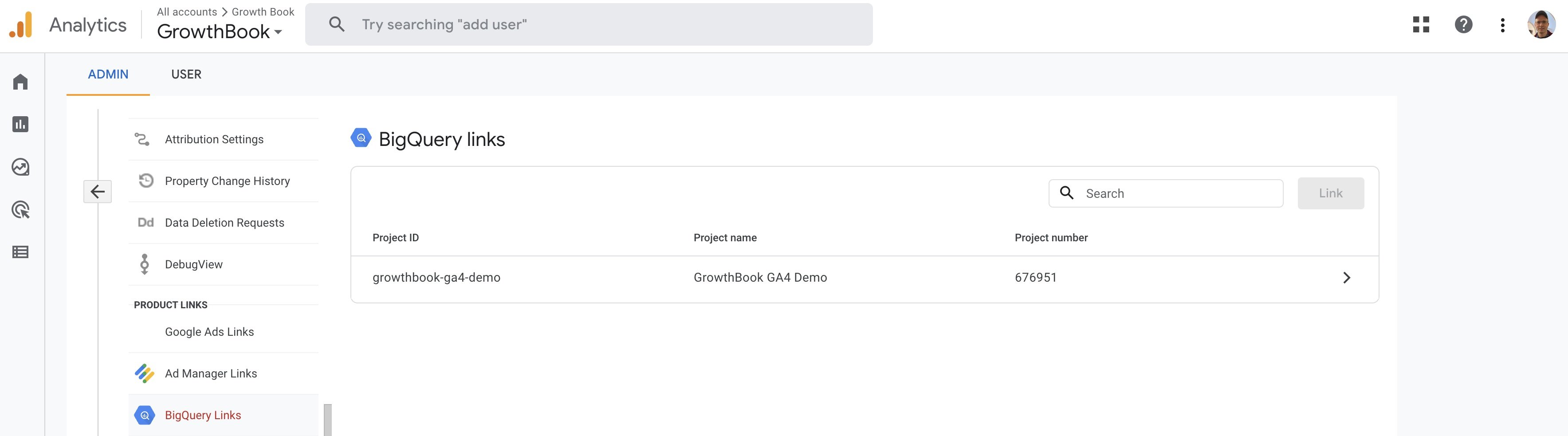
Log into your Google Analytics account and navigate to the Admin section. From there, make sure you have selected the right property, and scroll down to ***Product Links*** section. Click on the menu named ***BigQuery Links***
Click on the ***Link*** button. This will open a menu that allows you select the project. Select on the ***Choose a BigQuery Project*** link.
Select the project you wish to send your GA4 data to:
Then click **Next**.
On the next step you'll be presented with some options about the connection.
Here you can choose the frequency of data updates, either daily or streaming. To use Streaming, you'll need a BigQuery account with billing info added. Depending on your use case, daily updates may be sufficient.
On the final step you'll be asked to confirm your choices. When finished, you should see something like this, verifying that the connection was successful.
And then your BigQuery link will show up on the listing page:
**Loading Google Analytics via Google Tag Manager (GTM)**
If you are loading Google Analytics via Google Tag Manager (GTM), you may need to add the custom event to GTM to ensure
the data is passed to GA4 from the datalayer. You can add the custom event by following this [section from the GTM guide](/guide/google-tag-manager-and-growthbook#4-tracking-via-datalayer-and-gtm). Our [Google Tag Manager (GTM) Troubleshooting Guide](/kb/google-analytics/google-tag-manager-gtm-troubleshooting) may be helpful for debugging if needed.
### 3. Configure BigQuery for GrowthBook
You'll need to give GrowthBook permissions to your BigQuery project so that we can access the data. We have created a guide just for this, which you can find [here](/guide/bigquery)
### 4. Connect GrowthBook to BigQuery
Within GrowthBook, navigate to the ***Analysis*** section, and then click on the ***Data Sources*** page. Add a new data source, and select ***Google Analytics (GA4)***.
Then add your BigQuery connection info. GrowthBook will pre-populate the SQL queries required to use your GA4 data. You
can also add a custom SQL query if you want to use a different table or filter the data in some way as you like.
**Automatic SQL query creation**
While GrowthBook will pre-populate the SQL queries for you, you may need to adjust the experiment query to match your
data depending on the way you are tracking your experiments (see the ***trackingCallback*** below).
Once connected, you can add any additional metrics or dimensions, and then you can use your GA4 data for your
experiments. You can use all your existing events and tracking- GrowthBook only requires one additional tracking call
when a user is exposed to an experiment.
## Running experiments with GrowthBook and GA4
With the data source connected, you can integrate the GrowthBook SDK into your application to run A/B tests. Once implemented, the SDK will do the random assignments and send the experiment exposure event to GA4 based on the settings in the GrowthBook UI.
**Visual editor for creating experiments**
We do have a visual editor for creating experiments as part of our Pro plan. Our visual editor is meant for simple
experiments. Experiments that are more complex are best created by writing code with feature flags.
### SDK integration for GA4
The easiest and recommended way to integrate GrowthBook is by using our [Script Tag SDK](/lib/script-tag). This SDK will work out-of-the-box with GA4 without any configuration required.
**Debugging GA4 integrations**
If your experiment is not firing the `trackingCallback` you can use our
[Chrome developer tool](https://chrome.google.com/webstore/detail/growthbook-devtools/opemhndcehfgipokneipaafbglcecjia)
to help you debug and make sure the user attributes are being set correctly.
Implementing the experiment variations can be done with code with inline experiments, using the feature flags, or by
using our visual editor.
## Troubleshooting
Please see our our [GA4 Troubleshooting Guide](/kb/google-analytics/google-analytics-ga4-troubleshooting) for help debugging GA4 integrations with GrowthBook. If relevant, see our [GTM Setup Guide](/guide/google-tag-manager-and-growthbook) and our [Google Tag Manager (GTM) Troubleshooting Guide](/kb/google-analytics/google-tag-manager-gtm-troubleshooting).
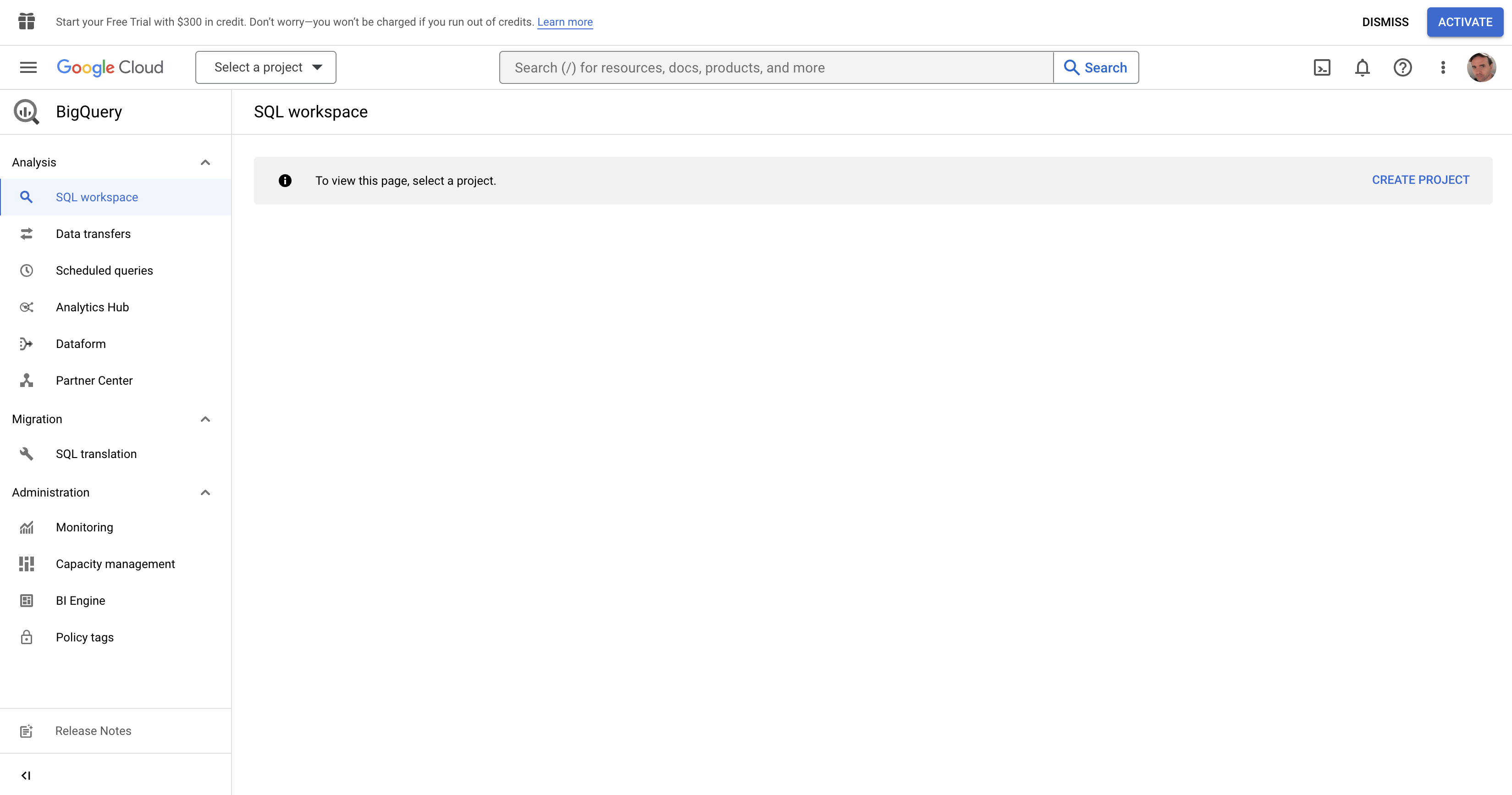 Click on ***Create new project*** from the right and give your project a name.
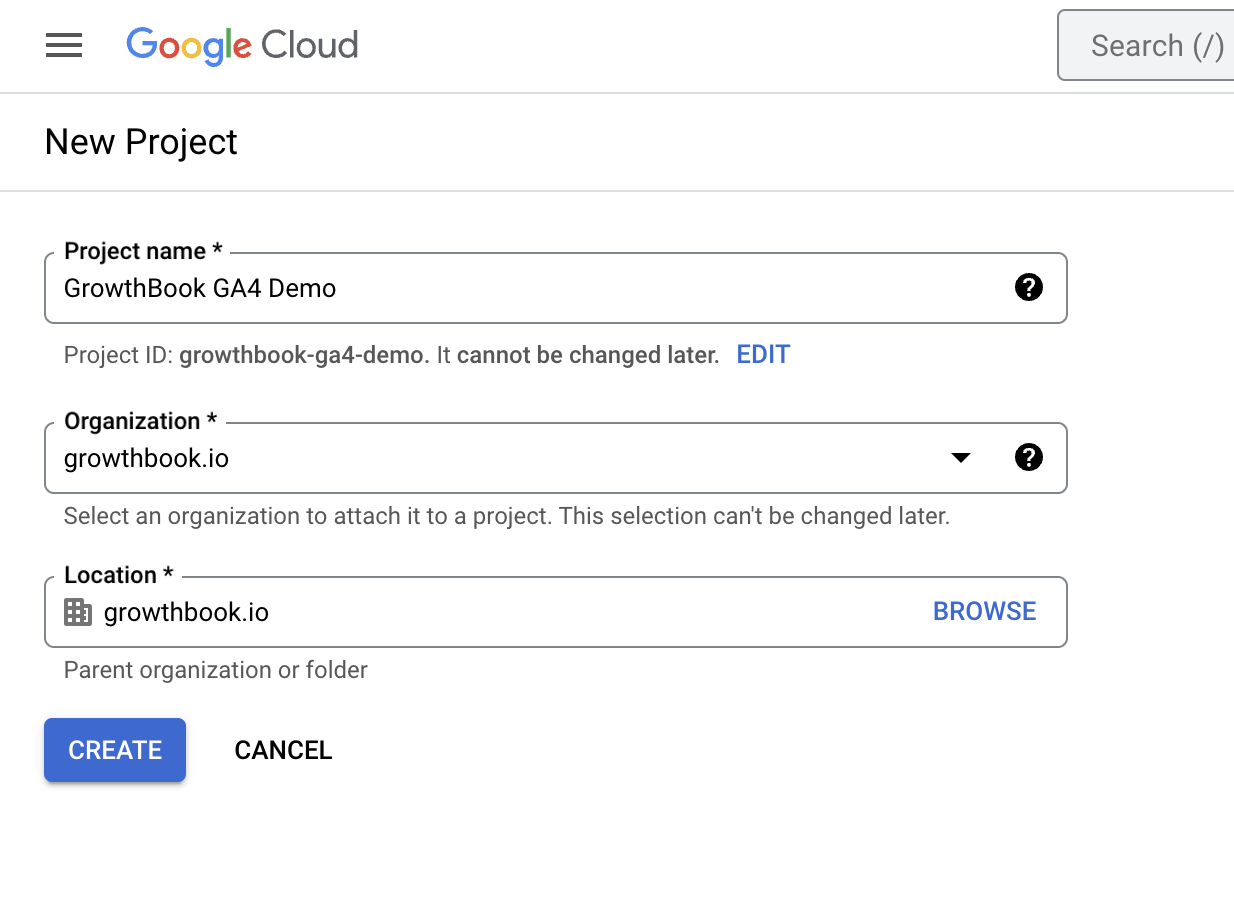 Once created, you'll be redirected to the BigQuery dashboard.
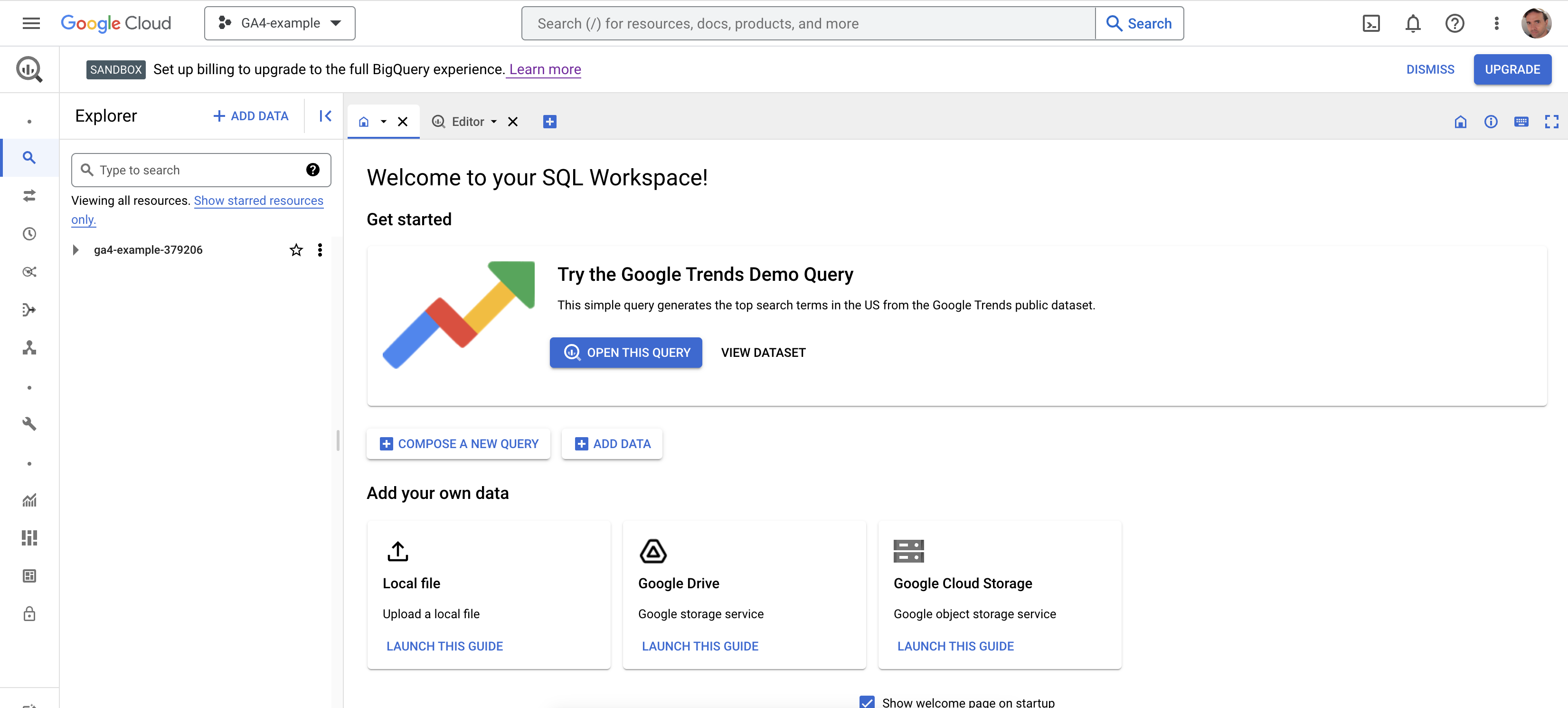 If you created a new project, the BigQuery API is automatically enabled. Otherwise, you'll need to [enable it manually](https://console.cloud.google.com/flows/enableapi?apiid=bigquery)
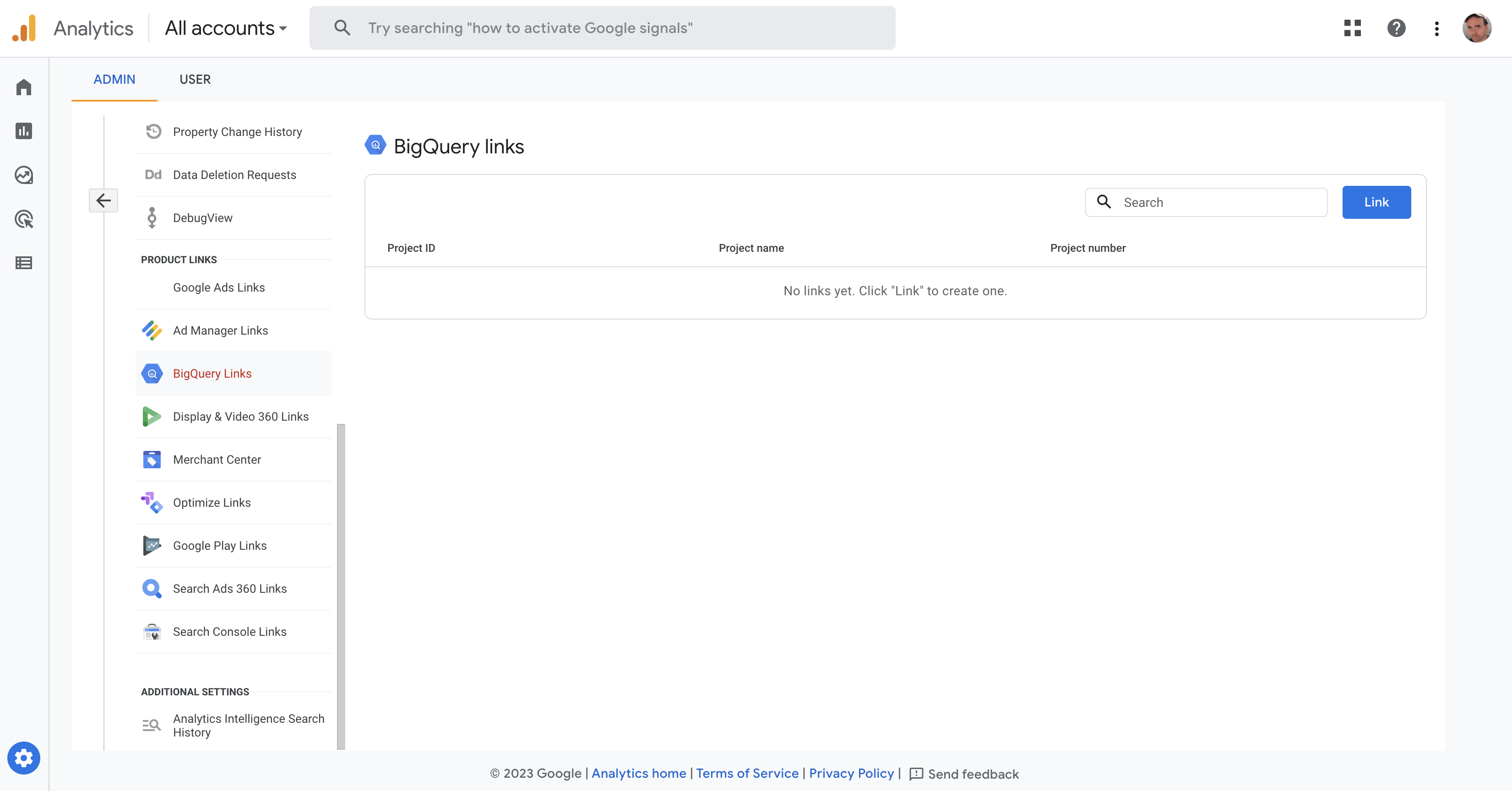 Click on the ***Link*** button. This will open a menu that allows you select the project. Select on the ***Choose a BigQuery Project*** link.
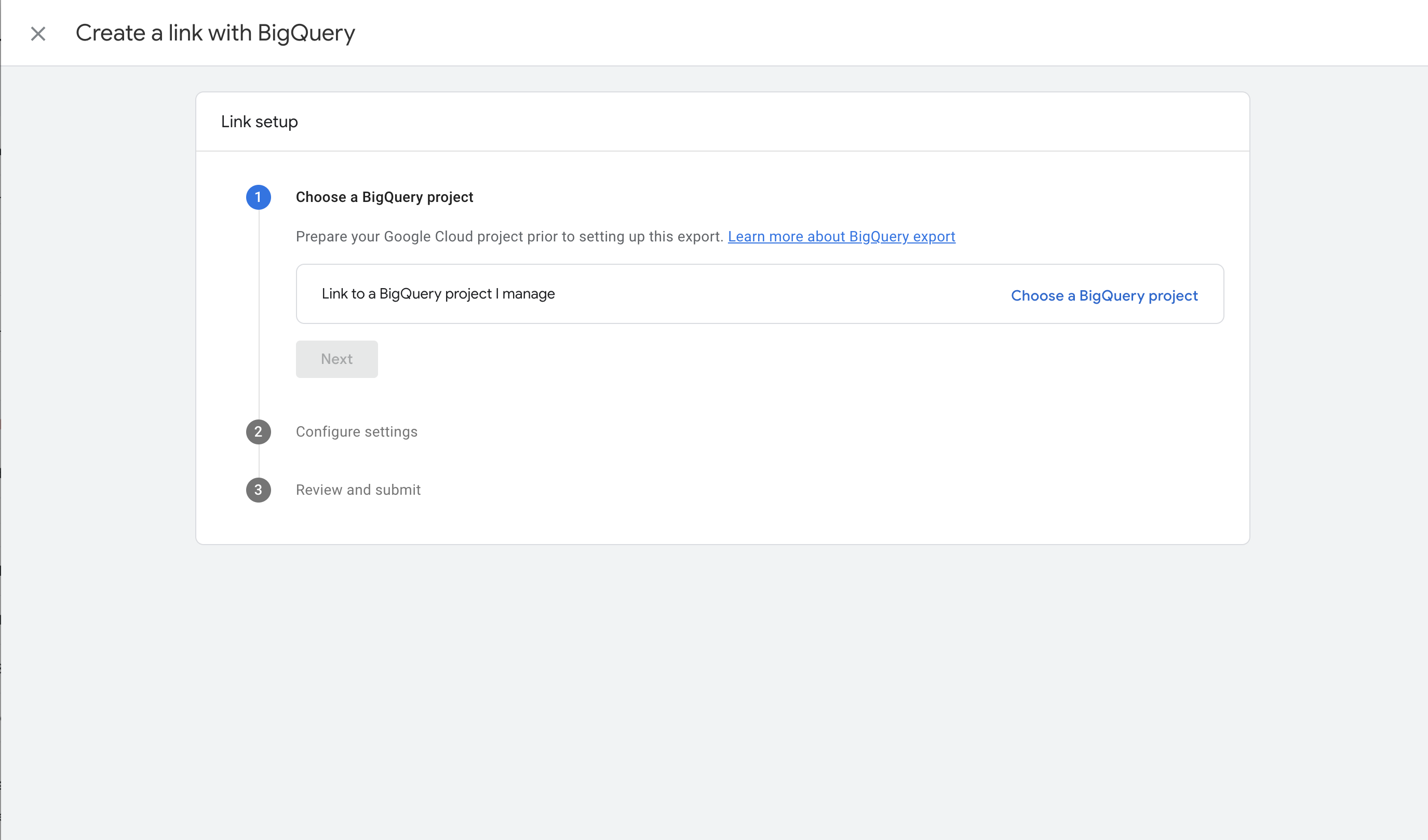 Select the project you wish to send your GA4 data to:
 Then click **Next**.
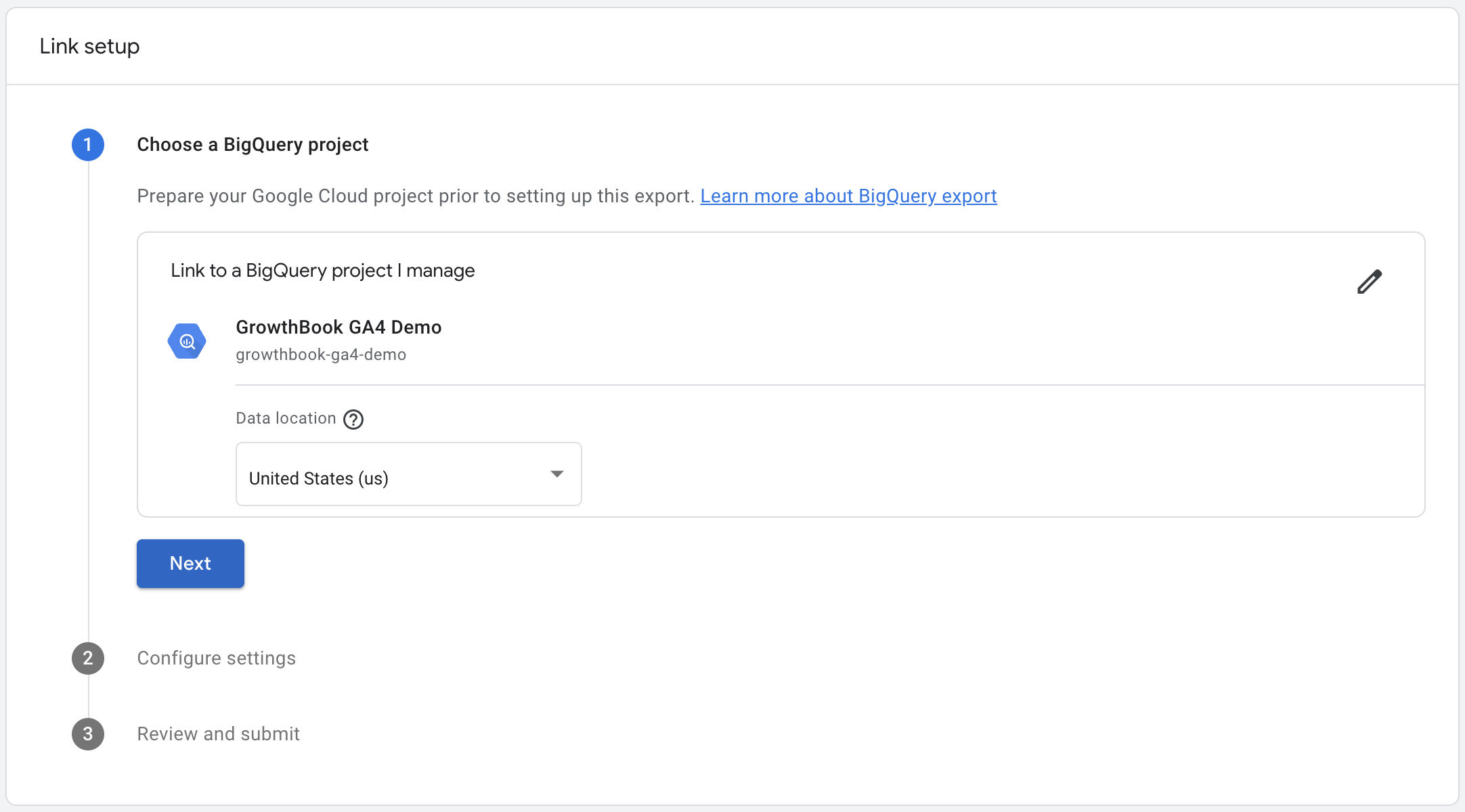 On the next step you'll be presented with some options about the connection.
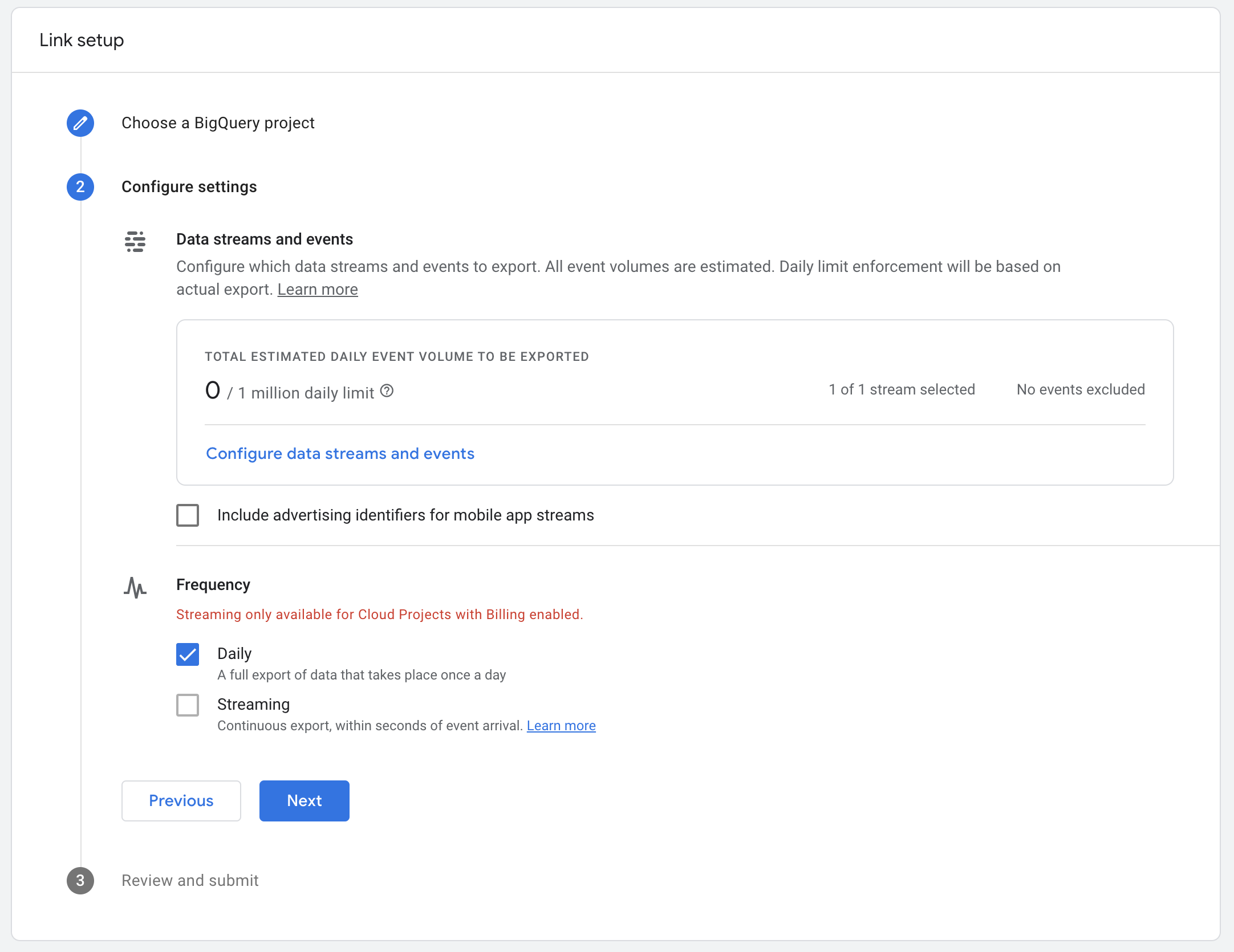 Here you can choose the frequency of data updates, either daily or streaming. To use Streaming, you'll need a BigQuery account with billing info added. Depending on your use case, daily updates may be sufficient.
On the final step you'll be asked to confirm your choices. When finished, you should see something like this, verifying that the connection was successful.
Here you can choose the frequency of data updates, either daily or streaming. To use Streaming, you'll need a BigQuery account with billing info added. Depending on your use case, daily updates may be sufficient.
On the final step you'll be asked to confirm your choices. When finished, you should see something like this, verifying that the connection was successful.
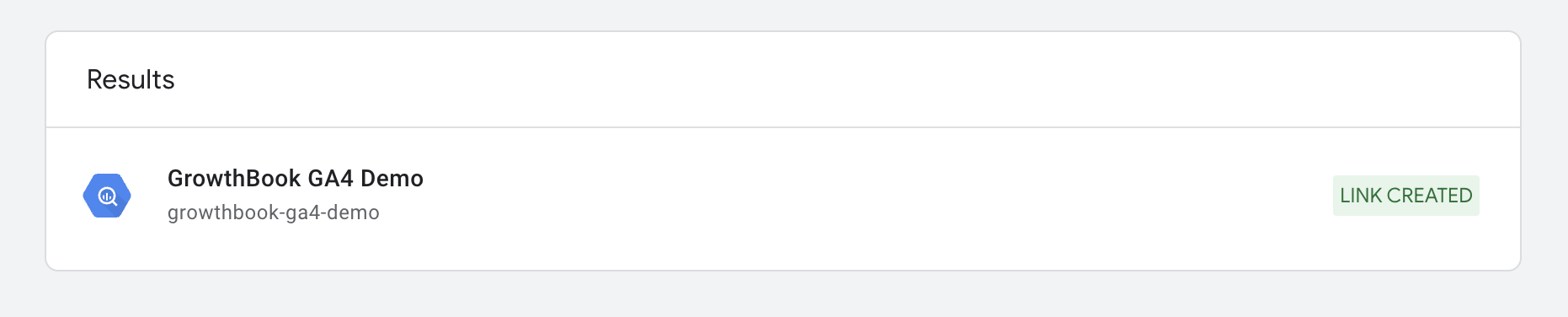 And then your BigQuery link will show up on the listing page:
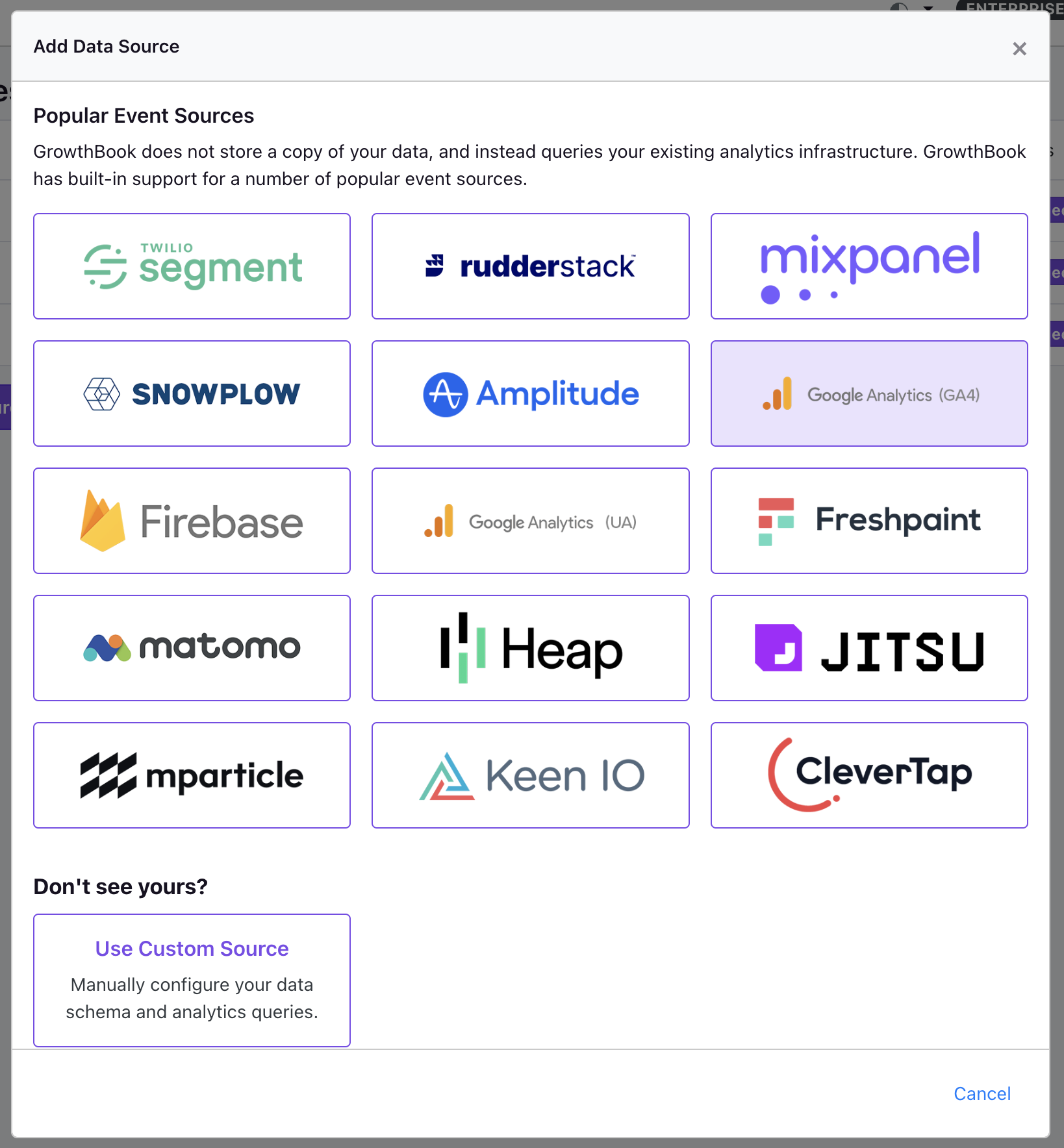
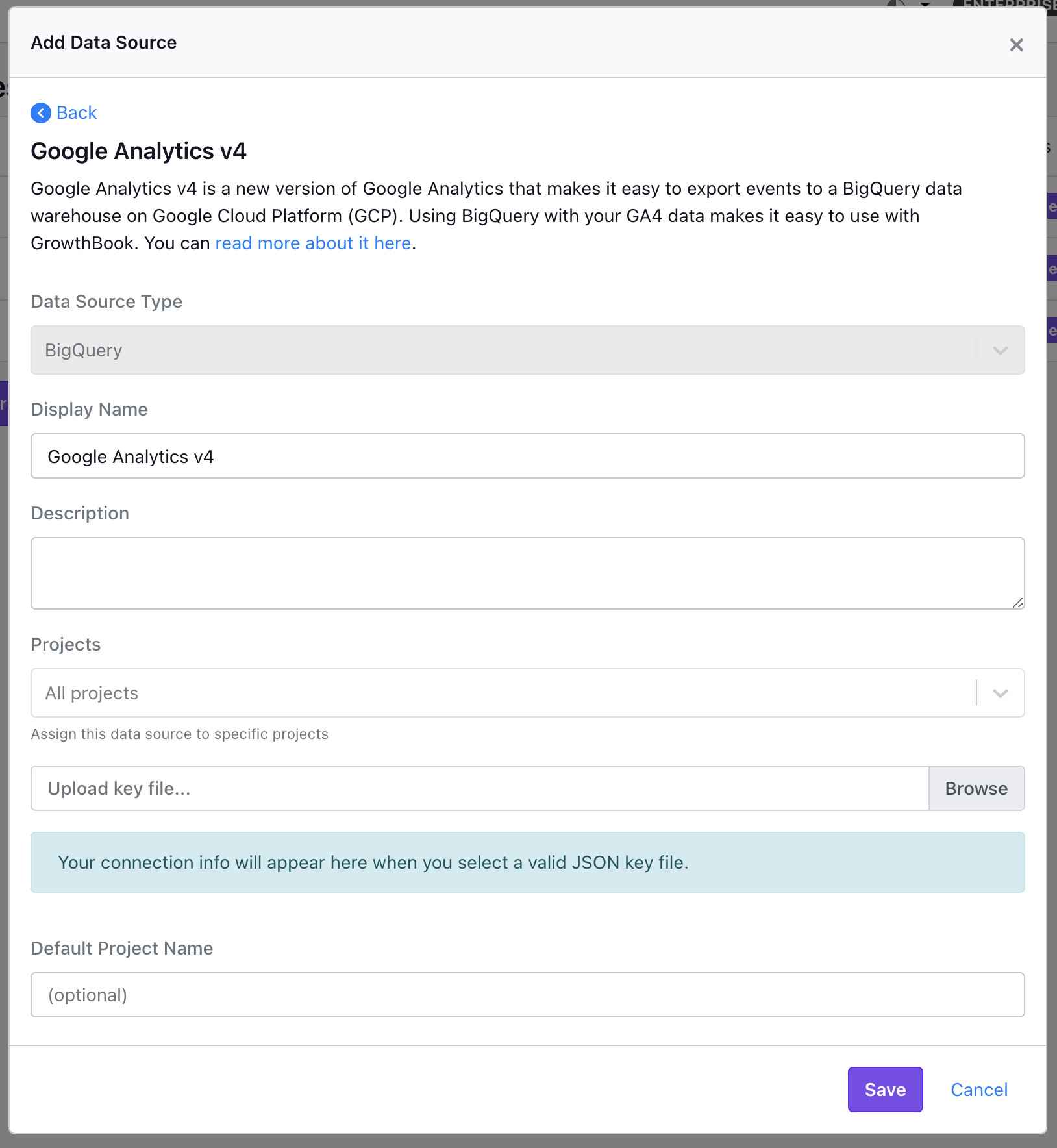 Then add your BigQuery connection info. GrowthBook will pre-populate the SQL queries required to use your GA4 data. You
can also add a custom SQL query if you want to use a different table or filter the data in some way as you like.
Then add your BigQuery connection info. GrowthBook will pre-populate the SQL queries required to use your GA4 data. You
can also add a custom SQL query if you want to use a different table or filter the data in some way as you like.