> ## Documentation Index
> Fetch the complete documentation index at: https://docs2.growthbook.io/llms.txt
> Use this file to discover all available pages before exploring further.

# Manual Mode — Point-and-Click A/B Test Editor

> Edit any element of your website with structured controls for content, typography, background, spacing, and visibility. Full reference for GrowthBook's manual visual editor.

export const CommercialFeature = ({feature, description}) => {
  const commercialFeatures = {
    "adv-presentations": {
      plan: "enterprise",
      displayName: "Adv Presentations"
    },
    "advanced-permissions": {
      plan: "pro",
      displayName: "Advanced Permissions"
    },
    "ai-byok": {
      plan: "enterprise",
      displayName: "Ai Byok"
    },
    "ai-suggestions": {
      plan: "enterprise",
      displayName: "AI Suggestions"
    },
    archetypes: {
      plan: "pro",
      displayName: "Archetypes"
    },
    "audit-logging": {
      plan: "enterprise",
      displayName: "Audit Logging"
    },
    "cloud-proxy": {
      plan: "pro",
      displayName: "Cloud Proxy"
    },
    "code-references": {
      plan: "pro",
      displayName: "Code References"
    },
    "contextual-bandits": {
      plan: "enterprise",
      displayName: "Contextual Bandits"
    },
    "custom-hooks": {
      plan: "enterprise",
      displayName: "Custom Hooks"
    },
    "custom-launch-checklist": {
      plan: "enterprise",
      displayName: "Custom Launch Checklist"
    },
    "custom-markdown": {
      plan: "enterprise",
      displayName: "Custom Markdown"
    },
    "custom-metadata": {
      plan: "enterprise",
      displayName: "Custom Metadata"
    },
    "custom-roles": {
      plan: "enterprise",
      displayName: "Custom Roles"
    },
    dashboards: {
      plan: "enterprise",
      displayName: "Dashboards"
    },
    "decision-framework": {
      plan: "pro",
      displayName: "Decision Framework"
    },
    "encrypt-features-endpoint": {
      plan: "pro",
      displayName: "Encrypt Features Endpoint"
    },
    "environment-inheritance": {
      plan: "enterprise",
      displayName: "Environment Inheritance"
    },
    "events-forwarder": {
      plan: "pro",
      displayName: "Events Forwarder"
    },
    "experiment-impact": {
      plan: "enterprise",
      displayName: "Experiment Impact"
    },
    "feature-configs": {
      plan: "enterprise",
      displayName: "Feature Configs"
    },
    "funnel-metrics": {
      plan: "pro",
      displayName: "Funnel Metrics"
    },
    "hash-secure-attributes": {
      plan: "pro",
      displayName: "Hash Secure Attributes"
    },
    "historical-power": {
      plan: "pro",
      displayName: "Historical Power"
    },
    holdouts: {
      plan: "enterprise",
      displayName: "Holdouts"
    },
    "incremental-refresh": {
      plan: "enterprise",
      displayName: "Incremental Refresh"
    },
    "json-validation": {
      plan: "enterprise",
      displayName: "JSON Validation"
    },
    "large-saved-groups": {
      plan: "enterprise",
      displayName: "Large Saved Groups"
    },
    learnings: {
      plan: "enterprise",
      displayName: "Learnings"
    },
    livechat: {
      plan: "pro",
      displayName: "Livechat"
    },
    "manage-official-resources": {
      plan: "enterprise",
      displayName: "Manage Official Resources"
    },
    "metric-correlations": {
      plan: "enterprise",
      displayName: "Metric Correlations"
    },
    "metric-effects": {
      plan: "enterprise",
      displayName: "Metric Effects"
    },
    "metric-groups": {
      plan: "enterprise",
      displayName: "Metric Groups"
    },
    "metric-populations": {
      plan: "pro",
      displayName: "Metric Populations"
    },
    "metric-slices": {
      plan: "enterprise",
      displayName: "Metric Slices"
    },
    "multi-armed-bandits": {
      plan: "pro",
      displayName: "Multi Armed Bandits"
    },
    "multi-metric-queries": {
      plan: "enterprise",
      displayName: "Multi Metric Queries"
    },
    "multi-org": {
      plan: "enterprise",
      displayName: "Multi Org"
    },
    "multiple-sdk-webhooks": {
      plan: "pro",
      displayName: "Multiple Sdk Webhooks"
    },
    "no-access-role": {
      plan: "enterprise",
      displayName: "No Access Role"
    },
    "override-metrics": {
      plan: "pro",
      displayName: "Override Metrics"
    },
    "pipeline-mode": {
      plan: "enterprise",
      displayName: "Pipeline Mode"
    },
    "post-stratification": {
      plan: "enterprise",
      displayName: "Post Stratification"
    },
    "precomputed-dimensions": {
      plan: "pro",
      displayName: "Precomputed Dimensions"
    },
    "prerequisite-targeting": {
      plan: "enterprise",
      displayName: "Prerequisite Targeting"
    },
    prerequisites: {
      plan: "pro",
      displayName: "Prerequisites"
    },
    "product-analytics-dashboards": {
      plan: "pro",
      displayName: "Product Analytics Dashboards"
    },
    "project-admin-role": {
      plan: "enterprise",
      displayName: "Project Admin Role"
    },
    "quantile-metrics": {
      plan: "pro",
      displayName: "Quantile Metrics"
    },
    "ramp-schedules": {
      plan: "pro",
      displayName: "Ramp Schedules"
    },
    redirects: {
      plan: "pro",
      displayName: "Redirects"
    },
    "regression-adjustment": {
      plan: "pro",
      displayName: "CUPED"
    },
    releases: {
      plan: "enterprise",
      displayName: "Releases"
    },
    "remote-evaluation": {
      plan: "pro",
      displayName: "Remote Evaluation"
    },
    "require-approvals": {
      plan: "enterprise",
      displayName: "Require Approvals"
    },
    "require-project-for-features-setting": {
      plan: "enterprise",
      displayName: "Require Project For Features Setting"
    },
    "require-project-for-sdk-connections-setting": {
      plan: "enterprise",
      displayName: "Require Project For Sdk Connections Setting"
    },
    "retention-metrics": {
      plan: "pro",
      displayName: "Retention Metrics"
    },
    "safe-rollout": {
      plan: "pro",
      displayName: "Safe Rollout"
    },
    saveSqlExplorerQueries: {
      plan: "pro",
      displayName: "Save SQL Explorer Queries"
    },
    "schedule-feature-flag": {
      plan: "pro",
      displayName: "Schedule Feature Flag"
    },
    "scheduled-revisions": {
      plan: "enterprise",
      displayName: "Scheduled Revisions"
    },
    scim: {
      plan: "enterprise",
      displayName: "SCIM"
    },
    "sequential-testing": {
      plan: "pro",
      displayName: "Sequential Testing"
    },
    "share-product-analytics-dashboards": {
      plan: "enterprise",
      displayName: "Share Product Analytics Dashboards"
    },
    simulate: {
      plan: "pro",
      displayName: "Simulate"
    },
    sso: {
      plan: "enterprise",
      displayName: "SSO"
    },
    "sticky-bucketing": {
      plan: "pro",
      displayName: "Sticky Bucketing"
    },
    teams: {
      plan: "enterprise",
      displayName: "Teams"
    },
    templates: {
      plan: "enterprise",
      displayName: "Templates"
    },
    "unlimited-managed-warehouse-usage": {
      plan: "pro",
      displayName: "Unlimited Managed Warehouse Usage"
    },
    "visual-editor": {
      plan: "pro",
      displayName: "Visual Editor"
    }
  };
  const {plan, displayName} = commercialFeatures[feature];
  const isEnterprise = plan === "enterprise";
  const defaultDescription = isEnterprise ? "is available on Enterprise plans." : "is available on Pro and Enterprise plans.";
  const planLabel = isEnterprise ? "Enterprise" : "Pro";
  const containerStyle = isEnterprise ? {
    backgroundColor: "color-mix(in srgb, var(--indigo-a3) 60%, transparent)"
  } : {
    backgroundColor: "color-mix(in srgb, var(--amber-a3) 60%, transparent)"
  };
  const badgeStyle = isEnterprise ? {
    boxShadow: "inset 0 0 0 1px var(--indigo-a8)",
    color: "var(--indigo-a11)"
  } : {
    boxShadow: "inset 0 0 0 1px var(--amber-a8)",
    color: "var(--amber-a11)"
  };
  return <div className="flex items-start gap-2 mb-4 p-3 text-sm leading-[1.4] rounded-lg" style={containerStyle} role="note">
      <span className="inline-flex items-center justify-center px-1.5 h-5 text-xs font-medium rounded-full shrink-0 leading-none" style={badgeStyle}>
        {planLabel}
      </span>
      <div className="flex-1 leading-[1.3]">
        <strong className="font-semibold">{displayName}</strong>{" "}
        {defaultDescription} {description}
      </div>
    </div>;
};

<CommercialFeature feature="visual-editor" />

Manual mode is the point-and-click editor inside the [Visual Editor side panel](/app/visual). Click an element on your page, and you get structured controls for everything you can change on it — content, typography, background and border, spacing, and visibility — plus an escape hatch for arbitrary CSS and JavaScript.

Manual mode is the right choice when:

* You know exactly what you want to change and you want pixel-level control.
* You're fine-tuning a variation that started in [AI mode](/app/visual/ai-mode).
* The change is too narrow to be worth a prompt (e.g., "make this padding 12px").
* You want to copy a specific style from a design spec.

## Picking an element

Switch to the **Manual** tab in the side panel. With the panel open, hover any element on your page — it highlights with a blue overlay. Click to select it.

A sticky bar at the top of the side panel shows what's currently selected (its tag, classes, and a short selector path). You can:

* **Pick a different element** — click another element on the page, or click the picker icon in the sticky bar.
* **Navigate nearby** — use the "tree" icon to navigate to nearby elements. See below
* **Deselect** — click the x on the right side of the selected bar or pick another element to deselect the current one.

### Detailed Selector

<Frame>
  <img src="https://mintcdn.com/growthbook-ea15456d/J3C3juKhu0f7KEr_/static/images/visual-editor/ve-detailed-selector.png?fit=max&auto=format&n=J3C3juKhu0f7KEr_&q=85&s=62c88508ba1fa993661c826ddfc49044" alt="The GrowthBook Visual Editor detailed selector" width="300" data-path="static/images/visual-editor/ve-detailed-selector.png" />
</Frame>

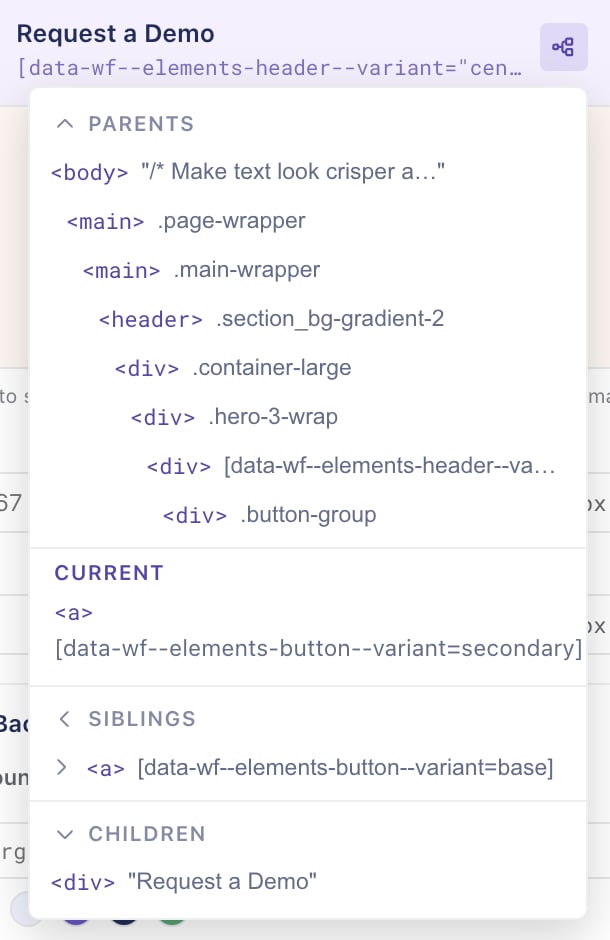
Sometimes clicking on an element selects a parent or child instead of the one you want. In that case, use the sticky bar's
selector path to select the exact element. The path shows the current element and its parent elements, sibling elements, and
children. Hover over the path to see it selected on the page.

## Property groups

Once you've selected an element, the panel fills with collapsible property groups. Each group corresponds to a category of change.

### Content
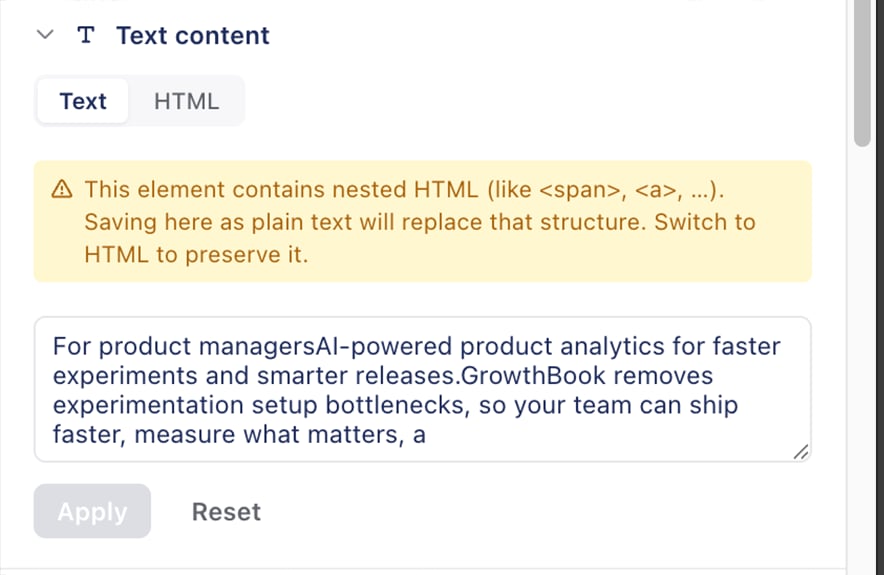
<div style={{display: 'flex', gap: '16px', flexWrap: 'wrap'}}>
  <Frame>
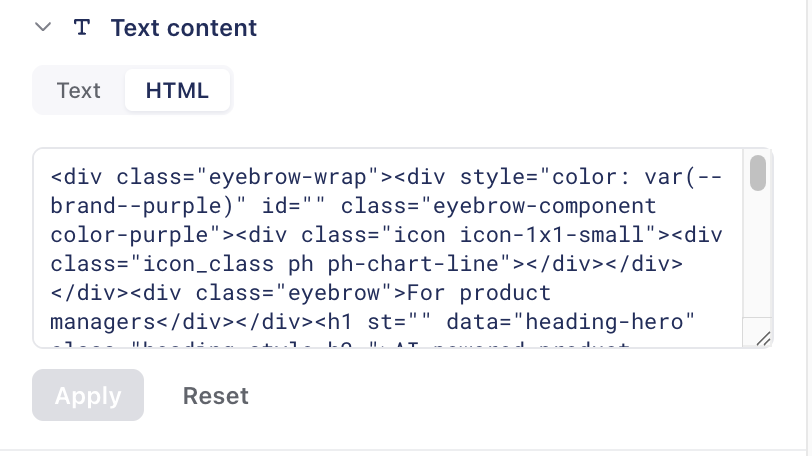
    <img src="https://mintcdn.com/growthbook-ea15456d/66H-dO8hZfIFVUdN/static/images/visual-editor/ve-text-editor.png?fit=max&auto=format&n=66H-dO8hZfIFVUdN&q=85&s=ed788a49fc46f43f51b3a1aaa3e01c91" alt="The GrowthBook Visual Editor HTML options" width="300" data-path="static/images/visual-editor/ve-text-editor.png" />
  </Frame>

  <Frame>
    <img src="https://mintcdn.com/growthbook-ea15456d/66H-dO8hZfIFVUdN/static/images/visual-editor/ve-text-editor-html.png?fit=max&auto=format&n=66H-dO8hZfIFVUdN&q=85&s=672291fb4f8b6f71d929ef53210e9544" alt="The GrowthBook Visual Editor HTML editor" width="300" data-path="static/images/visual-editor/ve-text-editor-html.png" />
  </Frame>
</div>

Edit what the element actually says and links to:

* **Inner HTML** — change the visible text or markup inside the element. Multiline-supported.

If the selected element has HTML inside of it, you'll be presented with two modes for editing content: edit as text and flatten the HTML, or edit as HTML.

### Links

<Frame>
  <img src="https://mintcdn.com/growthbook-ea15456d/J3C3juKhu0f7KEr_/static/images/visual-editor/ve-link-editor.png?fit=max&auto=format&n=J3C3juKhu0f7KEr_&q=85&s=2e54e077ebf93628accff31af7a42026" alt="The GrowthBook Visual Editor Link Editor" width="400" data-path="static/images/visual-editor/ve-link-editor.png" />
</Frame>

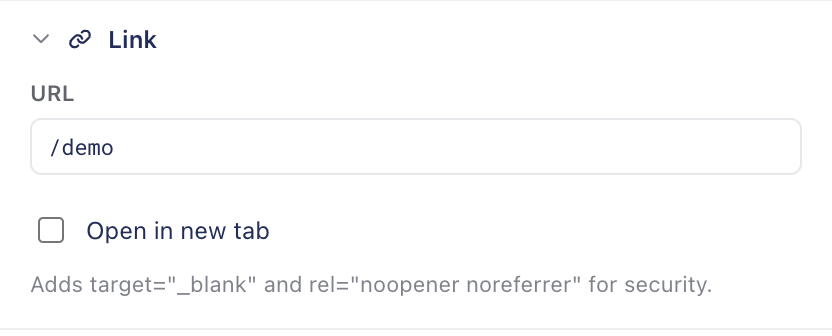
If the selected element is a link (`<a>`), you'll get additional controls for editing the URL and link behavior. It will
let you set the `href`, and the option to open in a new tab (`target="_blank"`). If the link opens in a new tab, it will add `rel="noopener noreferrer"` attribute for security.

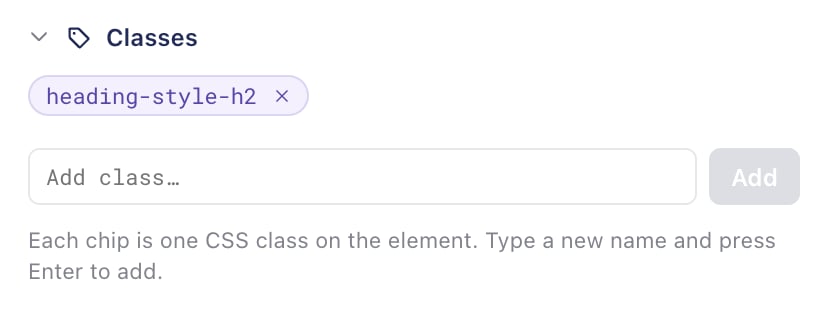
### Classes
<Frame>
  <img src="https://mintcdn.com/growthbook-ea15456d/J3C3juKhu0f7KEr_/static/images/visual-editor/ve-class-editor.png?fit=max&auto=format&n=J3C3juKhu0f7KEr_&q=85&s=b2238fd2f2300e915abea3202698b624" alt="The GrowthBook Visual Editor Class Editor" width="400" data-path="static/images/visual-editor/ve-class-editor.png" />
</Frame>

The **Classes** field shows the element's current classes and allows you to add or remove classes. This is a quick way to apply existing styles from your CSS without needing to copy individual properties.

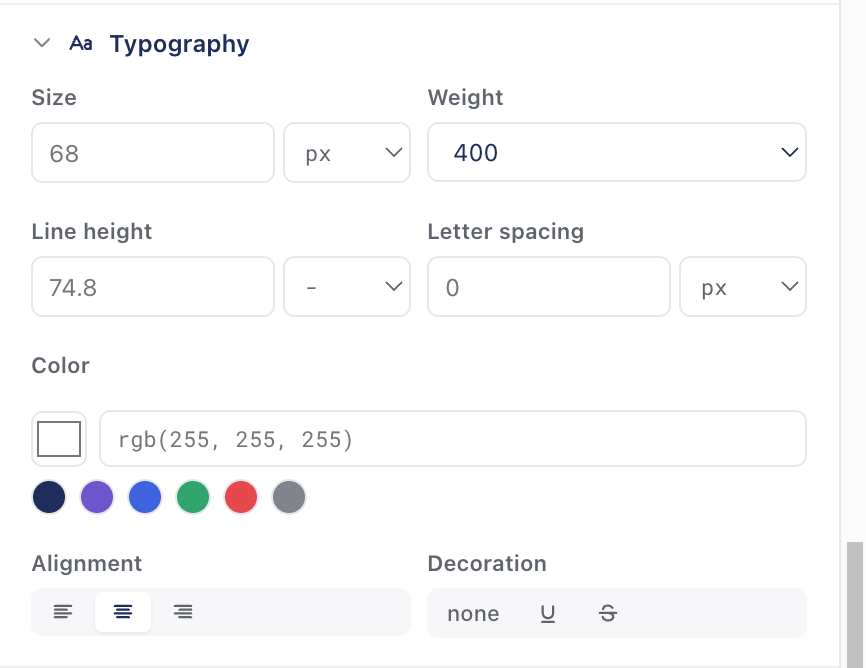
### Typography
<Frame>
  <img src="https://mintcdn.com/growthbook-ea15456d/66H-dO8hZfIFVUdN/static/images/visual-editor/ve-typeography.png?fit=max&auto=format&n=66H-dO8hZfIFVUdN&q=85&s=f05619ffe44ae640ae40a26f05f4ac06" alt="The GrowthBook Visual Editor Typography editor" width="400" data-path="static/images/visual-editor/ve-typeography.png" />
</Frame>

Controls for text styling:

* **Font size** — with a unit selector (`px`, `em`, `rem`, `%`)
* **Font weight** — preset weights and custom numeric input
* **Color** — color picker plus hex input
* **Alignment** — left / center / right / justify (segmented control)
* **Line height** — unitless, `px`, `em`, `rem`, or `%`. Empty unit (`-`) means unitless, which is the CSS recommendation for line-height.
* **Letter spacing** — `px`, `em`
* **Text decoration** — none / underline / strikethrough / overline

Alignment and text decoration share a single row to keep the panel compact.

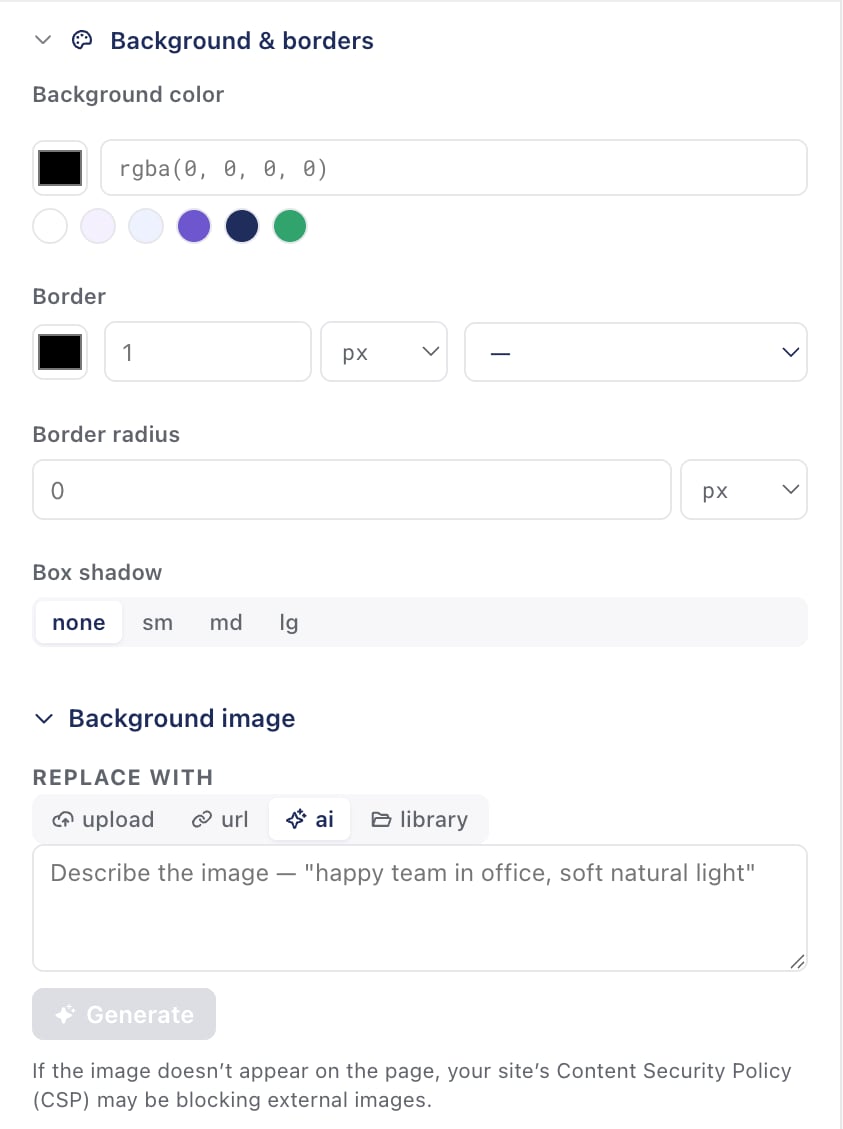
### Background & Border
<Frame>
  <img src="https://mintcdn.com/growthbook-ea15456d/J3C3juKhu0f7KEr_/static/images/visual-editor/ve-background-borders.png?fit=max&auto=format&n=J3C3juKhu0f7KEr_&q=85&s=f695d685c53b7aa5eafa4ea49d76733a" alt="The GrowthBook Visual Editor Background and Border" width="400" data-path="static/images/visual-editor/ve-background-borders.png" />
</Frame>

For containers, cards, and any visually styled element:

* **Background color** — color picker with a clear option
* **Border** — width, style (solid / dashed / dotted / none), and color. The color swatch is positioned so the native color picker doesn't render off-screen for elements near the right edge of the viewport.
* **Box shadow** — None / Small / Medium / Large presets. The presets follow common design-system scales; for custom shadows, use Global CSS.
* **Background image** — paste a URL or use one of the [image flows](/app/visual/images). Hidden on `<img>` elements (use Content → image replace instead).
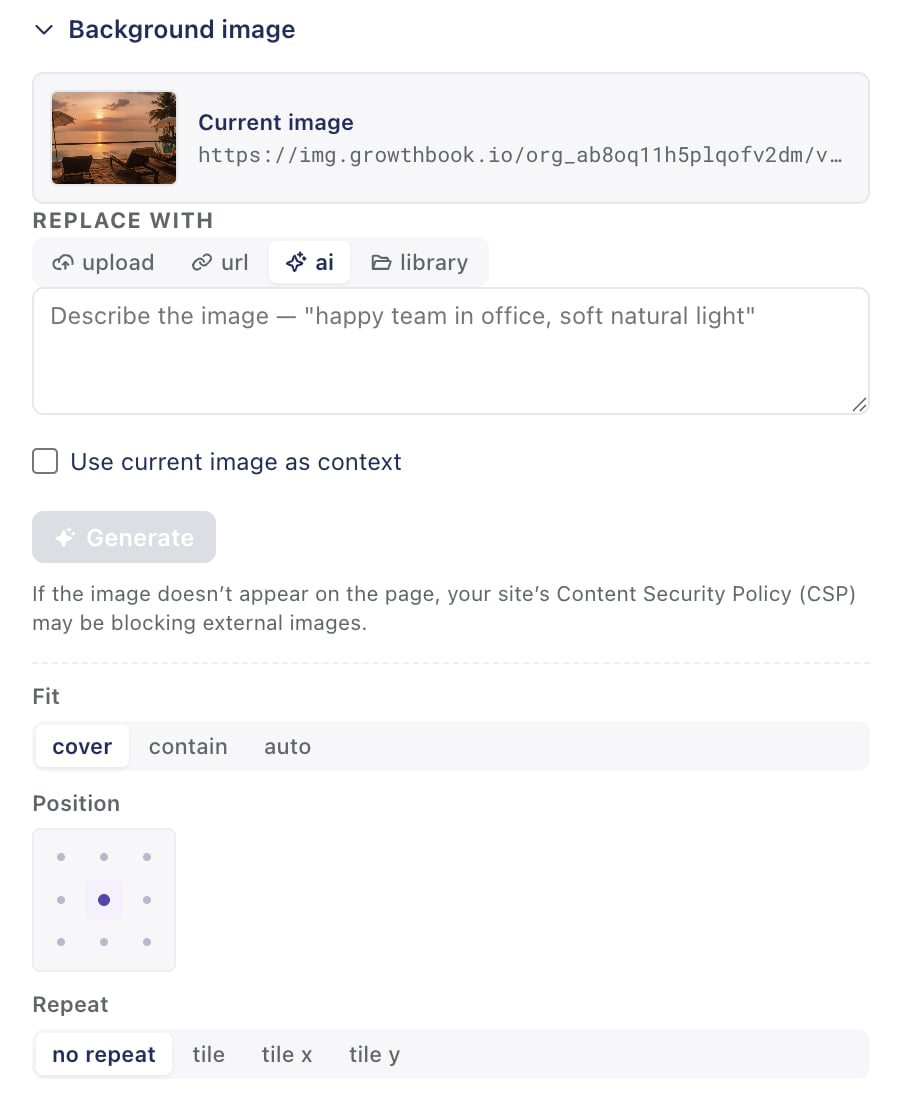
#### Background Images

<Frame>
  <img src="https://mintcdn.com/growthbook-ea15456d/J3C3juKhu0f7KEr_/static/images/visual-editor/ve-background-image.png?fit=max&auto=format&n=J3C3juKhu0f7KEr_&q=85&s=7d88a8c63d3a6c6a3ddfcf75e7d2578e" alt="The GrowthBook Visual Editor Background Images" width="400" data-path="static/images/visual-editor/ve-background-image.png" />
</Frame>

The background image area allows you to set a background image on any element. This is similar to the `<img>` replacement, but has a few more options for fitting that background images have.
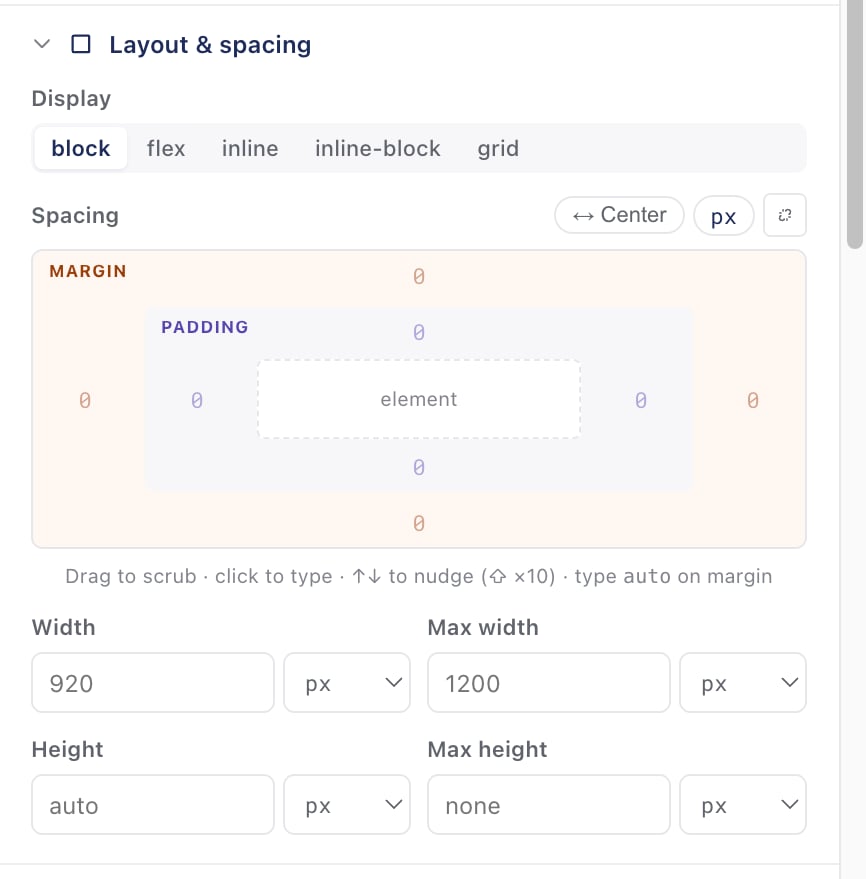
### Layout

<Frame>
  <img src="https://mintcdn.com/growthbook-ea15456d/J3C3juKhu0f7KEr_/static/images/visual-editor/ve-layout.png?fit=max&auto=format&n=J3C3juKhu0f7KEr_&q=85&s=7b025dd9ed27b8e9f3bd584bb193d7f6" alt="The GrowthBook Visual Editor Layout" width="400" data-path="static/images/visual-editor/ve-layout.png" />
</Frame>

The Layout group includes controls for choosing the display mode and adjusting spacing with padding and margin editors.

* **Display type** — choose between `block`, `inline-block`, `inline`, `flex`, `grid`, and `none`. Setting to `none` is a quick way to hide an element without removing it from the DOM.
* **spacing** — click and drag horizontally over a value to scrub it up or down (similar to Figma) for padding and margin.
* **Width & Height** — Select the width, max-width, height and max-height for your element. With unit selectors. Setting to `auto` removes the mutation.

Manual mode writes per-side longhands (`padding-top`, `margin-right`, etc.) and clears any shorthand `padding`/`margin` declaration, so the CSS cascade behaves predictably.

### Visibility

* **Hide this element** — a quick toggle that sets `display: none`.
* **Opacity** — slider from 0% to 100% plus a number input. Setting to 100% removes the mutation (no point keeping `opacity: 1` on the element).

## Global CSS and Custom JavaScript

For changes that don't fit cleanly into a single element's property groups, use the top-level **CSS** and **JS** tabs:

### Global CSS

Inject a CSS block that runs alongside the variation. Useful for:

* Page-wide background color or font changes
* Hover states that the structured controls can't express
* Animations
* `@media` queries for responsive tweaks (the only way to scope changes per breakpoint today)

The CSS is inserted into a `<style>` tag scoped to the variation and removed when the user is bucketed back to control.

### Custom JavaScript

Inject a JavaScript block. Use sparingly — it's an escape hatch for changes that genuinely need imperative code (e.g., DOM nodes that don't exist until the user clicks something).

Custom JS runs as early as possible, often before the page has finished loading. If you're targeting elements that load late, wait for them:

```js theme={null}
function waitFor(selector) {
  return new Promise(resolve => {
    const el = document.querySelector(selector);
    if (el) return resolve(el);
    const observer = new MutationObserver(() => {
      const el = document.querySelector(selector);
      if (el) {
        observer.disconnect();
        resolve(el);
      }
    });
    observer.observe(document, { childList: true, subtree: true });
  });
}

waitFor(".my-element").then((el) => {
  el.innerHTML = "Hello World!";
});
```

Custom JS requires extra CSP changes on your site — see [Content Security Policy](/app/visual/running-on-your-site#content-security-policy-csp) on the Running on your site page.

## Next steps

* **[AI mode](/app/visual/ai-mode)** — draft variations from a prompt, then fine-tune here.
* **[Images](/app/visual/images)** — upload, AI-generate, and reuse images across experiments.
* **[Preview and QA](/app/visual/preview-and-qa)** — preview links, debug panel, live-experiment warning.
* **[Troubleshooting](/app/visual/troubleshooting)** — when a variation isn't behaving as expected.
