> ## Documentation Index
> Fetch the complete documentation index at: https://docs2.growthbook.io/llms.txt
> Use this file to discover all available pages before exploring further.

# Install and Connect the GrowthBook Visual Editor

> Install the GrowthBook Visual Editor from the Chrome Web Store and connect it to your GrowthBook account with a single click.

export const CommercialFeature = ({feature, description}) => {
  const commercialFeatures = {
    "adv-presentations": {
      plan: "enterprise",
      displayName: "Adv Presentations"
    },
    "advanced-permissions": {
      plan: "pro",
      displayName: "Advanced Permissions"
    },
    "ai-byok": {
      plan: "enterprise",
      displayName: "Ai Byok"
    },
    "ai-suggestions": {
      plan: "enterprise",
      displayName: "AI Suggestions"
    },
    archetypes: {
      plan: "pro",
      displayName: "Archetypes"
    },
    "audit-logging": {
      plan: "enterprise",
      displayName: "Audit Logging"
    },
    "cloud-proxy": {
      plan: "pro",
      displayName: "Cloud Proxy"
    },
    "code-references": {
      plan: "pro",
      displayName: "Code References"
    },
    "contextual-bandits": {
      plan: "enterprise",
      displayName: "Contextual Bandits"
    },
    "custom-hooks": {
      plan: "enterprise",
      displayName: "Custom Hooks"
    },
    "custom-launch-checklist": {
      plan: "enterprise",
      displayName: "Custom Launch Checklist"
    },
    "custom-markdown": {
      plan: "enterprise",
      displayName: "Custom Markdown"
    },
    "custom-metadata": {
      plan: "enterprise",
      displayName: "Custom Metadata"
    },
    "custom-roles": {
      plan: "enterprise",
      displayName: "Custom Roles"
    },
    dashboards: {
      plan: "enterprise",
      displayName: "Dashboards"
    },
    "decision-framework": {
      plan: "pro",
      displayName: "Decision Framework"
    },
    "encrypt-features-endpoint": {
      plan: "pro",
      displayName: "Encrypt Features Endpoint"
    },
    "environment-inheritance": {
      plan: "enterprise",
      displayName: "Environment Inheritance"
    },
    "events-forwarder": {
      plan: "pro",
      displayName: "Events Forwarder"
    },
    "experiment-impact": {
      plan: "enterprise",
      displayName: "Experiment Impact"
    },
    "feature-configs": {
      plan: "enterprise",
      displayName: "Feature Configs"
    },
    "funnel-metrics": {
      plan: "pro",
      displayName: "Funnel Metrics"
    },
    "hash-secure-attributes": {
      plan: "pro",
      displayName: "Hash Secure Attributes"
    },
    "historical-power": {
      plan: "pro",
      displayName: "Historical Power"
    },
    holdouts: {
      plan: "enterprise",
      displayName: "Holdouts"
    },
    "incremental-refresh": {
      plan: "enterprise",
      displayName: "Incremental Refresh"
    },
    "json-validation": {
      plan: "enterprise",
      displayName: "JSON Validation"
    },
    "large-saved-groups": {
      plan: "enterprise",
      displayName: "Large Saved Groups"
    },
    learnings: {
      plan: "enterprise",
      displayName: "Learnings"
    },
    livechat: {
      plan: "pro",
      displayName: "Livechat"
    },
    "manage-official-resources": {
      plan: "enterprise",
      displayName: "Manage Official Resources"
    },
    "metric-correlations": {
      plan: "enterprise",
      displayName: "Metric Correlations"
    },
    "metric-effects": {
      plan: "enterprise",
      displayName: "Metric Effects"
    },
    "metric-groups": {
      plan: "enterprise",
      displayName: "Metric Groups"
    },
    "metric-populations": {
      plan: "pro",
      displayName: "Metric Populations"
    },
    "metric-slices": {
      plan: "enterprise",
      displayName: "Metric Slices"
    },
    "multi-armed-bandits": {
      plan: "pro",
      displayName: "Multi Armed Bandits"
    },
    "multi-metric-queries": {
      plan: "enterprise",
      displayName: "Multi Metric Queries"
    },
    "multi-org": {
      plan: "enterprise",
      displayName: "Multi Org"
    },
    "multiple-sdk-webhooks": {
      plan: "pro",
      displayName: "Multiple Sdk Webhooks"
    },
    "no-access-role": {
      plan: "enterprise",
      displayName: "No Access Role"
    },
    "override-metrics": {
      plan: "pro",
      displayName: "Override Metrics"
    },
    "pipeline-mode": {
      plan: "enterprise",
      displayName: "Pipeline Mode"
    },
    "post-stratification": {
      plan: "enterprise",
      displayName: "Post Stratification"
    },
    "precomputed-dimensions": {
      plan: "pro",
      displayName: "Precomputed Dimensions"
    },
    "prerequisite-targeting": {
      plan: "enterprise",
      displayName: "Prerequisite Targeting"
    },
    prerequisites: {
      plan: "pro",
      displayName: "Prerequisites"
    },
    "product-analytics-dashboards": {
      plan: "pro",
      displayName: "Product Analytics Dashboards"
    },
    "project-admin-role": {
      plan: "enterprise",
      displayName: "Project Admin Role"
    },
    "quantile-metrics": {
      plan: "pro",
      displayName: "Quantile Metrics"
    },
    "ramp-schedules": {
      plan: "pro",
      displayName: "Ramp Schedules"
    },
    redirects: {
      plan: "pro",
      displayName: "Redirects"
    },
    "regression-adjustment": {
      plan: "pro",
      displayName: "CUPED"
    },
    releases: {
      plan: "enterprise",
      displayName: "Releases"
    },
    "remote-evaluation": {
      plan: "pro",
      displayName: "Remote Evaluation"
    },
    "require-approvals": {
      plan: "enterprise",
      displayName: "Require Approvals"
    },
    "require-project-for-features-setting": {
      plan: "enterprise",
      displayName: "Require Project For Features Setting"
    },
    "require-project-for-sdk-connections-setting": {
      plan: "enterprise",
      displayName: "Require Project For Sdk Connections Setting"
    },
    "retention-metrics": {
      plan: "pro",
      displayName: "Retention Metrics"
    },
    "safe-rollout": {
      plan: "pro",
      displayName: "Safe Rollout"
    },
    saveSqlExplorerQueries: {
      plan: "pro",
      displayName: "Save SQL Explorer Queries"
    },
    "schedule-feature-flag": {
      plan: "pro",
      displayName: "Schedule Feature Flag"
    },
    "scheduled-revisions": {
      plan: "enterprise",
      displayName: "Scheduled Revisions"
    },
    scim: {
      plan: "enterprise",
      displayName: "SCIM"
    },
    "sequential-testing": {
      plan: "pro",
      displayName: "Sequential Testing"
    },
    "share-product-analytics-dashboards": {
      plan: "enterprise",
      displayName: "Share Product Analytics Dashboards"
    },
    simulate: {
      plan: "pro",
      displayName: "Simulate"
    },
    sso: {
      plan: "enterprise",
      displayName: "SSO"
    },
    "sticky-bucketing": {
      plan: "pro",
      displayName: "Sticky Bucketing"
    },
    teams: {
      plan: "enterprise",
      displayName: "Teams"
    },
    templates: {
      plan: "enterprise",
      displayName: "Templates"
    },
    "unlimited-managed-warehouse-usage": {
      plan: "pro",
      displayName: "Unlimited Managed Warehouse Usage"
    },
    "visual-editor": {
      plan: "pro",
      displayName: "Visual Editor"
    }
  };
  const {plan, displayName} = commercialFeatures[feature];
  const isEnterprise = plan === "enterprise";
  const defaultDescription = isEnterprise ? "is available on Enterprise plans." : "is available on Pro and Enterprise plans.";
  const planLabel = isEnterprise ? "Enterprise" : "Pro";
  const containerStyle = isEnterprise ? {
    backgroundColor: "color-mix(in srgb, var(--indigo-a3) 60%, transparent)"
  } : {
    backgroundColor: "color-mix(in srgb, var(--amber-a3) 60%, transparent)"
  };
  const badgeStyle = isEnterprise ? {
    boxShadow: "inset 0 0 0 1px var(--indigo-a8)",
    color: "var(--indigo-a11)"
  } : {
    boxShadow: "inset 0 0 0 1px var(--amber-a8)",
    color: "var(--amber-a11)"
  };
  return <div className="flex items-start gap-2 mb-4 p-3 text-sm leading-[1.4] rounded-lg" style={containerStyle} role="note">
      <span className="inline-flex items-center justify-center px-1.5 h-5 text-xs font-medium rounded-full shrink-0 leading-none" style={badgeStyle}>
        {planLabel}
      </span>
      <div className="flex-1 leading-[1.3]">
        <strong className="font-semibold">{displayName}</strong>{" "}
        {defaultDescription} {description}
      </div>
    </div>;
};

<CommercialFeature feature="visual-editor" />

The GrowthBook Visual Editor is a standalone Chrome extension. Setup is two clicks and about thirty seconds — install the extension, then click **Connect with GrowthBook**.

## 1. Install the extension

Install **[GrowthBook Visual Editor](https://chromewebstore.google.com/detail/growthbook-visual-editor/nbomejknbpkcpjdagefhichaajpoempk)** from the Chrome Web Store (Chrome, Edge, Brave, Dia, and most Chromium browsers).

## 2. Open the side panel

<Frame>
  <img src="https://mintcdn.com/growthbook-ea15456d/J3C3juKhu0f7KEr_/static/images/visual-editor/ve-connect-step1.png?fit=max&auto=format&n=J3C3juKhu0f7KEr_&q=85&s=38c7fd903ac45d56239a73aaf190f44a" alt="The GrowthBook Visual Editor Getting Started" width="300" data-path="static/images/visual-editor/ve-connect-step1.png" />
</Frame>

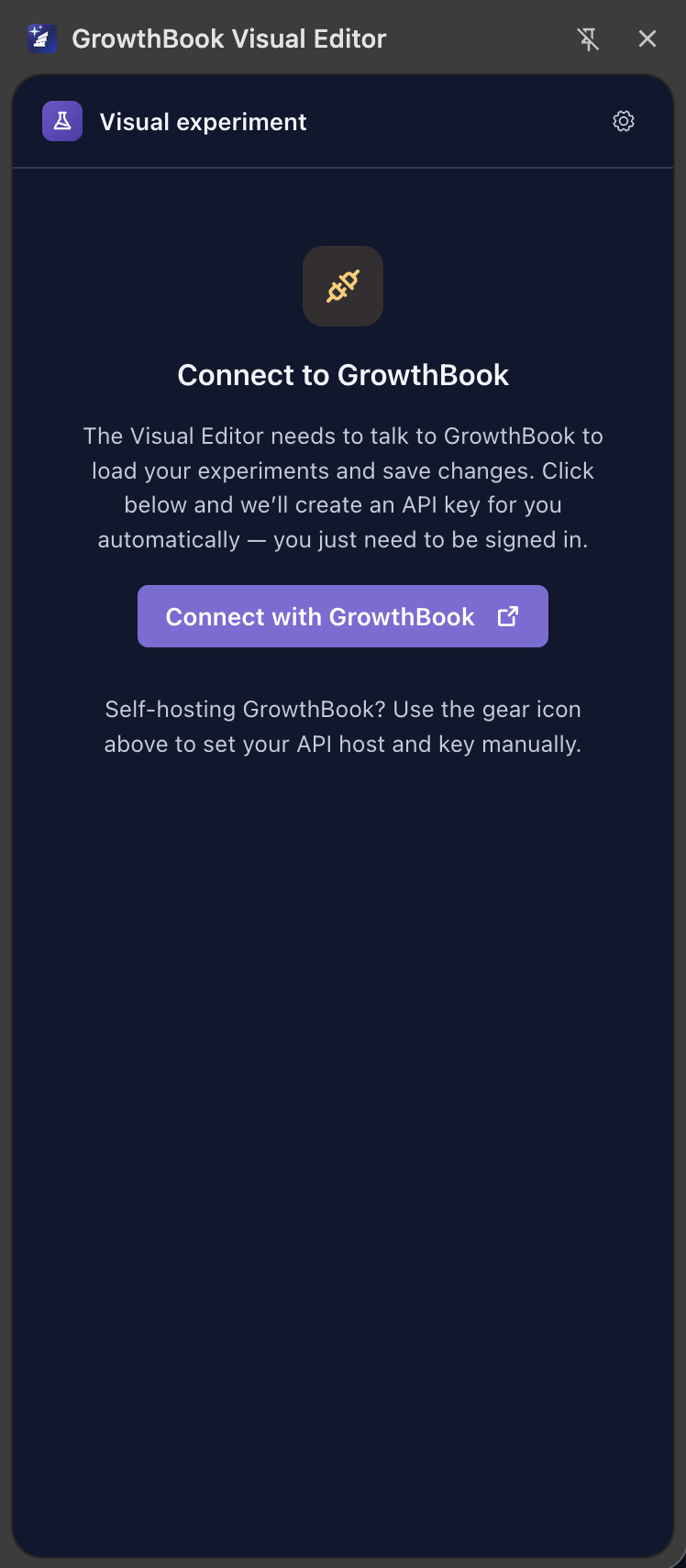
Open the extension menu (top right) and choose **GrowthBook Visual Editor**. The first time you open the side panel, you'll see a **Connect with GrowthBook** button.

## 3. Click "Connect with GrowthBook"

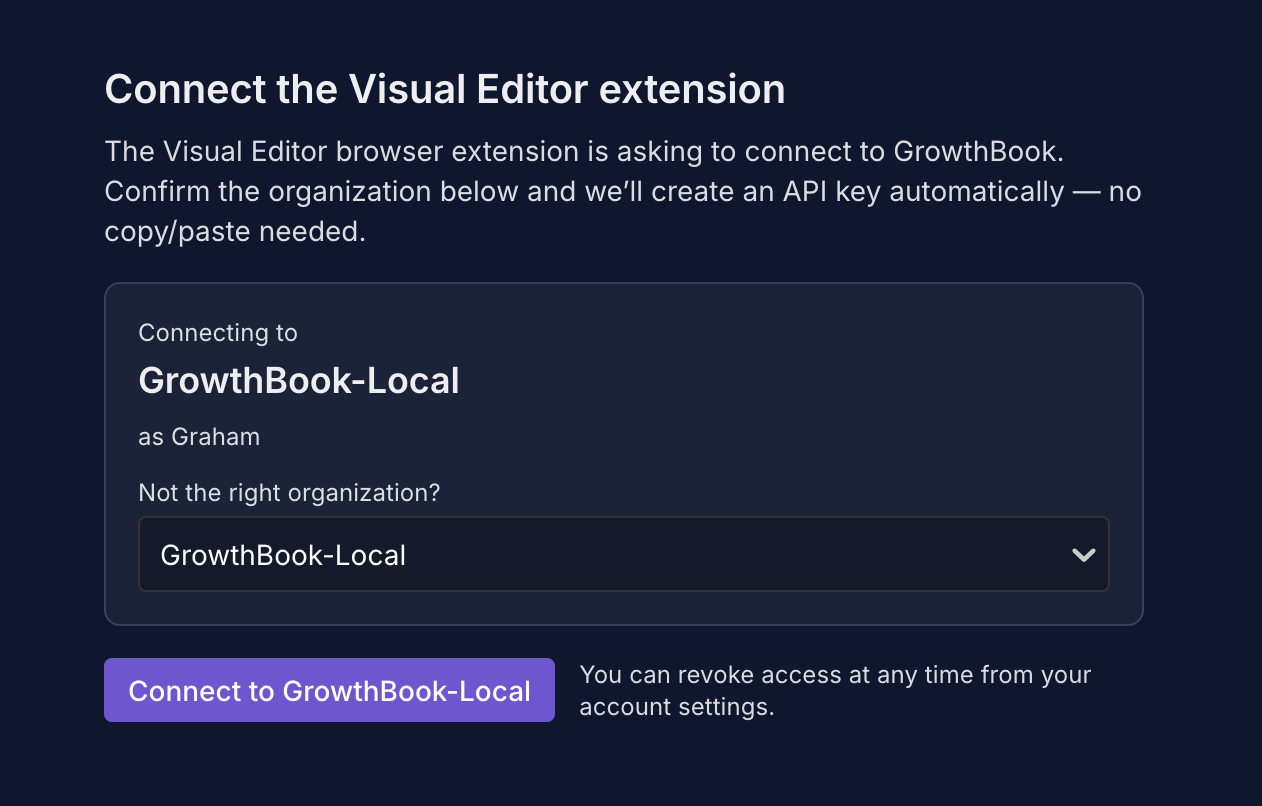
Click **Connect with GrowthBook**. A new tab opens to GrowthBook:
<img src="https://mintcdn.com/growthbook-ea15456d/J3C3juKhu0f7KEr_/static/images/visual-editor/ve-connect-step2.png?fit=max&auto=format&n=J3C3juKhu0f7KEr_&q=85&s=d549527553b5a32502799cdc31351599" alt="Connect with GrowthBook button to be signed in" style={{ float: "right", width: "100%", maxWidth: "320px", marginLeft: "24px", marginBottom: "16px" }} width="1262" height="806" data-path="static/images/visual-editor/ve-connect-step2.png" />

1. **Already signed in, one org** — a Visual Editor access key is generated and passed back to the extension automatically. The tab closes; the side panel shows you're connected.
2. **Not signed in** — log in first, then the flow continues as above.
3. **Multiple orgs** — pick which org to connect to from a dropdown, then the key is generated.

No copying tokens or pasting strings.

### Where the key is stored

The access key is stored in the extension's local storage on your machine. It's not synced across browsers, and it's only sent in the `Authorization` header of requests to the GrowthBook API host the extension is configured for.

### Self-hosted GrowthBook

<Tip>
  **Self-hosted GrowthBook Visual Editor support is coming soon.**
</Tip>

The one-click flow works on GrowthBook Cloud and self-hosted instances the extension has synced with before. On a fresh install pointing at self-hosted:

1. Open the gear menu → **API host** and set your host (e.g. `https://api.growthbook.io` or `https://localhost:3100`).
2. Paste a [personal access token](https://app.growthbook.io/account/personal-access-tokens) (or the equivalent on your instance).
3. Click **Connect with GrowthBook**.

Still failing? See [Troubleshooting → Extension can't connect](/app/visual/troubleshooting#extension-cant-connect-to-my-self-hosted-growthbook).

## 4. The gear menu

Once connected, there's a gear icon in the side panel header. Open it for:

* **Status** — shows whether the extension is connected and whether the editor is targeting the active tab's domain.
* **Language** — change the side panel's language. Independent of your GrowthBook web UI language.
* **Dark mode** — toggles the side panel's UI theme. Independent of your GrowthBook web UI theme.
* **Change Connection** — change which GrowthBook host you're talking to (e.g., switch from production to staging, or set a self-hosted host) or change the personal access token.
* **Disconnect** — clear the stored key and return to the disconnected state. Use this when handing off the browser to someone else.

## Next steps

* **[AI mode](/app/visual/ai-mode)** — write your first variation.
* **[Running on your site](/app/visual/running-on-your-site)** — install the SDK so variations render in production.
