> ## Documentation Index
> Fetch the complete documentation index at: https://docs2.growthbook.io/llms.txt
> Use this file to discover all available pages before exploring further.

# AI Mode — Generate A/B Test Variations With AI

> Use natural language to generate A/B test variations with GrowthBook's AI-powered visual editor. Describe a change, preview the proposed edits, and accept or edit them — no CSS selectors required.

export const CommercialFeature = ({feature, description}) => {
  const commercialFeatures = {
    "adv-presentations": {
      plan: "enterprise",
      displayName: "Adv Presentations"
    },
    "advanced-permissions": {
      plan: "pro",
      displayName: "Advanced Permissions"
    },
    "ai-byok": {
      plan: "enterprise",
      displayName: "Ai Byok"
    },
    "ai-suggestions": {
      plan: "enterprise",
      displayName: "AI Suggestions"
    },
    archetypes: {
      plan: "pro",
      displayName: "Archetypes"
    },
    "audit-logging": {
      plan: "enterprise",
      displayName: "Audit Logging"
    },
    "cloud-proxy": {
      plan: "pro",
      displayName: "Cloud Proxy"
    },
    "code-references": {
      plan: "pro",
      displayName: "Code References"
    },
    "contextual-bandits": {
      plan: "enterprise",
      displayName: "Contextual Bandits"
    },
    "custom-hooks": {
      plan: "enterprise",
      displayName: "Custom Hooks"
    },
    "custom-launch-checklist": {
      plan: "enterprise",
      displayName: "Custom Launch Checklist"
    },
    "custom-markdown": {
      plan: "enterprise",
      displayName: "Custom Markdown"
    },
    "custom-metadata": {
      plan: "enterprise",
      displayName: "Custom Metadata"
    },
    "custom-roles": {
      plan: "enterprise",
      displayName: "Custom Roles"
    },
    dashboards: {
      plan: "enterprise",
      displayName: "Dashboards"
    },
    "decision-framework": {
      plan: "pro",
      displayName: "Decision Framework"
    },
    "encrypt-features-endpoint": {
      plan: "pro",
      displayName: "Encrypt Features Endpoint"
    },
    "environment-inheritance": {
      plan: "enterprise",
      displayName: "Environment Inheritance"
    },
    "events-forwarder": {
      plan: "pro",
      displayName: "Events Forwarder"
    },
    "experiment-impact": {
      plan: "enterprise",
      displayName: "Experiment Impact"
    },
    "feature-configs": {
      plan: "enterprise",
      displayName: "Feature Configs"
    },
    "funnel-metrics": {
      plan: "pro",
      displayName: "Funnel Metrics"
    },
    "hash-secure-attributes": {
      plan: "pro",
      displayName: "Hash Secure Attributes"
    },
    "historical-power": {
      plan: "pro",
      displayName: "Historical Power"
    },
    holdouts: {
      plan: "enterprise",
      displayName: "Holdouts"
    },
    "incremental-refresh": {
      plan: "enterprise",
      displayName: "Incremental Refresh"
    },
    "json-validation": {
      plan: "enterprise",
      displayName: "JSON Validation"
    },
    "large-saved-groups": {
      plan: "enterprise",
      displayName: "Large Saved Groups"
    },
    learnings: {
      plan: "enterprise",
      displayName: "Learnings"
    },
    livechat: {
      plan: "pro",
      displayName: "Livechat"
    },
    "manage-official-resources": {
      plan: "enterprise",
      displayName: "Manage Official Resources"
    },
    "metric-correlations": {
      plan: "enterprise",
      displayName: "Metric Correlations"
    },
    "metric-effects": {
      plan: "enterprise",
      displayName: "Metric Effects"
    },
    "metric-groups": {
      plan: "enterprise",
      displayName: "Metric Groups"
    },
    "metric-populations": {
      plan: "pro",
      displayName: "Metric Populations"
    },
    "metric-slices": {
      plan: "enterprise",
      displayName: "Metric Slices"
    },
    "multi-armed-bandits": {
      plan: "pro",
      displayName: "Multi Armed Bandits"
    },
    "multi-metric-queries": {
      plan: "enterprise",
      displayName: "Multi Metric Queries"
    },
    "multi-org": {
      plan: "enterprise",
      displayName: "Multi Org"
    },
    "multiple-sdk-webhooks": {
      plan: "pro",
      displayName: "Multiple Sdk Webhooks"
    },
    "no-access-role": {
      plan: "enterprise",
      displayName: "No Access Role"
    },
    "override-metrics": {
      plan: "pro",
      displayName: "Override Metrics"
    },
    "pipeline-mode": {
      plan: "enterprise",
      displayName: "Pipeline Mode"
    },
    "post-stratification": {
      plan: "enterprise",
      displayName: "Post Stratification"
    },
    "precomputed-dimensions": {
      plan: "pro",
      displayName: "Precomputed Dimensions"
    },
    "prerequisite-targeting": {
      plan: "enterprise",
      displayName: "Prerequisite Targeting"
    },
    prerequisites: {
      plan: "pro",
      displayName: "Prerequisites"
    },
    "product-analytics-dashboards": {
      plan: "pro",
      displayName: "Product Analytics Dashboards"
    },
    "project-admin-role": {
      plan: "enterprise",
      displayName: "Project Admin Role"
    },
    "quantile-metrics": {
      plan: "pro",
      displayName: "Quantile Metrics"
    },
    "ramp-schedules": {
      plan: "pro",
      displayName: "Ramp Schedules"
    },
    redirects: {
      plan: "pro",
      displayName: "Redirects"
    },
    "regression-adjustment": {
      plan: "pro",
      displayName: "CUPED"
    },
    releases: {
      plan: "enterprise",
      displayName: "Releases"
    },
    "remote-evaluation": {
      plan: "pro",
      displayName: "Remote Evaluation"
    },
    "require-approvals": {
      plan: "enterprise",
      displayName: "Require Approvals"
    },
    "require-project-for-features-setting": {
      plan: "enterprise",
      displayName: "Require Project For Features Setting"
    },
    "require-project-for-sdk-connections-setting": {
      plan: "enterprise",
      displayName: "Require Project For Sdk Connections Setting"
    },
    "retention-metrics": {
      plan: "pro",
      displayName: "Retention Metrics"
    },
    "safe-rollout": {
      plan: "pro",
      displayName: "Safe Rollout"
    },
    saveSqlExplorerQueries: {
      plan: "pro",
      displayName: "Save SQL Explorer Queries"
    },
    "schedule-feature-flag": {
      plan: "pro",
      displayName: "Schedule Feature Flag"
    },
    "scheduled-revisions": {
      plan: "enterprise",
      displayName: "Scheduled Revisions"
    },
    scim: {
      plan: "enterprise",
      displayName: "SCIM"
    },
    "sequential-testing": {
      plan: "pro",
      displayName: "Sequential Testing"
    },
    "share-product-analytics-dashboards": {
      plan: "enterprise",
      displayName: "Share Product Analytics Dashboards"
    },
    simulate: {
      plan: "pro",
      displayName: "Simulate"
    },
    sso: {
      plan: "enterprise",
      displayName: "SSO"
    },
    "sticky-bucketing": {
      plan: "pro",
      displayName: "Sticky Bucketing"
    },
    teams: {
      plan: "enterprise",
      displayName: "Teams"
    },
    templates: {
      plan: "enterprise",
      displayName: "Templates"
    },
    "unlimited-managed-warehouse-usage": {
      plan: "pro",
      displayName: "Unlimited Managed Warehouse Usage"
    },
    "visual-editor": {
      plan: "pro",
      displayName: "Visual Editor"
    }
  };
  const {plan, displayName} = commercialFeatures[feature];
  const isEnterprise = plan === "enterprise";
  const defaultDescription = isEnterprise ? "is available on Enterprise plans." : "is available on Pro and Enterprise plans.";
  const planLabel = isEnterprise ? "Enterprise" : "Pro";
  const containerStyle = isEnterprise ? {
    backgroundColor: "color-mix(in srgb, var(--indigo-a3) 60%, transparent)"
  } : {
    backgroundColor: "color-mix(in srgb, var(--amber-a3) 60%, transparent)"
  };
  const badgeStyle = isEnterprise ? {
    boxShadow: "inset 0 0 0 1px var(--indigo-a8)",
    color: "var(--indigo-a11)"
  } : {
    boxShadow: "inset 0 0 0 1px var(--amber-a8)",
    color: "var(--amber-a11)"
  };
  return <div className="flex items-start gap-2 mb-4 p-3 text-sm leading-[1.4] rounded-lg" style={containerStyle} role="note">
      <span className="inline-flex items-center justify-center px-1.5 h-5 text-xs font-medium rounded-full shrink-0 leading-none" style={badgeStyle}>
        {planLabel}
      </span>
      <div className="flex-1 leading-[1.3]">
        <strong className="font-semibold">{displayName}</strong>{" "}
        {defaultDescription} {description}
      </div>
    </div>;
};

<CommercialFeature feature="ai-suggestions" />

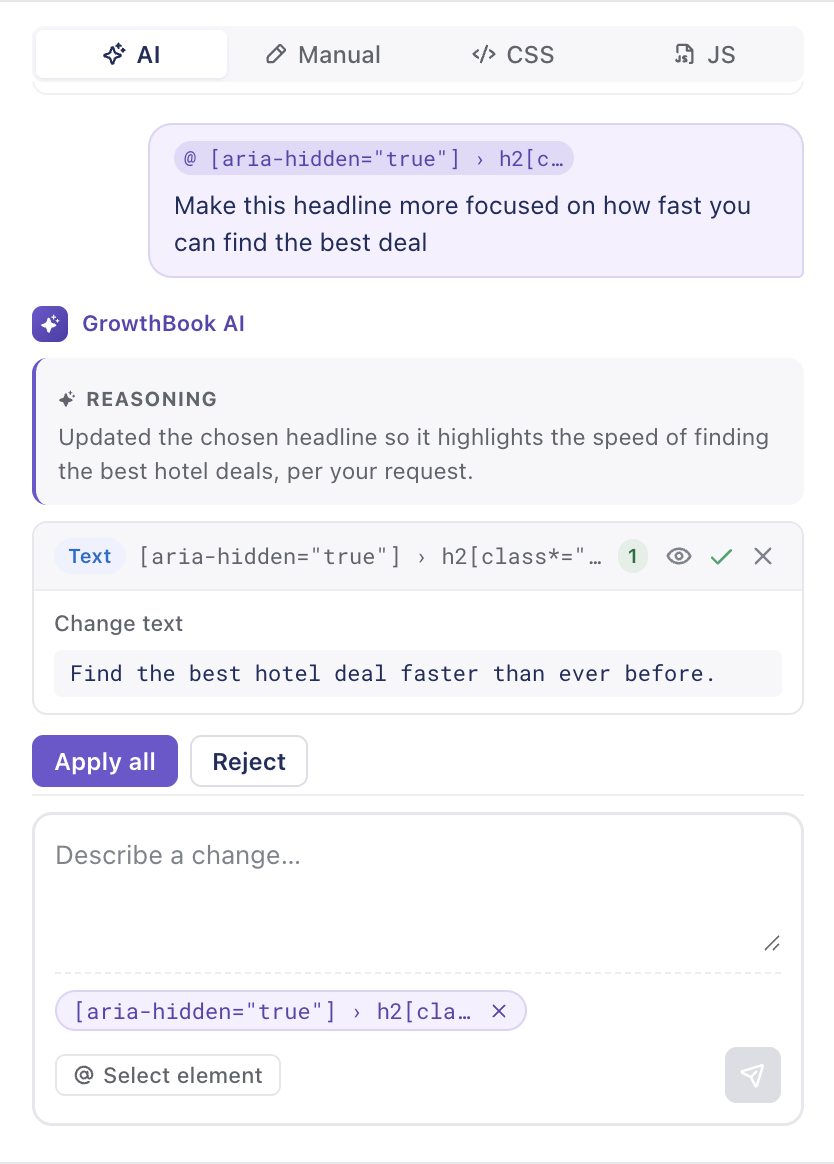
AI mode is the fastest way to draft an A/B test variation in the [Visual Editor](/app/visual). You describe what you want in plain language ("make the hero headline more urgent and the primary button green"), and the AI proposes specific DOM-level changes — element selectors, new content, new styles — that you can preview, accept, edit, or reject one at a time.

<Frame>
  <img src="https://mintcdn.com/growthbook-ea15456d/J3C3juKhu0f7KEr_/static/images/visual-editor/ve-ai-chat.png?fit=max&auto=format&n=J3C3juKhu0f7KEr_&q=85&s=68776b3c785a66ed6e12f84ee972aaf5" alt="The GrowthBook Visual Editor AI Editor" width="300" data-path="static/images/visual-editor/ve-ai-chat.png" />
</Frame>

It's especially good for:

* Multi-property changes ("make this card more premium") without touching each control
* Change text content without needing to find the right content field in the property panel
* Less technical users who don't want to think about CSS selectors

You can mix AI mode and [Manual mode](/app/visual/manual-mode) freely within the same variation — accept the AI's draft, then jump into Manual mode to fine-tune.

## Prerequisites

Before AI mode is usable on your account:

1. **An org admin needs to configure an AI provider.** Go to **Settings → AI** in GrowthBook and add an OpenAI, Google, or xAI API key. See [AI Integrations](/integrations/ai) for the full setup.
2. **Your plan must include AI features.** AI mode is part of the `ai-suggestions` commercial feature. Pro and Enterprise plans include it; Free does not.
3. **You need to be connected** to your GrowthBook account in the [Visual Editor side panel](/app/visual/install-and-connect).

If AI mode is greyed out in the side panel, the most common cause is that no AI provider key is configured yet for the organization.

## Opening AI mode

After you open the side panel and target a URL, you'll see two top-level tabs: **AI** and **Manual**. AI is selected by default.

The AI panel has three parts:

* A **prompt box** at the top of the panel where you describe what you want.
* A **chat log** that fills in as you make requests — each turn shows what you asked, followed by an assistant card with the proposed changes.
* The **Changes panel** at the bottom of the side panel, which lists every change accepted so far for the current variation.

When the chat log is empty, the prompt area also surfaces a few **suggested prompts** and **quick actions** to help you get started.

## Writing good prompts

The AI does its best work when prompts are concrete about *what* and *where*, but loose about *how*.

**Good:**

* `Change the hero headline to something more urgent and benefit-led`
* `Make the primary CTA button bright green and a little larger`
* `Hide the secondary nav links on the right`
* `Swap the hero image for one showing a person using a laptop in a coffee shop`
* `Give me three alternative headlines for the product card`

**Less good:**

* `Make the page better` — too vague; the AI will guess and the result will be unfocused.

A few tips that consistently improve results:

* **Name the element by what it is, not how it's coded.** "The hero headline" works; ".hero h1" rarely needs to be in the prompt.
* **Describe intent.** "More urgent," "more premium," "more playful" gives the AI a direction.
* **Ask for variants.** "Give me three options" or "draft a few alternatives" produces multiple suggestions in one turn.
* **Chain prompts.** A second prompt can refine the first ("the green is too neon — make it more muted").

When naming an element in text isn't enough, use **Select element** to pin it — see [Adding element context](#adding-element-context-to-a-prompt).

<Tip>
  **"Set the title" targets the H1**

  If you say something like "set the title to X," the AI targets the visible `<h1>` (or the most prominent heading) — not `document.title`. To change the browser tab title, say so explicitly: "change the page's browser tab title to X."
</Tip>

## Adding element context to a prompt

Click **Select element** (`@`) below the prompt box, then click an element on the page. It appears as a chip above the prompt — you describe *what* to change; the chip tells the AI *where*. Pin multiple elements for batch edits; remove a chip with **×**.

<video autoPlay loop muted playsInline aria-label="Adding element context to a prompt" style={{width: '100%', height: "auto", aspectRatio: 1420/1080, border: "1px solid var(--color-border)"}} width={1420} height={1080}>
  <source src="https://mintlify.s3.us-west-1.amazonaws.com/growthbook-ea15456d/videos/ve-select-el-ai-mode.mp4" type="video/mp4" />

  Adding element context to a prompt.
</video>

Use this when the page has repeated or ambiguous targets (two headlines, identical cards, several "Submit" buttons). **Example:** pin the hero headline, then prompt *"Make it more urgent and benefit-led"* instead of *"make the headline more urgent"*.

For follow-up prompts on the same element without re-pinning, see [Multi-turn conversations](#multi-turn-conversations).

## Reviewing proposed changes

When the AI returns, it adds an assistant card to the chat log. The card contains:

* A short summary of what was changed and why.
* One or more **diff cards** — each represents a single DOM change (a text edit, a style change, an attribute change, etc.). The diff card shows the element it targets and what's being set.

Each proposed change is **previewed live on the page** as soon as it lands — you don't have to accept first to see the result.

For each change you can:

* **Accept** — the change moves into the Changes panel as part of the current variation.
* **Reject** — the preview is reverted and the change is dropped.
* **Edit** — open the change in Manual mode to tweak values before accepting.

Reject doesn't end the conversation. You can ask for a different version ("more subtle — keep the original color, just bump the size") and the AI will produce a new proposal.

## Selector grounding

When the AI proposes a change, it picks a CSS selector and validates it against the actual page DOM. If the selector doesn't match a real element, the change is rejected before it ever reaches you.

This matters for two reasons:

* **Reliability** — the AI can't propose changes against elements that don't exist or that match nothing.
* **Stability** — the AI prefers stable selectors (semantic tags, stable classes, `data-*` attributes) over brittle ones (positional `nth-child` chains, random hash-suffix classes). The variation is more likely to keep working as your site evolves.

If a proposal targets the wrong element, say so in the next prompt or pin the correct element and re-ask.

## Multi-turn conversations

The chat log keeps the full thread for the current variation. You can layer changes:

```
You: change the hero headline to something more urgent
AI:  [proposes new headline]
You: also make the headline larger
AI:  [proposes a font-size change on the same element]
You: actually undo the size change and just bold it instead
AI:  [reverts size, proposes font-weight]
```

Each new turn sees the prior turns, so refinements work. If you want a clean slate, start a new variation.

## Image generation

If you ask the AI to swap a hero image, generate product imagery, or anything else that requires a new image, AI mode hands off to the image-generation flow. You'll pick from one or more configured image models, optionally use the existing image as a visual reference, and accept the result into the changeset the same way as any other change.

See [Images](/app/visual/images) for a full walk-through, including the list of supported image models and which ones accept reference images.

## What gets sent to the AI

For each prompt, the back-end sends to the configured AI provider:

* Your prompt text
* A simplified snapshot of the relevant DOM (typically the elements visible in the viewport, plus any selected element)
* The URL of the page being edited
* Optionally, a small system prompt that biases the model toward stable, accessible changes

Your GrowthBook experiment metadata, metric values, user data, and SDK payloads are **not** sent. The connection uses your org's configured AI provider key — see [AI Integrations](/integrations/ai) for the full data-sent inventory.

## Limits and caveats

* **Single-page scope.** AI mode reasons about the page currently loaded in the Visual Editor's target URL. It can't propose changes against pages it hasn't seen.
* **Selectors can still drift.** Even with selector grounding, large site rewrites or design-system changes can break previously-stable selectors. Run a sanity check on long-running visual experiments after major releases.
* **Quality varies by model.** The org admin picks the underlying model in AI Settings — bigger/newer models generally produce better proposals at higher cost. The same prompt will produce different output across `gpt-4o-mini`, `gemini-2.5-pro`, and `grok-2`.
* **AI mode is not a substitute for review.** Always preview the variation on a real page (and ideally a real preview link) before publishing.

## Next steps

* **[Manual mode](/app/visual/manual-mode)** — fine-tune accepted changes.
* **[Preview and QA](/app/visual/preview-and-qa)** — preview before publishing.
